
XAMPP tutorial: access localhost from another device
Configure XAMPP on Windows to allow other devices on the local network to access the Apache HTTP Server localhost by editing httpd-xampp.conf and the Windows Firewall.
- What You Will Need
- Step 1: Edit the XAMPP Apache Access Configuration
- Step 2: Create a Windows Firewall Rule for Port 80
- Step 3: Configure the Firewall Rule for Apache HTTP Server
- Step 4: Find the Local IP Address of the XAMPP Machine
- Step 5: Verify Access from Another Device
- What You Learned
- What to Do Next
This tutorial walks through configuring XAMPP on Windows to make the local Apache HTTP Server accessible from other devices on the same network. By the end, another computer or phone on the local network can open the XAMPP web server by IP address.
What You Will Need
- XAMPP installed on Windows with Apache HTTP Server running. See How to install XAMPP on Windows.
- Administrator privileges on the Windows machine.
- A second device (computer, phone, or tablet) connected to the same local network.
Step 1: Edit the XAMPP Apache Access Configuration
XAMPP restricts Apache HTTP Server access to
localhost by default. The access control rules in
httpd-xampp.conf block requests from external IP addresses. This restriction exists because XAMPP is designed for local development, not production use.
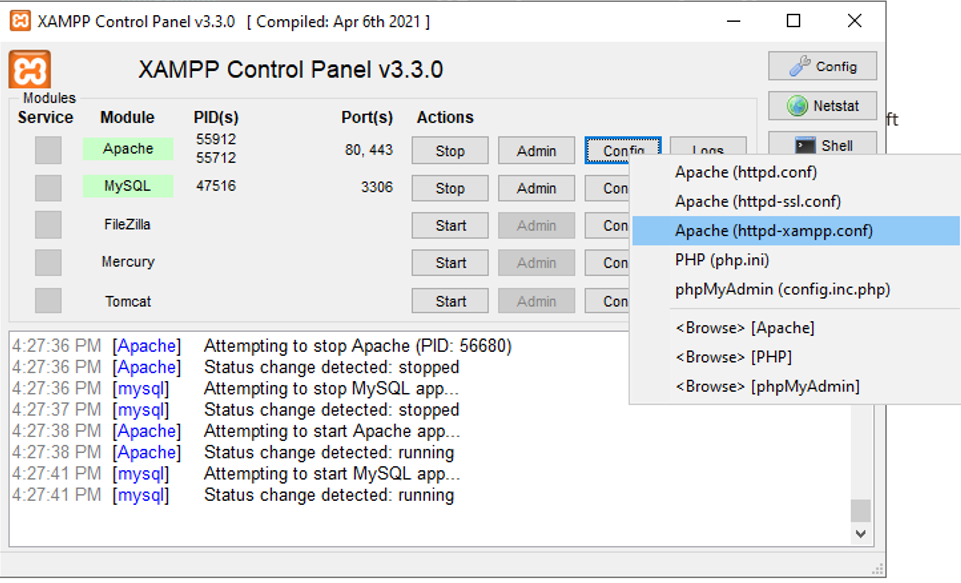
Open the XAMPP Control Panel. Click Configin the Apache row and select httpd-xampp.conf. The file opens in the default text editor.
Search for any lines containing
Require local,
Require localhost, or
Require all denied. Replace each occurrence with
Require all granted. This directive tells Apache HTTP Server to accept requests from all IP addresses, not only from the local machine.
Save the file and close the text editor.
Step 2: Create a Windows Firewall Rule for Port 80
Windows Firewall blocks incoming connections on port 80 by default. Apache HTTP Server listens on port 80 for HTTP traffic. Without a firewall exception, other devices on the network cannot reach the XAMPP web server even after the Apache access rules are updated.
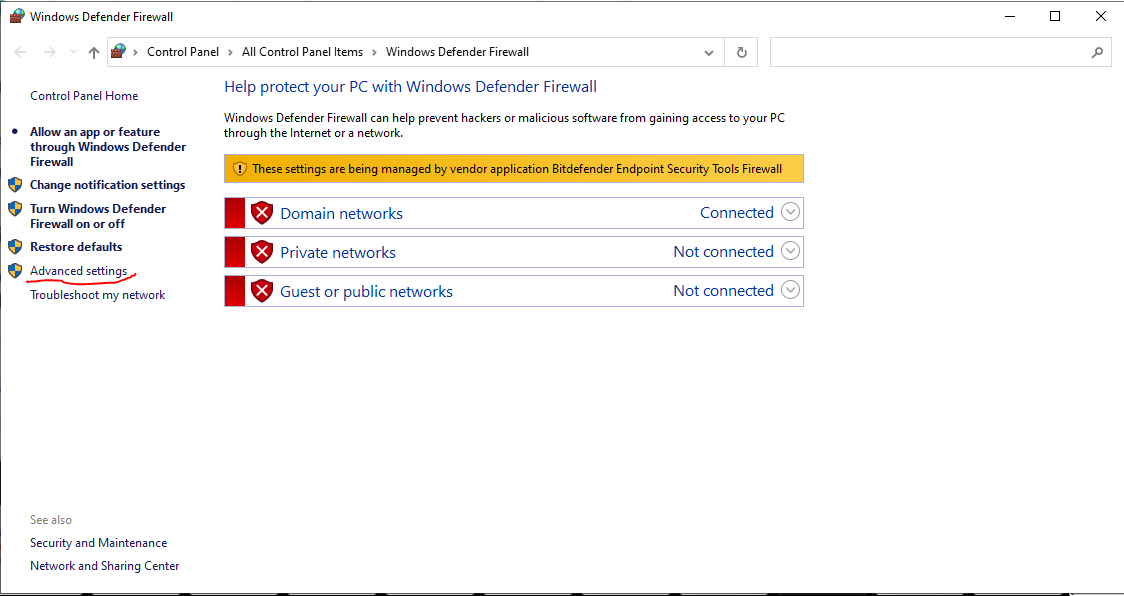
Open Windows Firewall with Advanced Security. Navigate to Control Panel > Windows Defender Firewall > Advanced Settings.
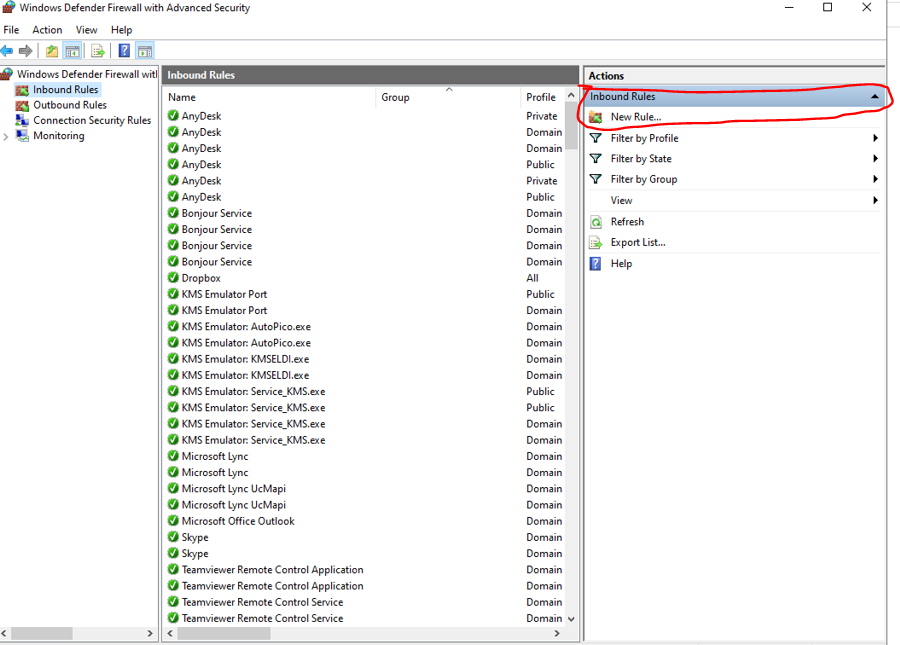
Click Inbound Rulesin the left pane. Click New Rulein the right pane.
Step 3: Configure the Firewall Rule for Apache HTTP Server
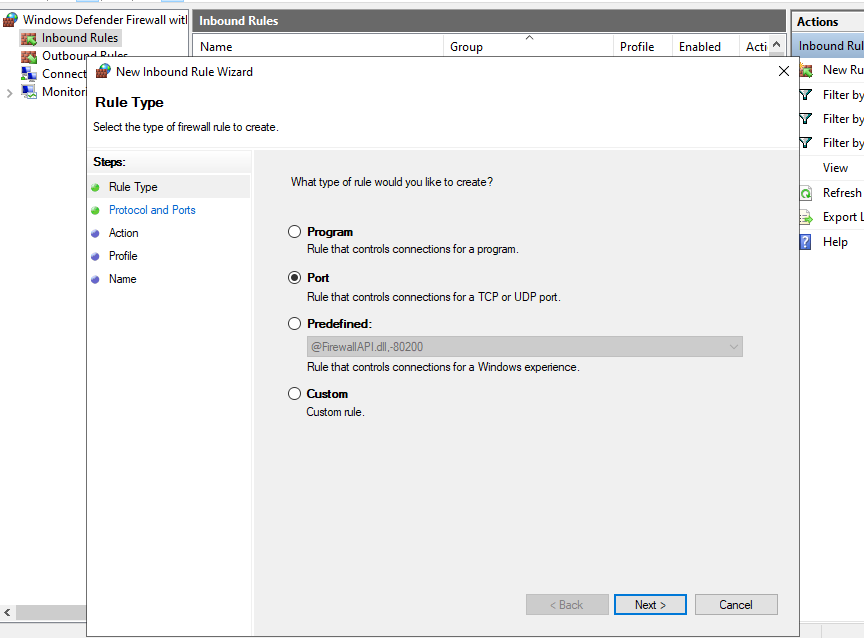
Select Portas the rule type. This option creates a rule based on the TCP or UDP port number.
Select
TCPas the protocol. Enter
80 in the "Specific local ports" field. Port 80 is the default HTTP port that Apache HTTP Server uses in XAMPP.
Select Allow the connectionon the next screen. This setting permits incoming HTTP traffic through the Windows Firewall.
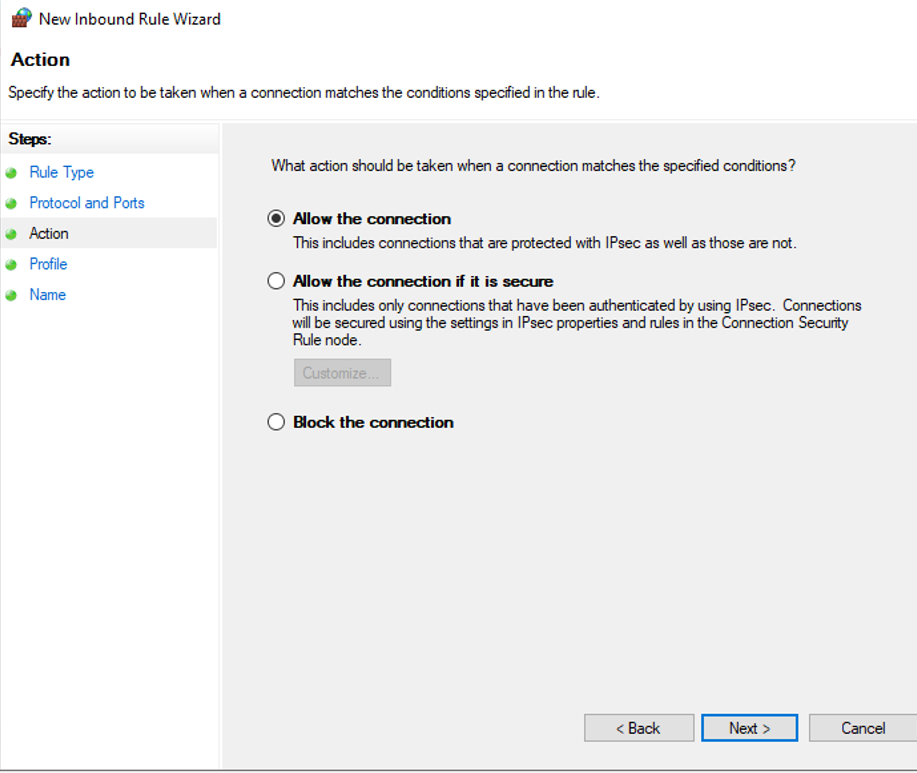
Apply the rule to all profiles (Domain, Private, and Public). Enter a descriptive name for the rule, such as "XAMPP Apache HTTP".
Step 4: Find the Local IP Address of the XAMPP Machine
Other devices connect to the XAMPP server using the host machine's local IP address, not
localhost. The
localhost hostname resolves only on the machine where XAMPP is installed.
Open Command Prompt as Administrator. Run the
ipconfig command:
ipconfig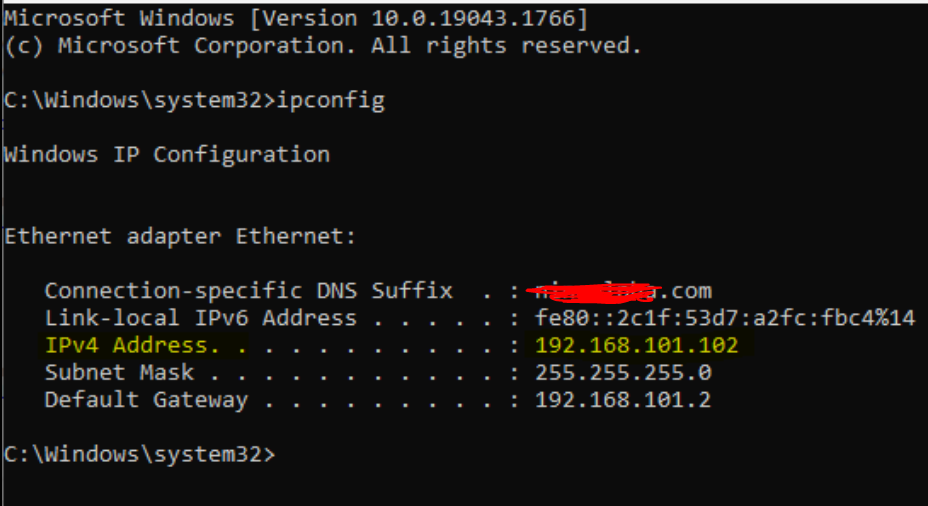
Note the
IPv4 Addressvalue under the active network adapter. The address follows the pattern
192.168.x.x or
10.x.x.x on most local networks.
Step 5: Verify Access from Another Device
XAMPP Apache HTTP Server now accepts connections from other devices on the local network. The Windows Firewall rule allows traffic on port 80. The
httpd-xampp.conf file grants access to all IP addresses.
Restart Apache HTTP Server from the XAMPP Control Panel. On the second device, open a web browser. Enter the IPv4 address of the XAMPP machine (for example,
http://192.168.1.102).
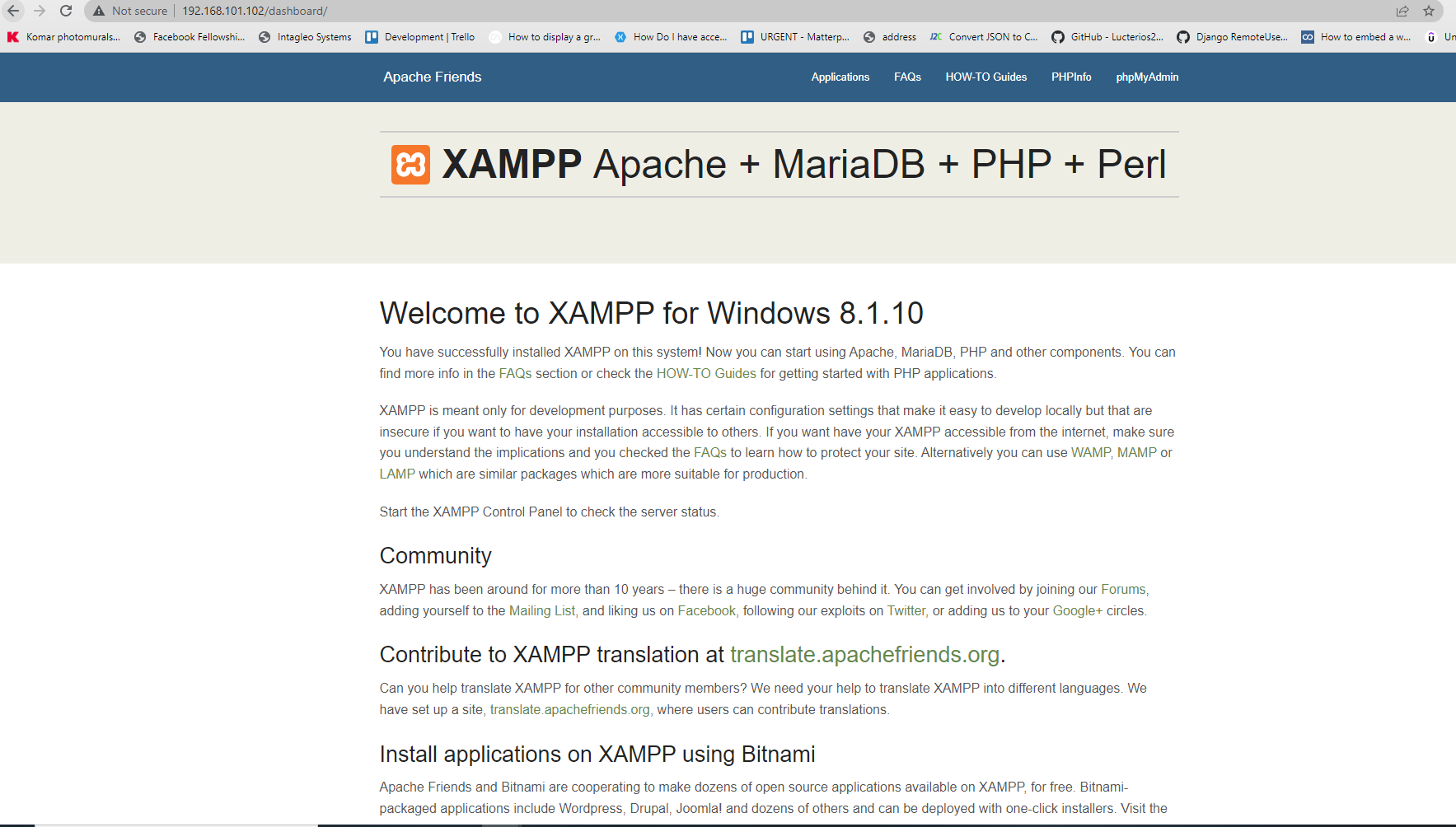
The XAMPP dashboard page loads in the browser on the second device.
What You Learned
XAMPP restricts Apache HTTP Server to
localhost by default through the
httpd-xampp.conf access control directives. Changing
Require local to
Require all granted opens Apache HTTP Server to network connections. Windows Firewall requires an inbound rule for port 80 to allow HTTP traffic from other devices. The
ipconfig command reveals the local IPv4 address that other devices use to reach the XAMPP server.
What to Do Next
To set up custom domain names for local projects, see How to set up Apache virtual hosts in XAMPP.
To install WordPress on the accessible XAMPP server, see How to install WordPress with XAMPP.