
XAMPP: MySQL shutdown unexpectedly
Fix the XAMPP error 'MySQL shutdown unexpectedly' caused by port 3306 conflicts, corrupted MariaDB data files, or insufficient permissions on Windows.
- When XAMPP Produces This Error
- What Causes "MySQL Shutdown Unexpectedly" in XAMPP
- How to Fix "MySQL Shutdown Unexpectedly" in XAMPP
- Fix 1: Run XAMPP as Administrator
- Fix 2: Restore the MariaDB Data Directory from Backup
- Fix 3: Change the MariaDB Port in XAMPP
- How to Verify the Fix
- Edge Cases and Variations
- Related XAMPP Errors
XAMPP displays the "MySQL shutdown unexpectedly" error when MariaDB (MySQL) fails to start due to port conflicts, corrupted data files, or insufficient Windows permissions.
When XAMPP Produces This Error
XAMPP shows "MySQL shutdown unexpectedly" in the XAMPP Control Panel log when MariaDB fails to initialize. The error appears after clicking the Startbutton next to MySQL. The XAMPP Control Panel displays a message similar to:
Error: MySQL shutdown unexpectedly.
This may be due to a blocked port, missing dependencies,
improper privileges, a crash, or a shutdown by another method.
XAMPP produces this MariaDB shutdown error after improper system shutdowns, Windows updates, or when another MySQL/MariaDB instance occupies port 3306.
What Causes "MySQL Shutdown Unexpectedly" in XAMPP
XAMPP MariaDB fails to start for three primary reasons: port conflicts, corrupted data files, and insufficient file permissions.
Port 3306 conflict.XAMPP MariaDB listens on port 3306 by default. If another MySQL or MariaDB installation — such as a standalone MySQL Server or a Docker container — already occupies port 3306, the XAMPP MariaDB process cannot bind to the port and shuts down.
Corrupted MariaDB data files.The
ibdata1 file stores the InnoDB data dictionary. The
ib_logfile0 and
ib_logfile1 files store InnoDB transaction logs. An improper system shutdown or forced XAMPP close can corrupt these files. MariaDB refuses to start when InnoDB detects inconsistent data files.
Insufficient file permissions on Windows.XAMPP requires write access to the
C:\xampp\mysql\data\ directory. Running XAMPP without Administrator privileges on Windows prevents MariaDB from writing to its data files.
How to Fix "MySQL Shutdown Unexpectedly" in XAMPP
Fix 1: Run XAMPP as Administrator
Close the XAMPP Control Panel. Navigate to the XAMPP installation directory (default:
C:\xampp).Right-click the
xampp-control.exefile. Select Run as administrator.
Click Startnext to MySQL in the XAMPP Control Panel. MariaDB starts with full write access to the data directory.
On macOS, right-click the XAMPP application folder and select Get Info. Navigate to Sharing & Permissions. Click the padlock icon and enter the administrator password. Set the permission for all users to Read & Write.
Fix 2: Restore the MariaDB Data Directory from Backup
XAMPP includes a backup copy of the MariaDB data files. Restoring from this backup resolves corruption issues with the InnoDB data dictionary and transaction logs.
Stop MariaDB from the XAMPP Control Panel. Click Stopnext to MySQL.
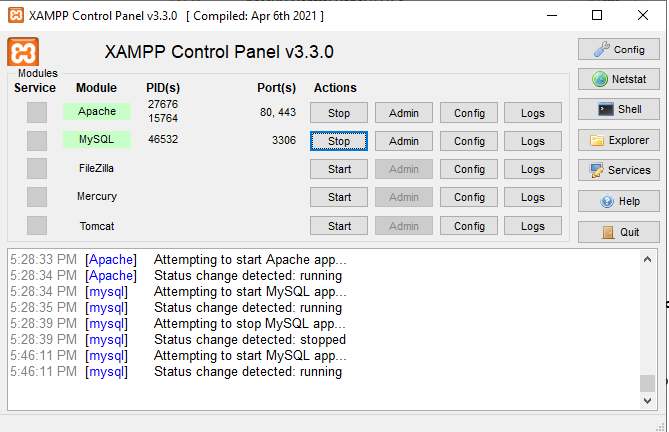
Navigate to the XAMPP MariaDB directory at
C:\xampp\mysql\. The directory contains adatafolder and abackupfolder.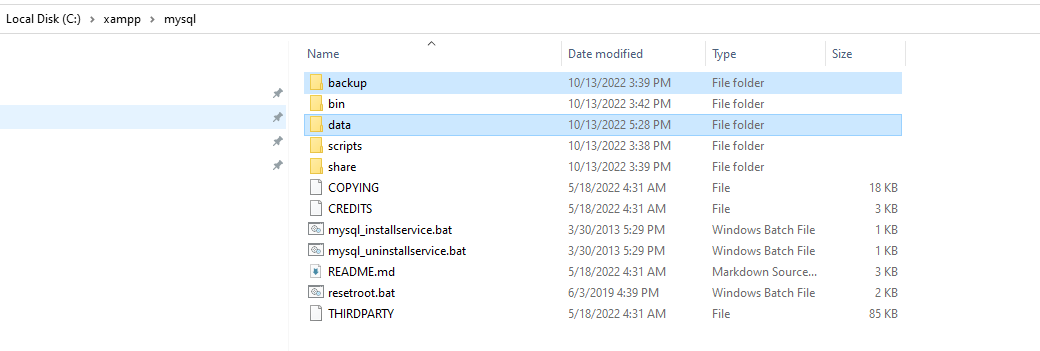
Rename the
datafolder todata_old. This preserves the corrupted files as a fallback.Copy the
backupfolder. Rename the copy todata.Preserve existing databases from the corrupted data directory. Copy individual database folders (such as
wordpress_dbormyapp) fromdata_oldinto the newdatafolder. Do not copy themysql,performance_schema, orphpmyadminsystem folders — the backup already contains working copies.Copy the
ibdata1file fromdata_oldinto the newdatafolder. Theibdata1file contains the InnoDB tablespace data that custom databases depend on.Start MariaDB from the XAMPP Control Panel. Click Startnext to MySQL.
Fix 3: Change the MariaDB Port in XAMPP
Open the XAMPP Control Panel. Click Configin the MySQL row and select my.ini.
Search for
port=3306in themy.inifile. Change the value toport=3307.Save and close
my.ini. Restart MariaDB from the XAMPP Control Panel.Update any application configurations (such as
wp-config.phpfor WordPress) to connect to the new port. ChangeDB_HOSTfromlocalhosttolocalhost:3307.
How to Verify the Fix
Open the XAMPP Control Panel. The MySQL row displays a green status indicator when MariaDB is running. Click the Adminbutton next to MySQL to open phpMyAdmin in a web browser. phpMyAdmin loads and displays the database list, confirming that MariaDB accepts connections.
Edge Cases and Variations
MariaDB starts but phpMyAdmin shows "Access denied."The MariaDB root password in the restored backup may differ from the current phpMyAdmin configuration. Open
C:\xampp\phpMyAdmin\config.inc.php and update the
$cfg['Servers'][$i]['password'] value.
MariaDB error log shows "InnoDB: Unable to lock ./ibdata1."Another MariaDB or MySQL process is running and holds a lock on the data files. Check for running
mysqld.exe processes in Windows Task Manager and stop them before starting XAMPP MariaDB.
MariaDB fails after restoring the backup folder.The backup folder may not contain the latest InnoDB log files. Delete
ib_logfile0 and
ib_logfile1 from the
data folder. MariaDB regenerates these files on the next startup.
XAMPP MariaDB shutdown after a forced power-off.An unexpected power loss corrupts the InnoDB transaction log. Start MariaDB — InnoDB performs automatic crash recovery. If automatic recovery fails, restore from the backup folder (Fix 2) or delete the InnoDB log files to force regeneration.
Related XAMPP Errors
XAMPP: Apache shutdown unexpectedly-- caused by port 80 or port 443 conflicts with Skype, IIS, or other Windows services.