
XAMPP: Apache shutdown unexpectedly
Fix the XAMPP error 'Apache shutdown unexpectedly' caused by port 80 or port 443 conflicts with Skype, IIS, or other applications on Windows.
- When XAMPP Produces This Error
- What Causes "Apache Shutdown Unexpectedly" in XAMPP
- How to Fix "Apache Shutdown Unexpectedly" in XAMPP
- Fix 1: Identify and Stop the Application Using Port 80
- Fix 2: Change the Apache Ports in XAMPP Configuration
- How to Verify the Fix
- Edge Cases and Variations
- Related XAMPP Errors
XAMPP displays the "Apache shutdown unexpectedly" error when Apache HTTP Server cannot bind to its configured ports because another application is already using port 80 or port 443.
When XAMPP Produces This Error
XAMPP shows "Apache shutdown unexpectedly" in the XAMPP Control Panel log when Apache HTTP Server fails to start. The error appears immediately after clicking the Startbutton next to Apache. The XAMPP Control Panel displays a message similar to:
Error: Apache shutdown unexpectedly.
This may be due to a blocked port, missing dependencies,
improper privileges, a crash, or a shutdown by another method.
XAMPP produces this Apache shutdown error most commonly on fresh Windows installations where another service occupies port 80. The error also occurs after installing new software that claims port 80 or port 443.
What Causes "Apache Shutdown Unexpectedly" in XAMPP
XAMPP Apache HTTP Server listens on port 80 (HTTP) and port 443 (HTTPS) by default. When another application already binds to either port, the operating system prevents Apache from starting. The XAMPP Control Panel reports this as an unexpected shutdown.
Common applications that cause the XAMPP Apache port conflict include Skype (which uses port 80 and port 443 for alternative connections), Internet Information Services (IIS, Microsoft's built-in web server on Windows), the World Wide Web Publishing Service (W3SVC), and VMware or other virtualization software that runs embedded web servers.
Corrupted Apache HTTP Server configuration files (
httpd.conf or
httpd-vhosts.conf) also cause the XAMPP Apache shutdown error. Syntax errors in virtual host blocks or missing module files prevent Apache from starting even when ports are available.
How to Fix "Apache Shutdown Unexpectedly" in XAMPP
Fix 1: Identify and Stop the Application Using Port 80
Open the XAMPP Control Panel and click the Netstatbutton. The XAMPP Netstat tool lists all applications and their active port numbers.
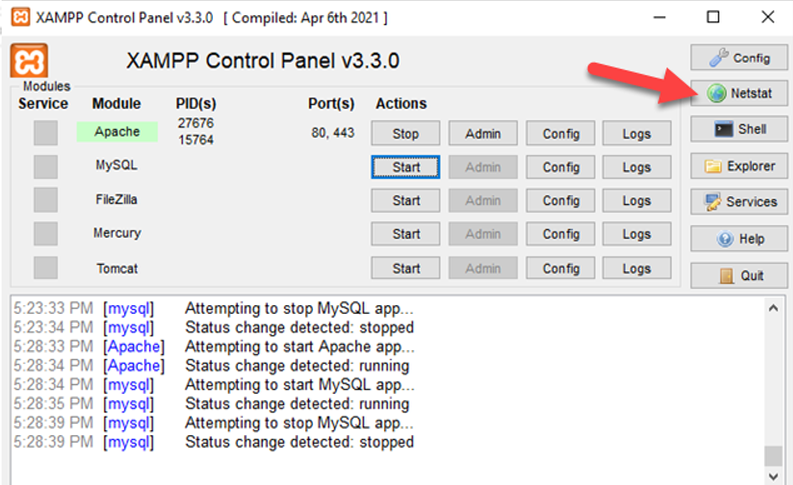
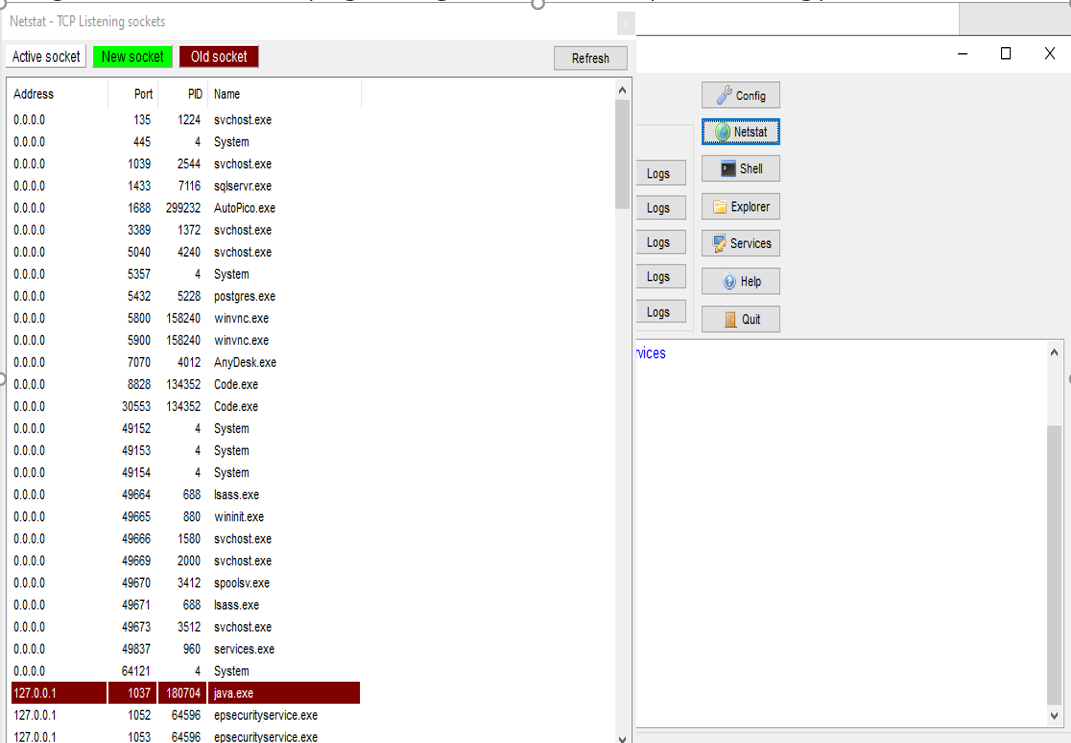
Alternatively, open Command Prompt as Administrator and run the following command to find the process using port 80:
netstat -ano | findstr :80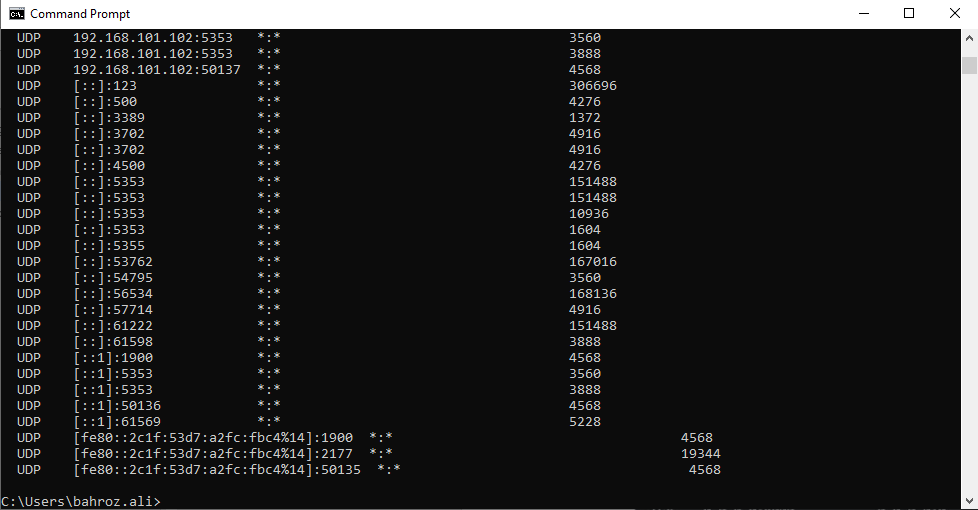
The output shows the PID (Process ID) of the application occupying port 80.
Open Windows Task Manager (press
Ctrl+Shift+Esc). Locate the process with the matching PID. Right-click the process and select End taskto stop it.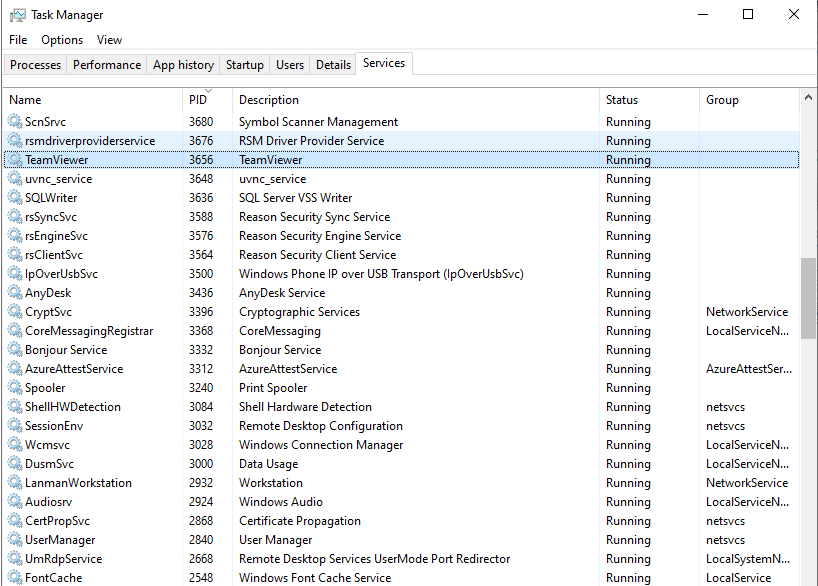
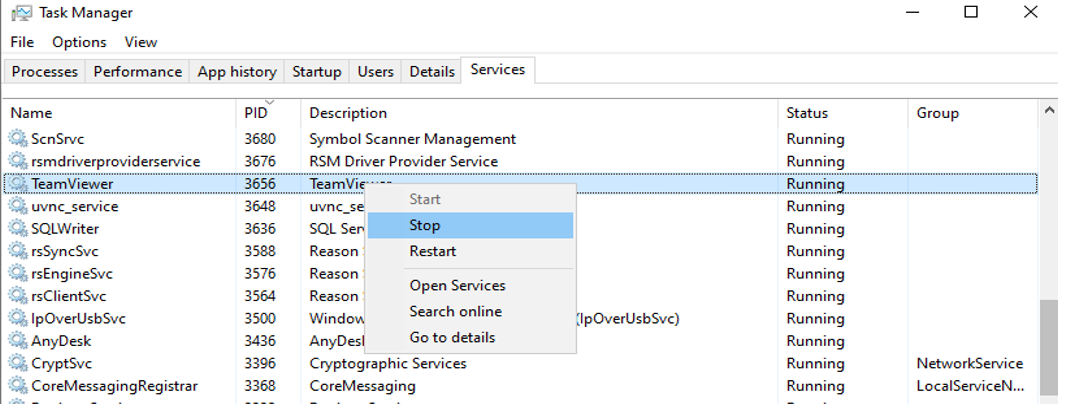
Restart Apache HTTP Server from the XAMPP Control Panel. Click Startnext to Apache.
Fix 2: Change the Apache Ports in XAMPP Configuration
If the conflicting application cannot be stopped — or to prevent future XAMPP Apache port conflicts — change Apache HTTP Server to use alternative ports.
Open the XAMPP Control Panel. Click Configin the Apache row and select httpd.conf.
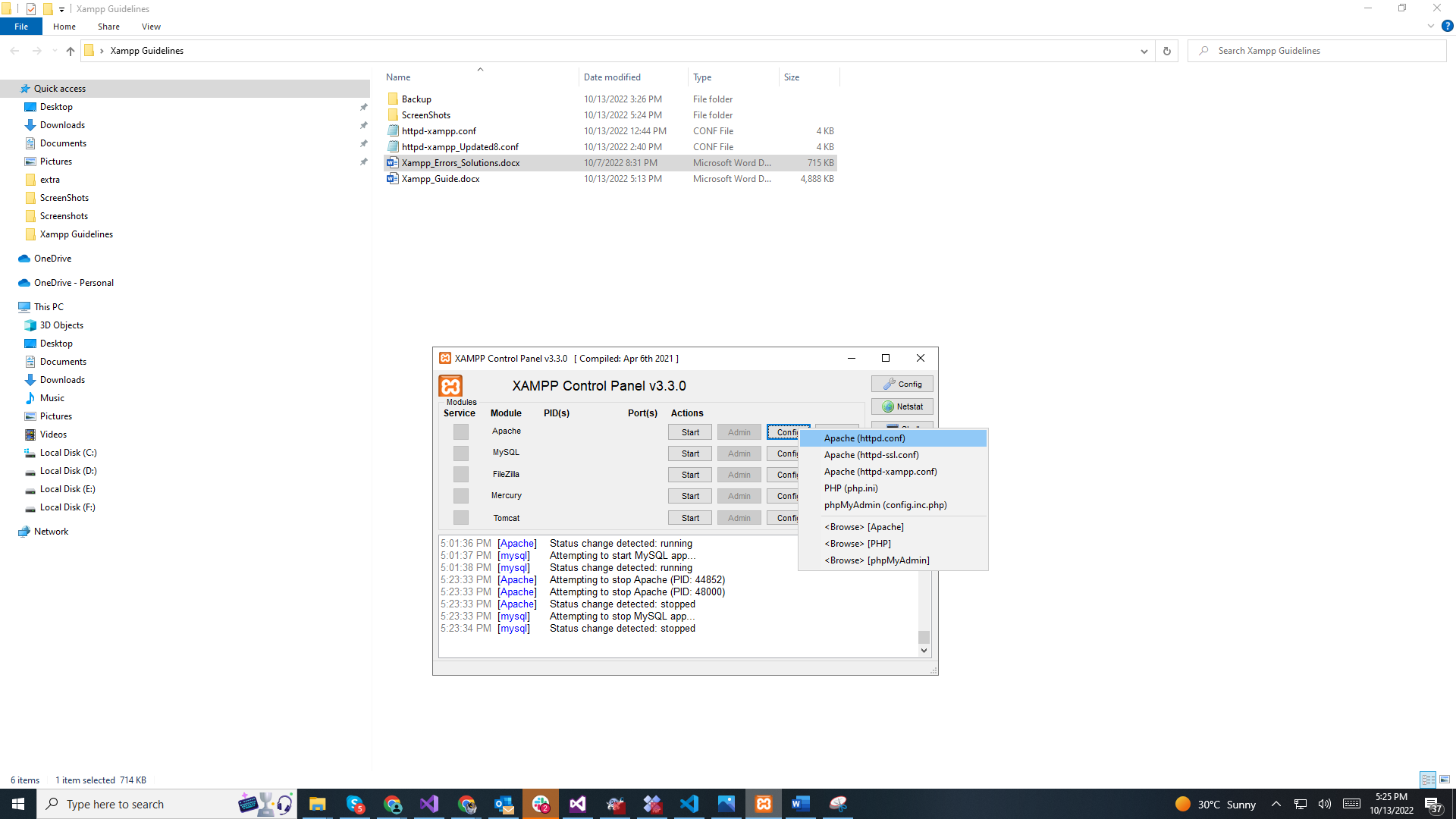
Search for
Listen 80in the file. Change it toListen 8080. Search forServerName localhost:80and change it toServerName localhost:8080.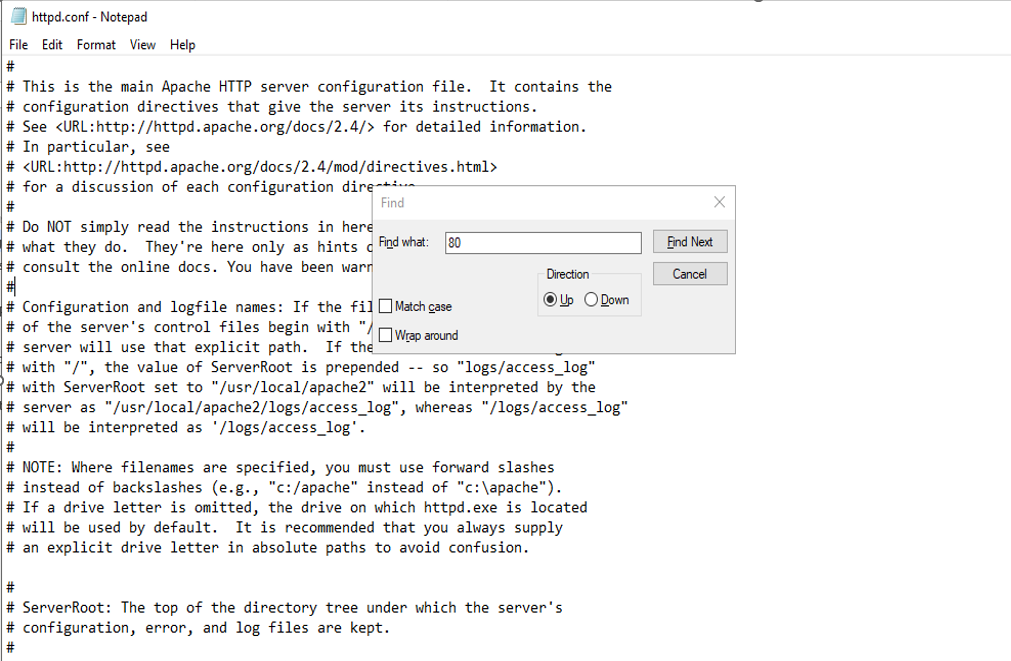
Save and close
httpd.conf.Open the XAMPP Control Panel. Click Configin the Apache row and select httpd-ssl.conf. Search for
Listen 443and change it toListen 4433. Search for<VirtualHost _default_:443>and change it to<VirtualHost _default_:4433>.Save and close
httpd-ssl.conf.Restart Apache HTTP Server from the XAMPP Control Panel. Click Stop, then click Start.
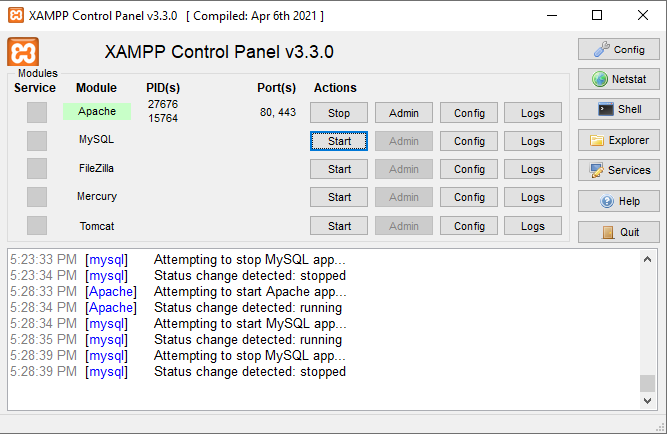
After changing the port, access XAMPP at
http://localhost:8080instead ofhttp://localhost.
How to Verify the Fix
Open a web browser and navigate to
http://localhost (or
http://localhost:8080 if the port was changed). The XAMPP dashboard page confirms that Apache HTTP Server is running. The XAMPP Control Panel displays a green status indicator next to Apache.
Edge Cases and Variations
XAMPP Apache shuts down after a Windows update.Windows updates sometimes re-enable the World Wide Web Publishing Service (W3SVC), which binds to port 80. Open the Windows Services Manager (
services.msc) and set the "World Wide Web Publishing Service" startup type to
Disabled.
XAMPP Apache shuts down on macOS.macOS includes a built-in Apache HTTP Server that may start automatically. Stop the built-in Apache with
sudo apachectl stop before starting XAMPP Apache.
XAMPP Apache shuts down due to a configuration error.A syntax error in
httpd.conf,
httpd-vhosts.conf, or
httpd-ssl.conf prevents Apache from starting. Open the XAMPP Shell and run
httpd -t to test the Apache configuration for syntax errors. Fix any reported errors and restart Apache.
Related XAMPP Errors
XAMPP: MySQL shutdown unexpectedly-- caused by port 3306 conflicts, corrupted MariaDB data files, or insufficient file permissions.