
How to access the MariaDB command line in XAMPP
Connect to the MariaDB (MySQL) command-line interface in XAMPP using the built-in Shell button on the XAMPP Control Panel on Windows.
Access the MariaDB (MySQL) command-line interface in XAMPP on Windows to run SQL queries, manage databases, and administer user accounts without phpMyAdmin.
Prerequisites
- XAMPP installed on Windows with MariaDB (MySQL) running. See How to install XAMPP on Windows.
- MariaDB started from the XAMPP Control Panel.
Step-by-Step: Access the MariaDB Command Line in XAMPP
Open the XAMPP Control Panel. Confirm that MariaDB (MySQL) is running. The MySQL row shows a green status indicator.
Click the Shellbutton in the XAMPP Control Panel. The XAMPP Shell opens a command prompt window with the XAMPP environment paths preconfigured.
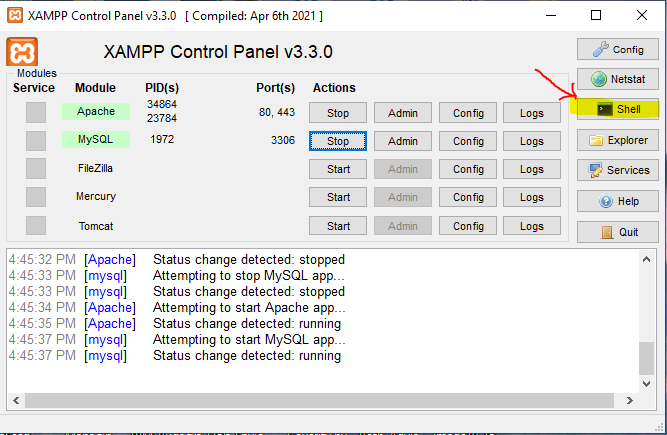
Enter the MariaDB login command in the XAMPP Shell. Type the following command and press Enter:
mysql --user=root --password=XAMPP ships with a default MariaDB root user that has no password. Leave the
--password=value empty for the default installation. If a root password has been set, enter it after the=sign.The MariaDB command-line client displays the
MariaDB [(none)]>prompt. This prompt accepts SQL statements such asSHOW DATABASES;,CREATE DATABASE, andSELECTqueries.
How to Verify MariaDB Command-Line Access in XAMPP
Run the following command at the MariaDB prompt to list all databases:
SHOW DATABASES;MariaDB returns a table listing all available databases, including the default
mysql,
information_schema,
performance_schema, and
phpmyadmin databases.
Common Issues When Accessing the MariaDB Command Line in XAMPP
"ERROR 1045 (28000): Access denied for user 'root'@'localhost'."The root password has been changed from the default empty password. Provide the correct password with the
--password flag. See
How to reset the MariaDB password in XAMPPfor password recovery steps.
"mysql is not recognized as an internal or external command."The XAMPP Shell was not used to open the command prompt. The XAMPP Shell adds the MariaDB binary path (
C:\xampp\mysql\bin) to the system PATH. Use the Shell button in the XAMPP Control Panel instead of the Windows command prompt.