
How to locate php.ini in XAMPP
Find the php.ini configuration file in XAMPP on Windows using the XAMPP Control Panel or by navigating to the PHP directory.
Find the PHP configuration file (
php.ini) in XAMPP on Windows to modify settings such as upload limits, memory allocation, error reporting, and extension loading.
Prerequisites
- XAMPP installed on Windows. See How to install XAMPP on Windows.
Step-by-Step: Locate php.ini in XAMPP
Option 1: Open php.ini from the XAMPP Control Panel
Open the XAMPP Control Panel. Click the Configbutton in the Apache row.
Select PHP (php.ini)from the dropdown menu. The XAMPP Control Panel opens the
php.inifile in the default text editor.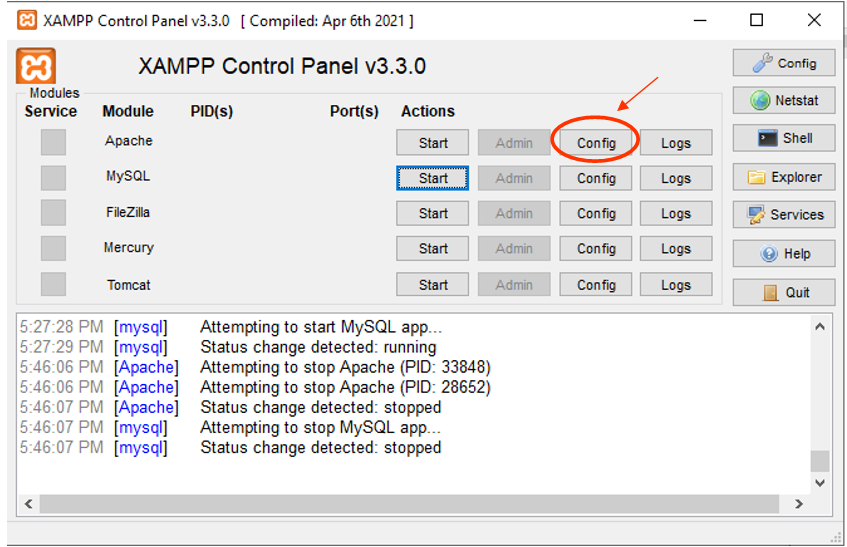
Option 2: Navigate to the php.ini File in the File System
Open the XAMPP installation directory. The default path on Windows is
C:\xampp.Open the
phpfolder. Thephp.inifile is located atC:\xampp\php\php.ini.
Option 3: Find the php.ini Path Using phpinfo()
Create a file named
phpinfo.phpin the XAMPPhtdocsdirectory with the following content:<?php phpinfo(); ?>Open
http://localhost/phpinfo.phpin a web browser. The phpinfo() output page displays a row labeled Loaded Configuration File. The value shows the full path to the activephp.inifile that PHP is using.
How to Verify php.ini Changes in XAMPP
Edit the
php.ini file and save the changes. Restart Apache HTTP Server from the XAMPP Control Panel. Open
http://localhost/phpinfo.php in a web browser. The phpinfo() output reflects the updated settings.
Common Issues When Editing php.ini in XAMPP
Changes do not take effect.Apache HTTP Server must be restarted after editing
php.ini. Click
Stopand then
Startnext to Apache in the XAMPP Control Panel.
Editing the wrong php.ini file.XAMPP may contain multiple
php.ini files. Use the phpinfo() method to confirm which file PHP loads at runtime. The
Loaded Configuration Filerow shows the active file path.