
How to locate the PHP error log in XAMPP
Find the PHP error log file in XAMPP on Windows using the XAMPP Control Panel logs button or by navigating to the Apache logs directory.
- Prerequisites
- Step-by-Step: Locate the PHP Error Log in XAMPP
- Option 1: Open the PHP Error Log from the XAMPP Control Panel
- Option 2: Navigate to the Error Log in the File System
- Option 3: Find the Error Log Path Using phpinfo()
- How to Verify the PHP Error Log Location in XAMPP
- Common Issues When Locating the PHP Error Log in XAMPP
Find the PHP error log file in XAMPP on Windows to diagnose PHP warnings, fatal errors, and deprecated function notices during local development.
Prerequisites
- XAMPP installed on Windows with Apache HTTP Server running. See How to install XAMPP on Windows.
Step-by-Step: Locate the PHP Error Log in XAMPP
Option 1: Open the PHP Error Log from the XAMPP Control Panel
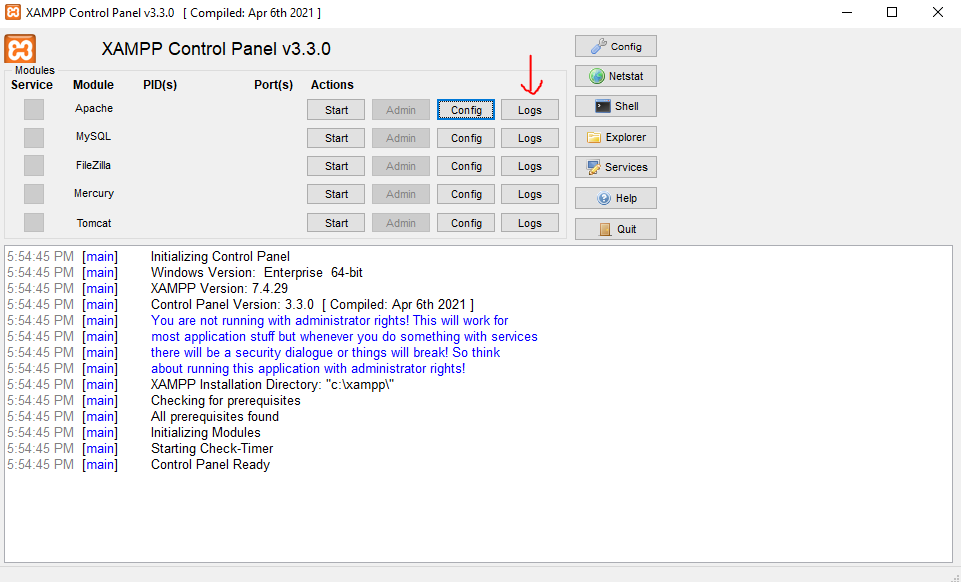
Open the XAMPP Control Panel. Click the Logsbutton in the Apache row. The XAMPP Control Panel opens the Apache error log file, which includes PHP errors by default.
Option 2: Navigate to the Error Log in the File System
Open the XAMPP installation directory. The default path on Windows is
C:\xampp.Navigate to the Apache logs directory. The PHP error log is located at
C:\xampp\apache\logs\error.log. PHP writes errors to the Apache error log file by default when theerror_logdirective inphp.iniis not set to a custom path.If the error log is not in the Apache logs directory, check the PHP-specific log location at
C:\xampp\php\logs\php_error_log.
Option 3: Find the Error Log Path Using phpinfo()
Create a file named
phpinfo.phpin the XAMPPhtdocsdirectory:<?php phpinfo(); ?>Open
http://localhost/phpinfo.phpin a web browser. Search for the error_logdirective in the phpinfo() output. The value shows the file path where PHP writes error messages.
How to Verify the PHP Error Log Location in XAMPP
Create a PHP file with an intentional error to confirm the log location. Add the following code to a file in the
htdocs directory:
<?php
error_log("XAMPP PHP error log test entry");
?>
Open the file in a web browser. Check the error log file for the test entry. The entry confirms that PHP writes errors to the expected log file.
Common Issues When Locating the PHP Error Log in XAMPP
Error log file does not exist.PHP creates the error log file when the first error occurs. Trigger a PHP error to generate the file. Confirm that the
error_log directive in
php.ini points to a writable directory.
Errors appear on screen but not in the log file.The
log_errors directive in
php.ini may be set to
Off. Open
php.ini at
C:\xampp\php\php.ini and set
log_errors = On. Restart Apache HTTP Server from the XAMPP Control Panel.