
How to install XAMPP on Windows
Download and install XAMPP on Windows to set up a local development server with Apache HTTP Server, MariaDB, PHP, and Perl.
Install XAMPP (cross-platform Apache, MariaDB, PHP, and Perl) on Windows to create a local development server for building and testing PHP web applications.
Prerequisites
- Windows 10 or later.
- Administrator privileges on the Windows machine.
- At least 500 MB of free disk space.
- No other web server (IIS, Apache HTTP Server) running on port 80.
Step-by-Step: Install XAMPP on Windows
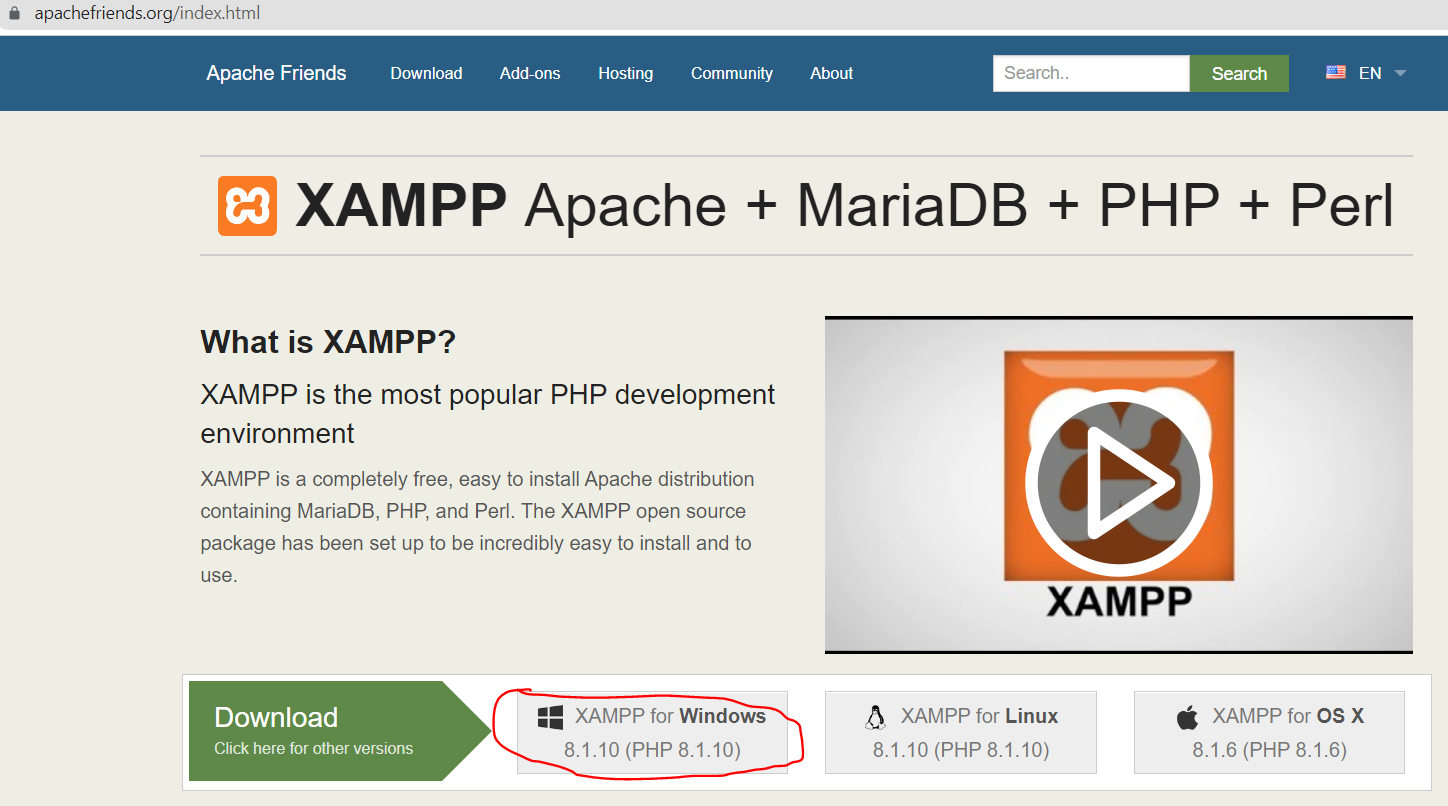
Download the XAMPP installer from the Apache Friends website. Click the XAMPP for Windowsdownload link to get the latest version.
Run the downloaded installer file. Double-click the
.exefile to launch the XAMPP Setup Wizard.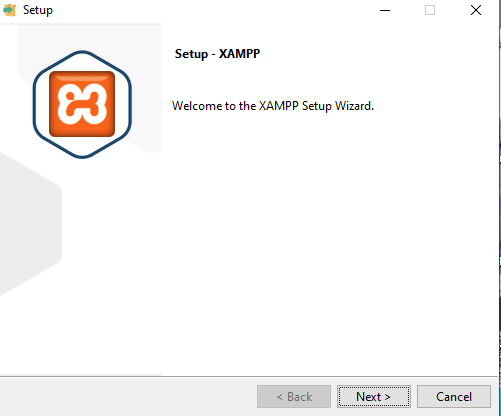
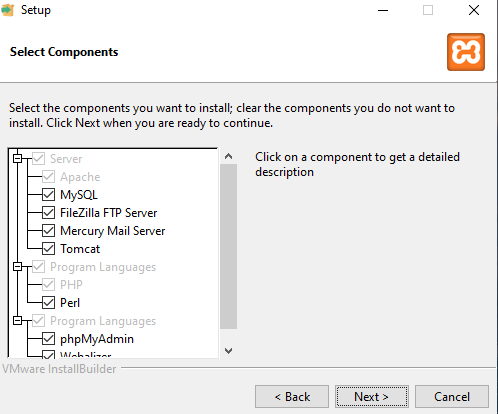
Select the components to install. The XAMPP Setup Wizard displays checkboxes for Apache, MySQL (MariaDB), PHP, Perl, phpMyAdmin, and other bundled tools. Keep all components selected unless a specific component is not needed.
Choose the installation folder. The default path is
C:\xampp. Keep the default path or choose a different folder without spaces in the name.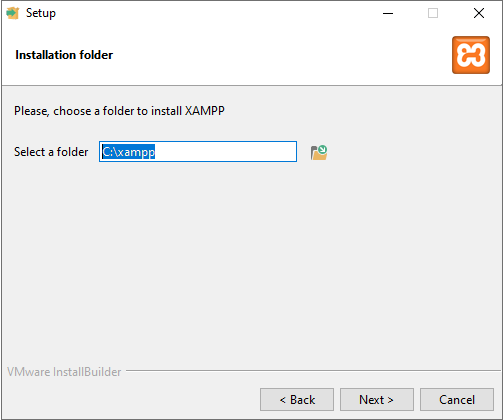
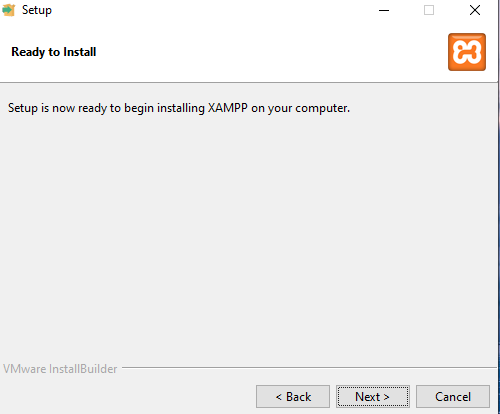
Click Nexton the "Ready to Install" screen to begin the installation. The XAMPP installer copies all files and configures Apache HTTP Server, MariaDB, and PHP.
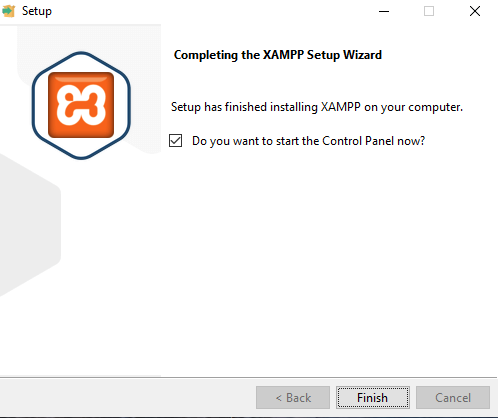
Click Finishto complete the installation and open the XAMPP Control Panel. The XAMPP Control Panel provides Start and Stop buttons for each service.
How to Verify XAMPP Installed Correctly on Windows
Open the XAMPP Control Panel and click
Startnext to Apache. Open a web browser and navigate to
http://localhost. The XAMPP dashboard page confirms that Apache HTTP Server is running and serving files from the
htdocs directory.
Common Issues When Installing XAMPP on Windows
Windows Defender Firewall prompt.Windows may display a firewall dialog asking to allow Apache HTTP Server through the firewall. Click Allow accessto let Apache listen on port 80 and port 443.
Antivirus software blocks the installer.Some antivirus programs flag the XAMPP installer as potentially unwanted software. Temporarily disable the antivirus or add an exception for the XAMPP installation directory.
Port 80 conflict with another application.If another program — such as Skype, IIS (Internet Information Services), or the World Wide Web Publishing Service — occupies port 80, Apache HTTP Server fails to start. See XAMPP: Apache shutdown unexpectedlyfor the full fix.