
Traceroute: !N (Network unreachable)
Fix the traceroute !N network unreachable error caused by missing routes, incorrect default gateway settings, or routing table misconfigurations.
- When Traceroute Produces the !N Error
- What Causes the "!N" Error in Traceroute
- How to Fix "!N" in Traceroute
- 1. Verify the default gateway on the local system
- 2. Set or correct the default gateway on Windows
- 3. Check the routing table for missing routes
- 4. Verify physical and VPN connectivity
- 5. Check the local firewall
- How to Verify the Fix
- Edge Cases and Variations
- Related Traceroute Errors
Traceroute displays the
!Ncode when a router returns an ICMP Destination Unreachable message with code 0 (Network Unreachable), indicating that no route exists to the destination network in the router's routing table.
When Traceroute Produces the !N Error
Traceroute shows
!N at a specific hop when the responding router has no routing table entry for the destination network. The
!N code replaces the normal round-trip time in the output for that hop.
Traceroute produces
!N on the very first hop when the local system lacks a default gateway or the default gateway cannot reach the destination network. This scenario occurs on systems with misconfigured network interfaces, disconnected VPN tunnels, or missing static routes.
What Causes the "!N" Error in Traceroute
Traceroute's
!N error maps to ICMP Type 3, Code 0 (Net Unreachable). A router generates this response when it receives a packet destined for a network that does not exist in its routing table and no default route is configured as a fallback.
Traceroute encounters
!N at the first hop when the local machine has no default gateway configured. Without a default gateway, the operating system's IP stack has no next-hop address for packets destined outside the local subnet. The kernel generates the ICMP Network Unreachable response locally.
Traceroute encounters
!N at a remote hop when an intermediate router's routing table is incomplete. This happens during routing protocol convergence after a link failure, after a misconfigured static route is applied, or when an ISP withdraws a route announcement via Border Gateway Protocol (BGP).
How to Fix "!N" in Traceroute
1. Verify the default gateway on the local system
Check whether a default gateway is configured on the local system. A missing default gateway prevents all traffic to external networks:
Linux:
ip route show defaultExpected output:
default via 192.168.1.1 dev eth0. If no default route appears, add one:
sudo ip route add default via 192.168.1.1macOS:
netstat -rn | grep defaultWindows:
ipconfigVerify that the "Default Gateway" field shows an IP address under the active network adapter.
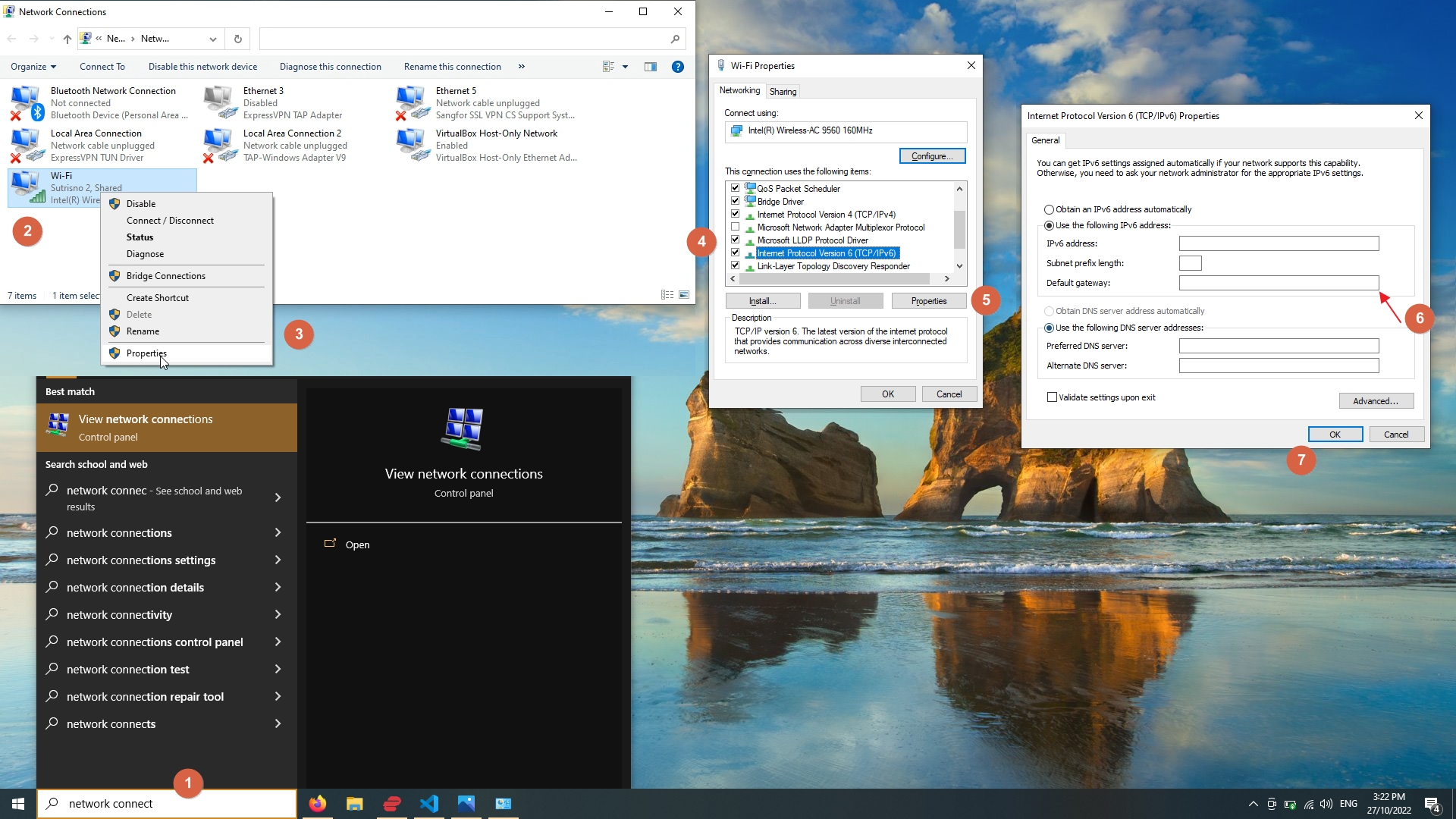
2. Set or correct the default gateway on Windows
Configure the default gateway through the network adapter properties if it is missing or incorrect:
- Open Settingsand select Network & internet.
- Select Advanced network settings, then More network adapter options.
- Right-click the active network adapter and select Properties.
- Select Internet Protocol Version 4 (TCP/IPv4)and click Properties.
- Enter the correct default gateway address in the Default gatewayfield.
- Click OKto save.
3. Check the routing table for missing routes
Display the full routing table to verify that a route exists for the destination network:
Linux:
ip route showmacOS:
netstat -rnWindows:
route printIf the destination network is missing from the routing table and no default route exists, add a static route. On Linux:
sudo ip route add 203.0.113.0/24 via 192.168.1.14. Verify physical and VPN connectivity
Traceroute produces
!N when a VPN tunnel drops and removes the routes it injected into the routing table. Reconnect the VPN client and retry traceroute.
Check the physical network connection. A disconnected Ethernet cable or lost Wi-Fi connection results in
!N because the network interface goes down and its associated routes are removed from the routing table.
5. Check the local firewall
A firewall that blocks outgoing traffic to specific destination networks can trigger
!N at the first hop. Temporarily disable the firewall to test:
Linux (ufw):
sudo ufw statusWindows:
Open Windows Security, select Firewall & network protection, and temporarily turn off the firewall for the active profile.
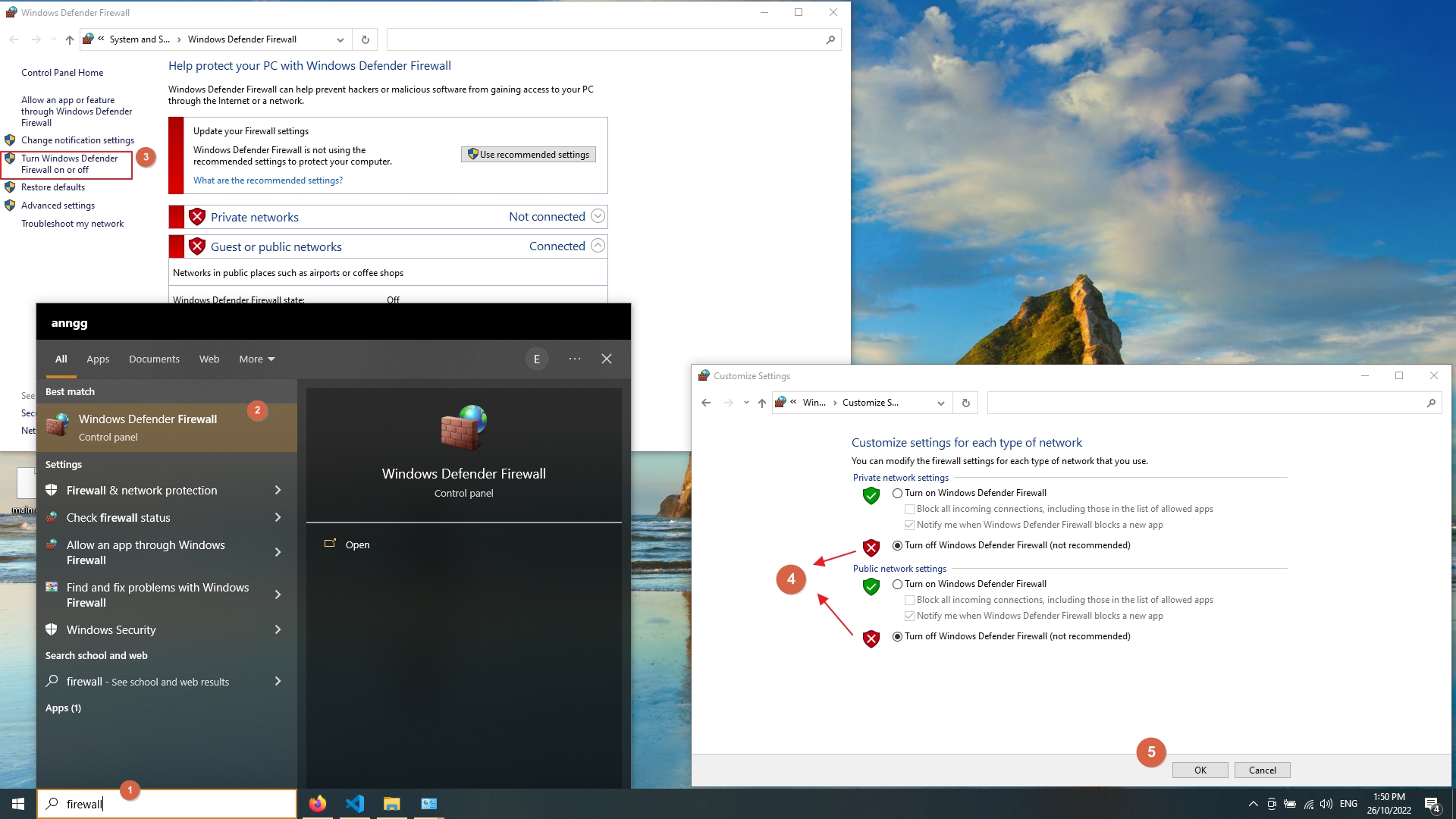
Re-enable the firewall after testing.
How to Verify the Fix
Run traceroute to the same destination after correcting the routing configuration. Traceroute should display round-trip times at every hop without the
!N code:
traceroute example.comConfirm end-to-end connectivity with ping:
ping -c 4 example.comA successful ping response confirms that the route to the destination network exists and packets reach the target host.
Edge Cases and Variations
Traceroute shows
!N at a remote hop that is not under local control.An ISP or upstream router lacks a route to the destination. This situation resolves itself during routing protocol reconvergence after a link failure. Wait 5--10 minutes and retry. If the error persists, contact the ISP.
Traceroute shows
!N only for IPv6 destinations.The local system or an intermediate router lacks IPv6 routes. Verify IPv6 connectivity with
ping6 ::1 on Linux/macOS. Check that the network interface has a global IPv6 address assigned. See
How to Use Traceroute with IPv6for IPv6-specific troubleshooting.
Traceroute shows
!N after a system reboot.Static routes added with
ip route add on Linux do not persist across reboots. Configure persistent routes in the network configuration file (e.g.,
/etc/netplan/*.yaml on Ubuntu,
/etc/sysconfig/network-scripts/route-* on CentOS/RHEL).
Related Traceroute Errors
Traceroute: !A (Administratively prohibited)— occurs when a firewall or ACL explicitly blocks the probe, producing ICMP Type 3, Code 13. Unlike
!N, the
!A error indicates intentional filtering rather than a missing route.
Traceroute: !P (Incompatible protocol)— occurs when the destination does not support the transport protocol used by the probe, producing ICMP Type 3, Code 2. The
!P error indicates a protocol mismatch, not a routing issue.