
Traceroute
Traceroute is a network diagnostic command that maps the path packets travel from source to destination, showing each hop and round-trip time.
- What Traceroute Does and When to Use It
- How to Install Traceroute
- Core Concepts of Traceroute
- Traceroute TTL (Time to Live) Mechanism
- Traceroute Probes and Protocols
- Traceroute Output Columns
- Common Tasks with Traceroute
- How to Run a Basic Traceroute to a Host
- How to Limit the Maximum Hop Count with Traceroute
- How to Skip DNS Resolution with Traceroute
- How to Use ICMP Probes with Traceroute on Linux
- How to Trace an IPv6 Route with Traceroute
- Traceroute Options Reference
- Traceroute Troubleshooting
- Related Tools and Guides
Traceroute is a command-line network diagnostic tool that traces the path Internet Protocol (IP) packets travel from source to destination, displaying each hop and round-trip time (RTT), on Linux, macOS, and Windows.
What Traceroute Does and When to Use It
Traceroute maps the network path between a local machine and a remote host. The tool identifies every intermediate router (hop) along the route and measures the round-trip time for each hop. Network administrators use traceroute to diagnose routing problems, detect packet loss, locate network bottlenecks, and verify that traffic follows the expected path through gateways and Internet service provider (ISP) networks.
Traceroute is available on all major operating systems. Linux and macOS provide the
traceroute command, which sends User Datagram Protocol (UDP) probes by default. Windows provides the
tracert command, which sends Internet Control Message Protocol (ICMP) Echo Request packets by default. Both implementations use the Time to Live (TTL) field in IP packet headers to discover each hop along the route.
Use traceroute when a remote server is unreachable, when connections are slow to a specific destination, or when packets appear to take an unexpected path. For basic connectivity tests without path information,
ping is a simpler alternative. For combined continuous traceroute and ping statistics, My Traceroute (mtr) provides a real-time interactive view.
How to Install Traceroute
Traceroute ships preinstalled on macOS and Windows. On Linux, install traceroute through the package manager.
Ubuntu / Debian:
sudo apt update && sudo apt install tracerouteCentOS / RHEL / Fedora:
sudo dnf install traceroutemacOS:
Traceroute is preinstalled. Verify the installation:
traceroute --versionWindows:
Windows includes
tracert as a built-in command. Open Command Prompt or PowerShell and run:
tracert example.comCore Concepts of Traceroute
Traceroute TTL (Time to Live) Mechanism
Traceroute discovers each hop by manipulating the Time to Live (TTL) field in the IP packet header. Every router that forwards a packet decrements the TTL by 1. When a router receives a packet with a TTL of 0, the router discards the packet and sends an ICMP Time Exceeded (Type 11, Code 0) message back to the source.
Traceroute exploits this behavior by sending the first set of probes with a TTL of 1. The first router decrements the TTL to 0, discards the packet, and returns an ICMP Time Exceeded response — revealing its IP address and round-trip time. Traceroute then sends the next set of probes with a TTL of 2, which reaches the second router before expiring. This process repeats, incrementing the TTL by 1 each round, until the probes reach the destination or the maximum hop count (default: 30) is exhausted.
Traceroute Probes and Protocols
Traceroute sends three probes per hop by default. Each probe measures an independent round-trip time, which reveals latency variation (jitter) at that hop.
Linux and macOS traceroute sends UDP packets to high-numbered destination ports (starting at port 33434) by default. When the probes reach the destination, the target host responds with an ICMP Port Unreachable (Type 3, Code 3) message, which signals traceroute to stop. Linux and macOS traceroute also supports ICMP mode (
-I) and TCP mode (
-T) as alternatives.
Windows
tracert sends ICMP Echo Request packets by default. When the probes reach the destination, the target responds with an ICMP Echo Reply, which signals tracert to stop.
Traceroute Output Columns
Traceroute displays one line per hop. Each line contains the hop number, three round-trip time measurements (one per probe), and the IP address or hostname of the responding router. An asterisk (
*) replaces a round-trip time when a probe receives no response within the timeout period (default: 5 seconds). Three consecutive asterisks (
* * *) indicate that the router at that hop does not respond to traceroute probes — often because a firewall blocks ICMP or UDP traffic.

Common Tasks with Traceroute
How to Run a Basic Traceroute to a Host
Traceroute traces the path to a destination by passing the hostname or IP address as an argument:
traceroute example.comOn Windows, use the
tracert command:
tracert example.com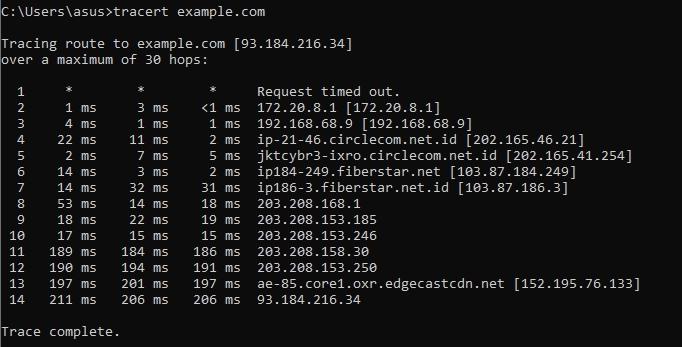
For details on interpreting the output, see How to Read Traceroute Results.
How to Limit the Maximum Hop Count with Traceroute
Traceroute sets the maximum number of hops with the
-m flag on Linux and macOS, or the
-h flag on Windows. This stops traceroute from probing beyond the specified hop count:
Linux / macOS:
traceroute -m 15 example.comWindows:
tracert -h 15 example.comHow to Skip DNS Resolution with Traceroute
Traceroute displays numeric IP addresses without resolving hostnames when the
-n flag is used. This speeds up the trace by eliminating DNS lookups at each hop:
Linux / macOS:
traceroute -n example.comWindows:
tracert -d example.comHow to Use ICMP Probes with Traceroute on Linux
Traceroute on Linux sends UDP probes by default. Switch to ICMP Echo Request probes with the
-I flag. ICMP probes often pass through firewalls that block UDP:
sudo traceroute -I example.comICMP mode requires root or sudo privileges on Linux.
How to Trace an IPv6 Route with Traceroute
Traceroute traces IPv6 paths using
traceroute6 on Linux and macOS, or
tracert -6 on Windows:
Linux / macOS:
traceroute6 example.comWindows:
tracert -6 example.comFor the full procedure, see How to Use Traceroute with IPv6.
Traceroute Options Reference
Traceroute accepts different flags on Linux/macOS and Windows. The table below covers the most commonly used options.
| Flag | Platform | Description | Default | Example |
|---|---|---|---|---|
-n | Linux / macOS | Display numeric IP addresses without resolving hostnames, which eliminates DNS lookup delays | Resolve hostnames | traceroute -n example.com |
-d | Windows | Do not resolve addresses to hostnames in tracert output | Resolve hostnames | tracert -d example.com |
-m max_ttl | Linux / macOS | Set the maximum TTL (hop count) for outgoing probes. Range: 1--255 | 30 | traceroute -m 20 example.com |
-h max_hops | Windows | Set the maximum number of hops to search for the target in tracert | 30 | tracert -h 20 example.com |
-w wait_time | Linux / macOS | Set the timeout in seconds to wait for an ICMP response at each hop | 5 | traceroute -w 3 example.com |
-w timeout | Windows | Set the timeout in milliseconds to wait for each reply in tracert | 4000 | tracert -w 3000 example.com |
-q nqueries | Linux / macOS | Set the number of probe packets sent per hop | 3 | traceroute -q 1 example.com |
-I | Linux / macOS | Use ICMP Echo Request probes instead of UDP. Requires root privileges | UDP | sudo traceroute -I example.com |
-T | Linux / macOS | Use TCP SYN probes instead of UDP. Requires root privileges | UDP | sudo traceroute -T example.com |
-p port | Linux / macOS | Set the base UDP destination port number used in traceroute probes | 33434 | traceroute -p 44434 example.com |
-i initial_ttl | Linux / macOS | Set the starting TTL value, which skips hops closer than the specified count | 1 | traceroute -i 5 example.com |
-4 | Both | Force traceroute to use IPv4 | Auto | traceroute -4 example.com |
-6 | Both | Force traceroute to use IPv6 | Auto | tracert -6 example.com |
For the full reference, see Traceroute References.
Traceroute Troubleshooting
Traceroute reports error codes when an intermediate router or the destination returns an ICMP Destination Unreachable message. The table below summarizes common errors.
| Error | ICMP Code | Meaning | Fix |
|---|---|---|---|
!A | Type 3, Code 13 | Administratively prohibited — a firewall or access control list (ACL) blocks the traffic | Full article |
!N | Type 3, Code 0 | Network unreachable — no route exists to the destination network | Full article |
!P | Type 3, Code 2 | Protocol unreachable — the destination does not support the transport protocol used by the probe | Full article |
!H | Type 3, Code 1 | Host unreachable — the destination host cannot be reached on the target network | Check host status and local routing table |
* * * | N/A | No response — the router at that hop does not reply to probes within the timeout period | Firewall filtering, or the router silently drops ICMP/UDP probes |
Related Tools and Guides
ping tests basic connectivity and measures round-trip time to a single host without revealing the path. Use ping for quick reachability checks. See
pingfor usage.
My Traceroute (mtr) combines traceroute and ping into a single tool that continuously updates hop-by-hop statistics including packet loss percentage, average latency, and jitter. mtr is the preferred alternative for ongoing network path monitoring.
pathping (Windows) combines the functionality of
ping and
tracert. pathping computes packet loss statistics at each hop over a 25-second observation period.
nslookup queries DNS servers to resolve domain names to IP addresses. See
nslookupfor DNS lookup tasks.