
How to schedule Rsync via cron job
Automate recurring Rsync file transfers and incremental backups using cron jobs with crontab scheduling on Linux and macOS.
Automate recurring Rsync file transfers on a schedule using cron jobs, so backups and synchronization tasks run unattended at fixed intervals.
Prerequisites
- Rsync installed on the local machine (and on the remote machine for remote transfers). See How to Install Rsync.
- Cron daemon running on the system (
cronon Debian/Ubuntu,crondon CentOS/RHEL). - SSH key-based authentication configured for remote transfers (cron jobs cannot enter interactive passwords). See How to Run Rsync Through SSH Tunnel.
- The user account must have permission to edit its crontab.
Step-by-Step: Schedule Rsync via Cron Job
Understand the crontab schedule format.Cron uses a five-field time expression to define when a job runs.
+---------------- minute (0 - 59)
| +------------- hour (0 - 23)
| | +---------- day of month (1 - 31)
| | | +------- month (1 - 12)
| | | | +---- day of week (0 - 6) (Sunday = 0)
| | | | |
* * * * * command
Open the crontab editorusing
crontab -e. Cron prompts for a text editor on first use; selectnanoor your preferred editor.crontab -e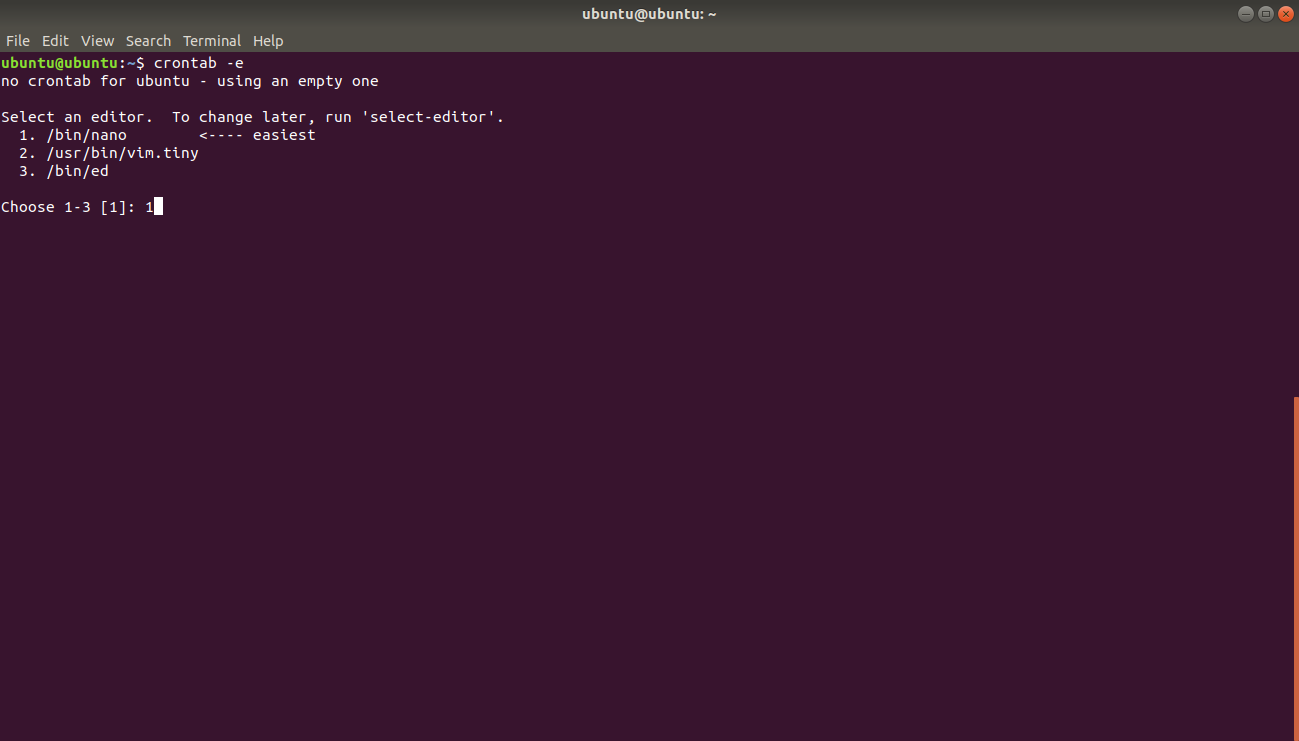
Cron opens the user's crontab file for editing.
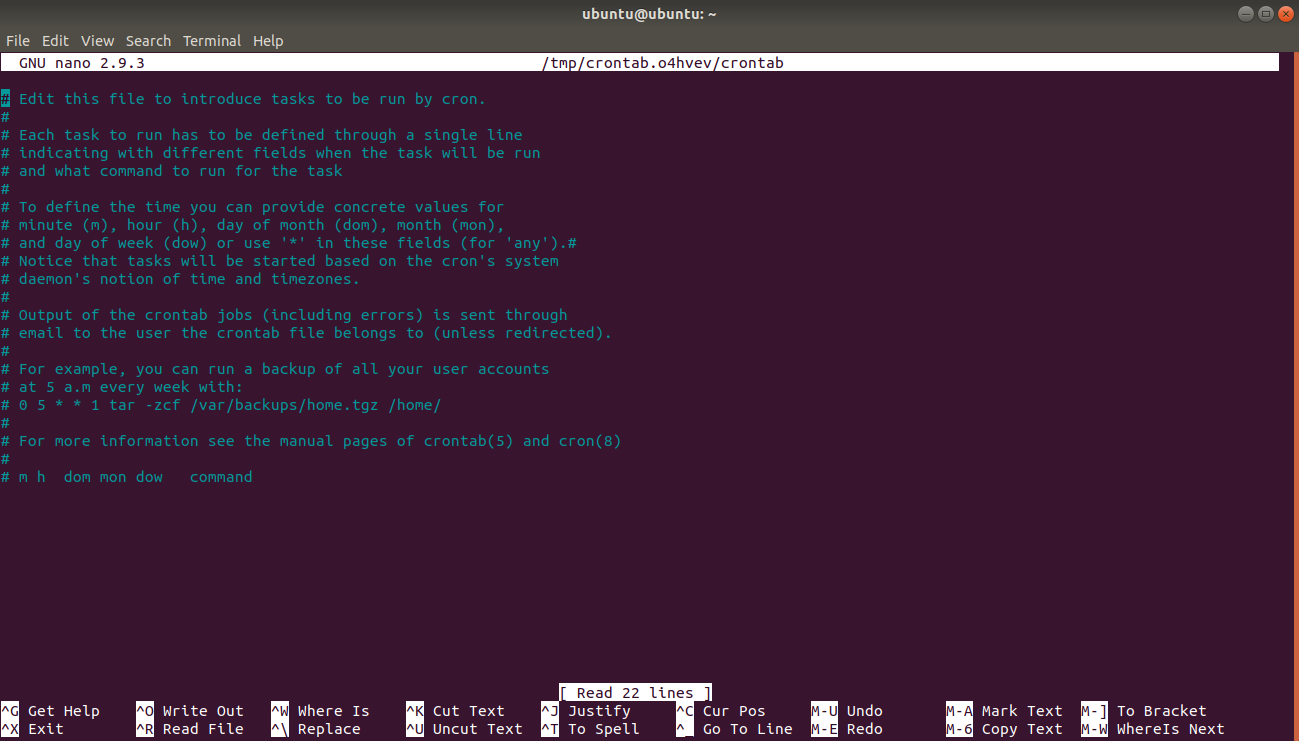
Add an Rsync cron job entryat the end of the crontab file. This example runs Rsync every Monday at 10:45 PM to synchronize
directory1todirectory2.45 22 * * 1 rsync -av /home/ubuntu/directory1/ /home/ubuntu/directory2/Rsync runs at the 45th minute of the 22nd hour on every Monday (day 1 of the week). The
-avflags enable archive mode and verbose output.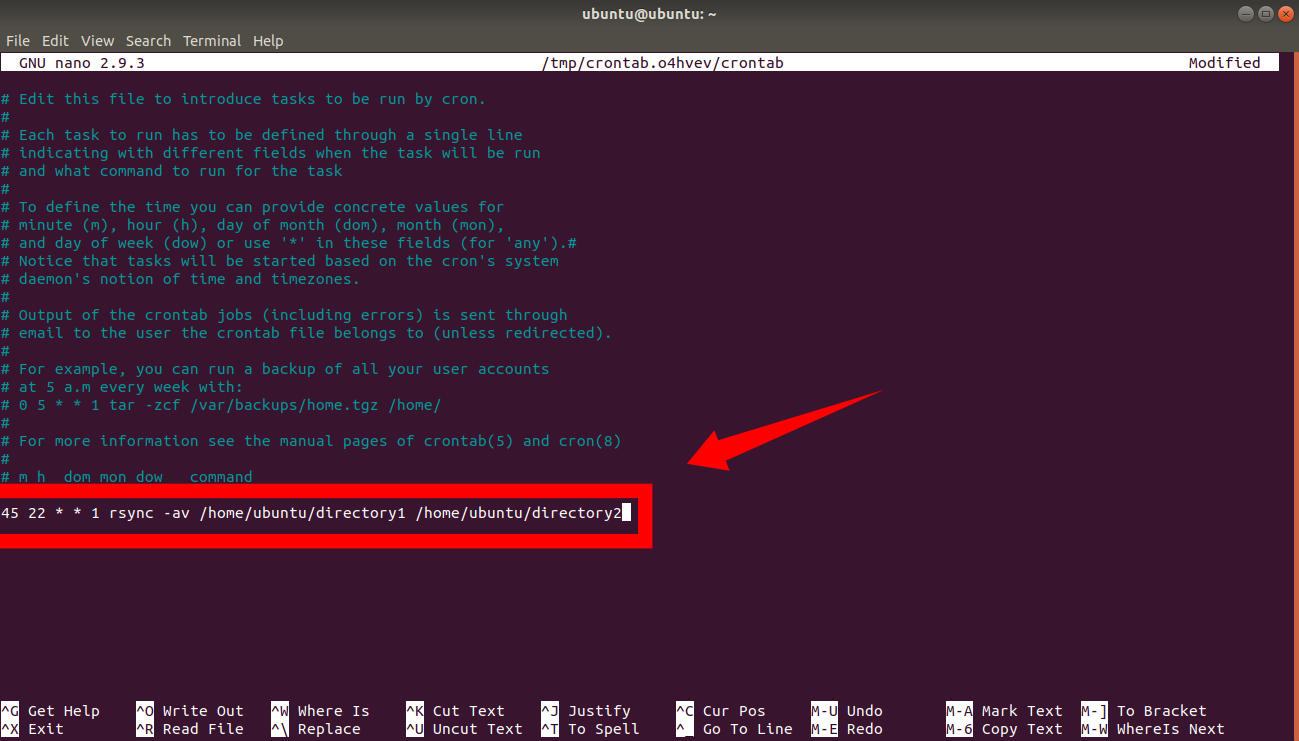
Schedule a daily remote backupwith Rsync over SSH. Add this line to the crontab for a 2:00 AM daily backup.
0 2 * * * rsync -az -e "ssh -i /home/user/.ssh/id_rsa" /home/user/data/ user@203.0.113.10:/backup/data/Rsync runs every day at 2:00 AM, connects to the remote server using SSH key authentication, and transfers only the changed bytes. The
-zflag compresses data during the transfer.Log Rsync cron job outputto a file for debugging. Redirect stdout and stderr to a log file.
0 2 * * * rsync -az /home/user/data/ user@203.0.113.10:/backup/data/ >> /var/log/rsync-backup.log 2>&1Rsync appends its output and any error messages to
/var/log/rsync-backup.log. Review this log to diagnose failed cron transfers.Save and exit the crontab editor.Cron installs the new crontab automatically.
How to Verify the Cron Job
Rsync's cron job appears in the crontab listing. Verify that the entry was saved.
crontab -lCron lists all scheduled jobs for the current user. Confirm that the Rsync entry appears with the correct schedule and command.
Check the cron system log to verify that the job executed at the scheduled time.
=== "Ubuntu / Debian"
grep CRON /var/log/syslog=== "CentOS / RHEL"
grep CRON /var/log/cronCommon Issues When Scheduling Rsync with Cron
Rsync cron jobs fail silently because cron does not have the same PATH as an interactive shell. Use the full path to the Rsync binary (
/usr/bin/rsync) in cron entries if the default PATH is insufficient.
0 2 * * * /usr/bin/rsync -az /home/user/data/ user@203.0.113.10:/backup/data/Rsync cron jobs to a remote server fail with "Permission denied" because cron cannot enter an interactive SSH password. Configure SSH key-based authentication without a passphrase, or use
ssh-agent to cache the key.
Rsync cron jobs produce no output because cron discards stdout by default. Redirect output to a log file with
>> /var/log/rsync.log 2>&1 to capture transfer details and error messages.
Rsync cron jobs fail with "Host key verification failed" on the first run because the remote server's SSH host key has not been accepted. SSH into the remote server manually once to accept and cache the host key before scheduling the cron job.