
How to copy files and folders with Rsync
Copy files and directories between local paths or to remote servers using Rsync with archive mode, recursive sync, and delta transfer.
Copy files and directories between local paths or between local and remote systems using Rsync's delta-transfer algorithm.
Prerequisites
- Rsync installed on the local machine (and on the remote machine for remote transfers). See How to Install Rsync.
- Terminal access with read permissions on the source and write permissions on the destination.
- SSH access to the remote server (for remote transfers).
Step-by-Step: Copy a Single File Locally with Rsync
Create test filesin the home directory to use as source material for the Rsync copy operation.
touch ~/Rsync.md ~/Rsync1.md ~/Rsync2.mdVerify the files existby listing the home directory contents.
ls -l ~/Rsync*.md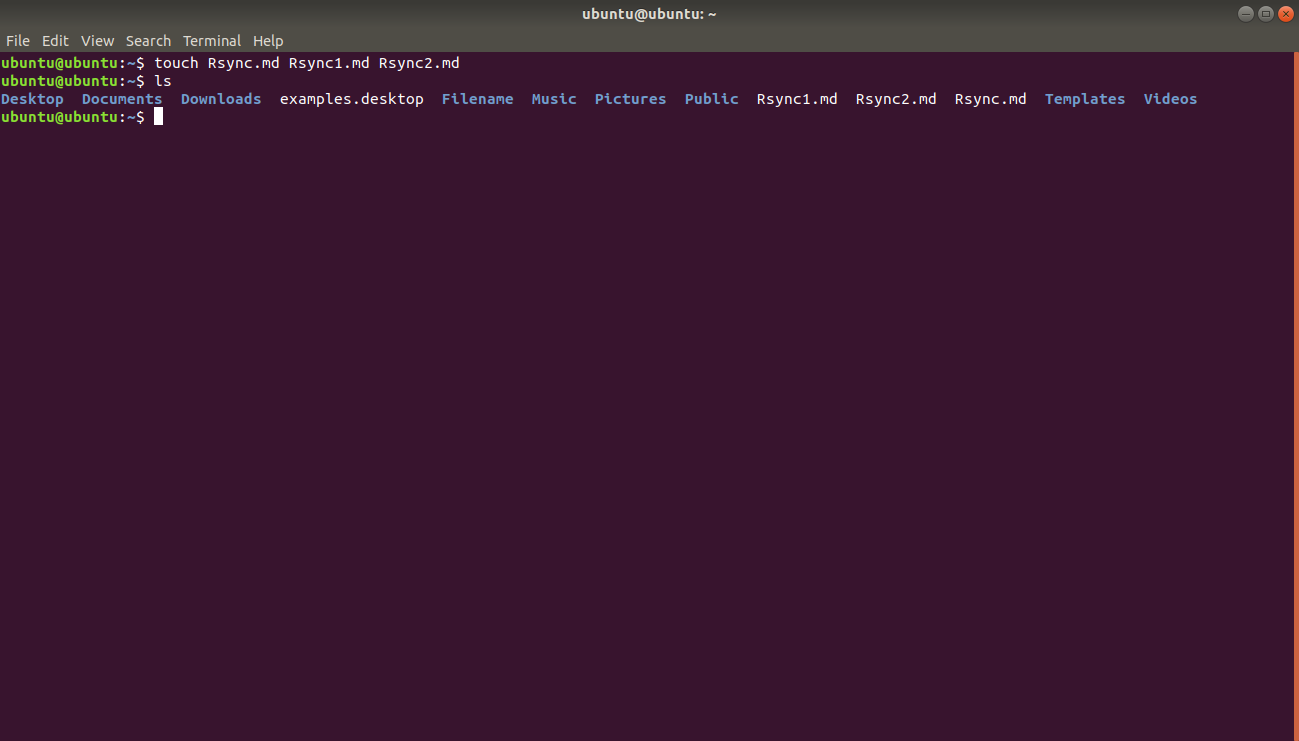
Get the absolute pathof the source file using the
realpathcommand.realpath ~/Rsync.mdRsync requires absolute paths or paths relative to the current directory.
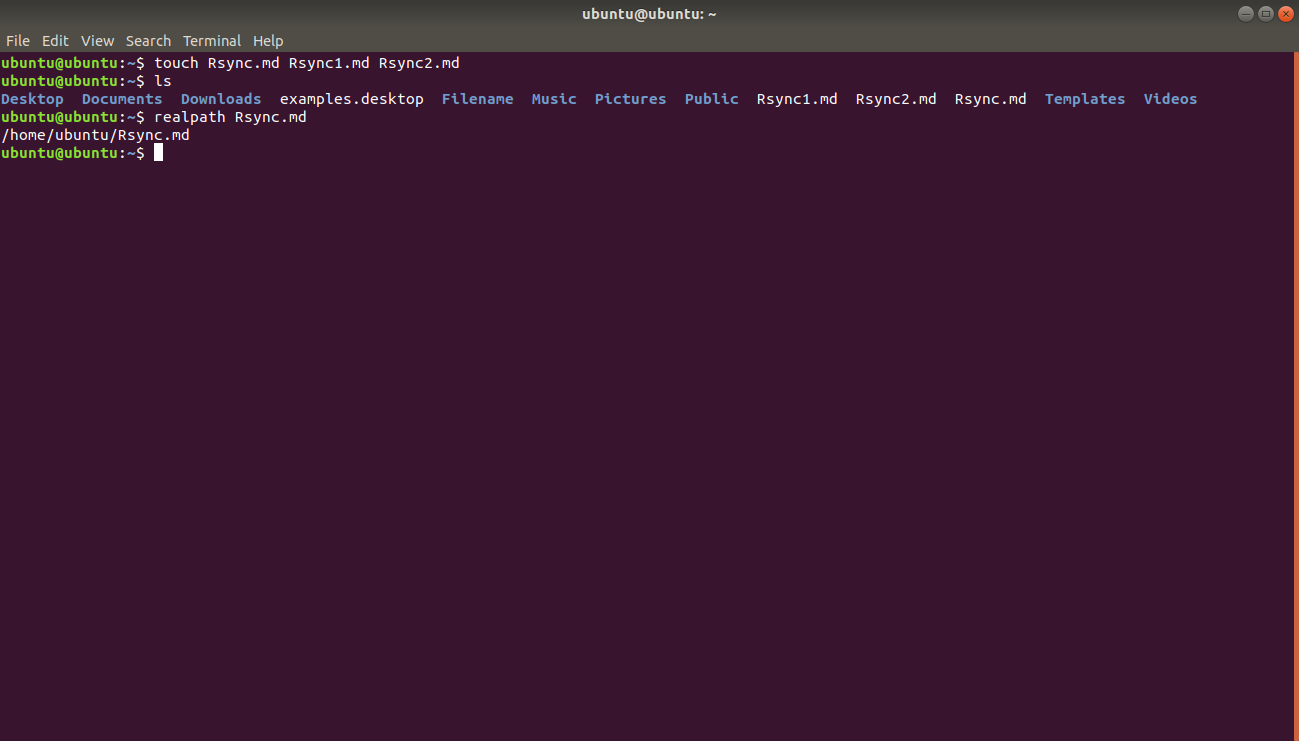
Copy the filefrom the home directory to the
Documents/folder using Rsync.rsync /home/ubuntu/Rsync.md /home/ubuntu/Documents/Rsync copies the file to the destination directory. Without the
-aflag, Rsync performs a plain copy without preserving metadata.Confirm the copyby listing the destination directory contents.
ls /home/ubuntu/Documents/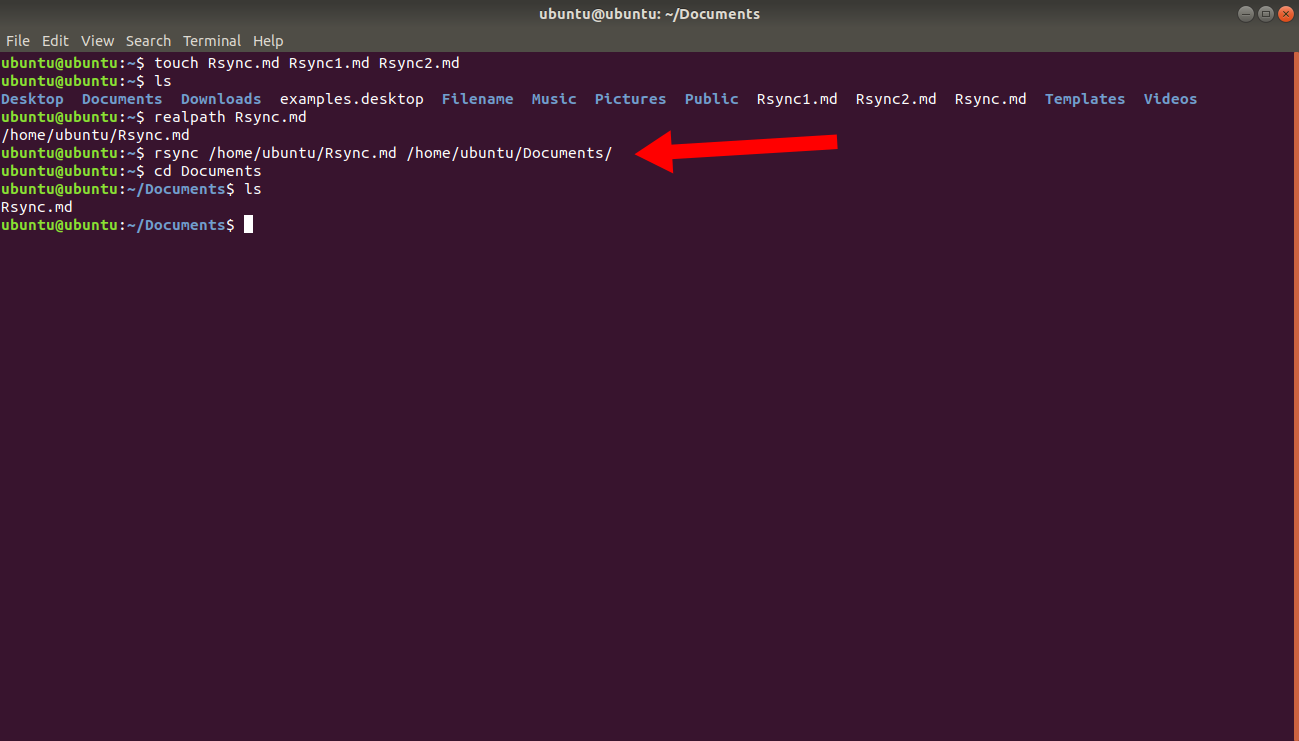
Step-by-Step: Copy Multiple Files Locally with Rsync
List multiple source filesas arguments before the destination path. Rsync copies all listed files to the destination directory.
rsync ~/Rsync1.md ~/Rsync2.md /home/ubuntu/Documents/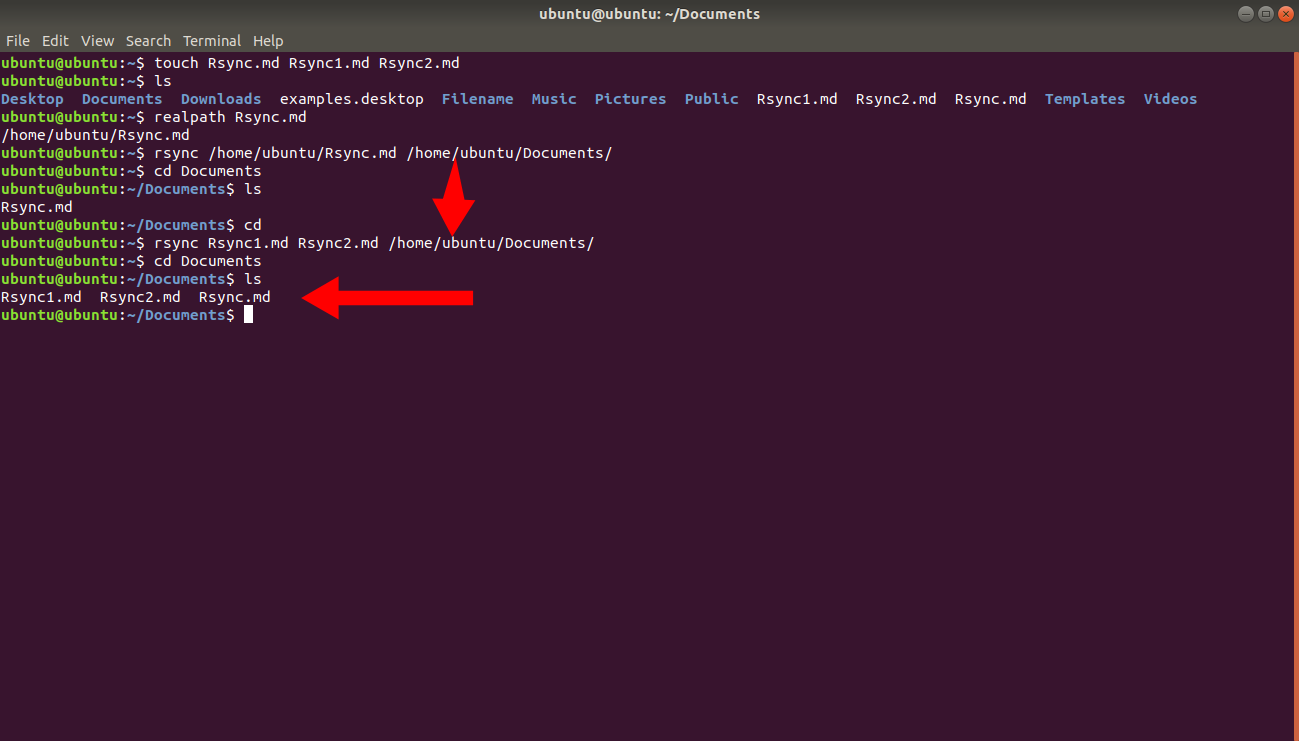
Step-by-Step: Copy a Directory Locally with Rsync
Create a test directorywith files to use as the source for a recursive Rsync copy.
mkdir ~/directory2
touch ~/directory2/Rsync{1..200}.md
Rsync requires the
-r(recursive) or-a(archive) flag to copy directories. Without one of these flags, Rsync skips directories.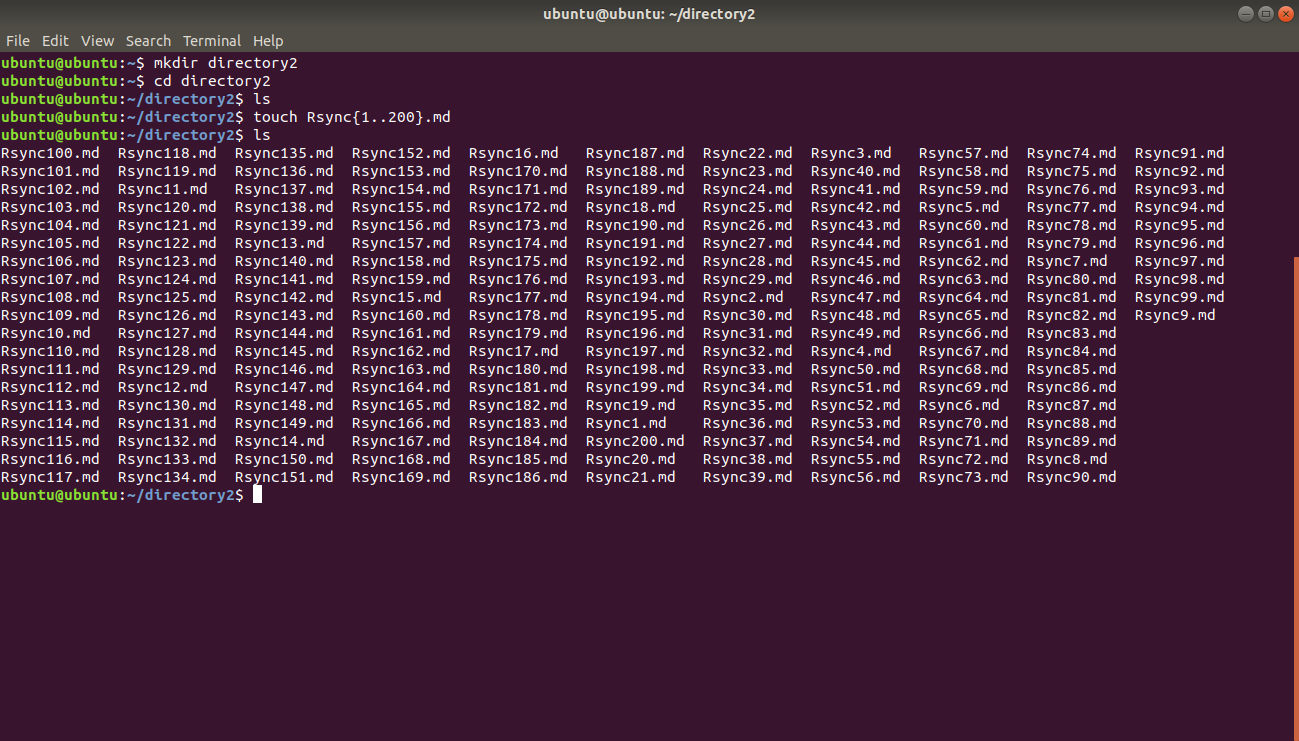
Verify the destination is emptybefore starting the Rsync copy.
ls -l ~/Downloads/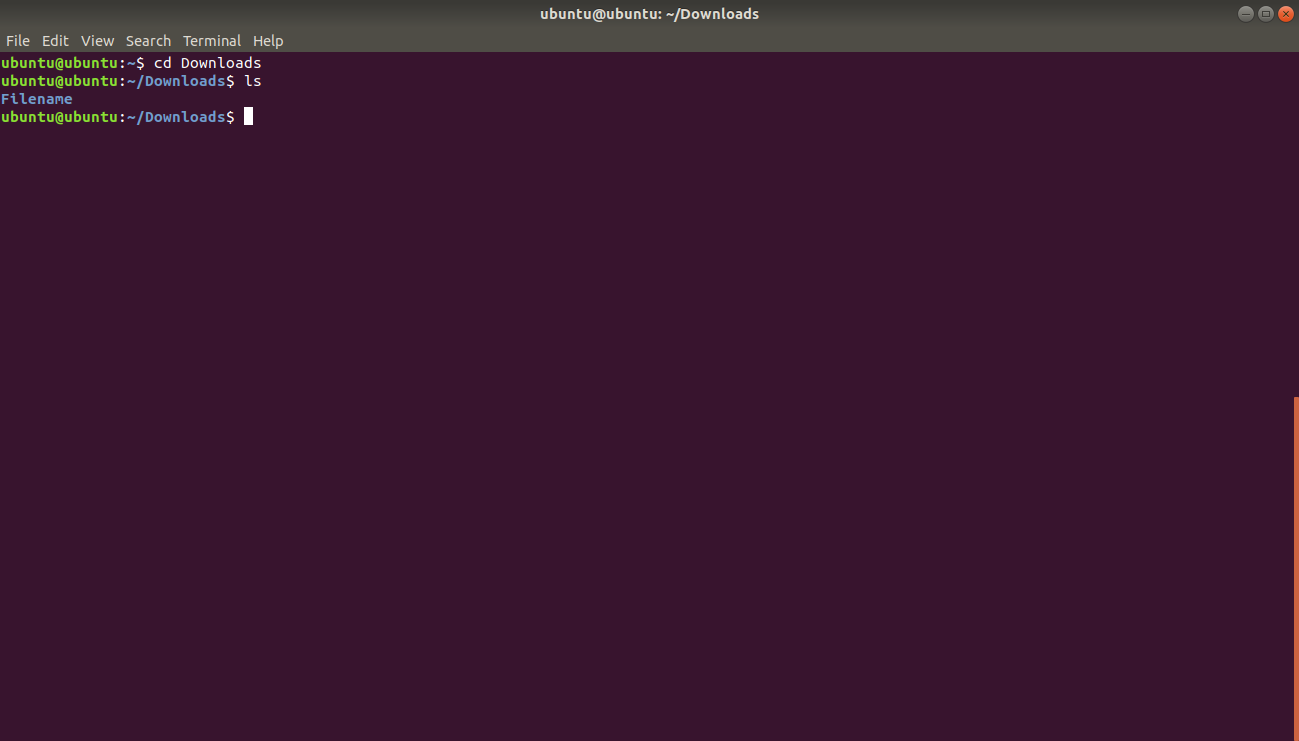
Copy the directorywith Rsync using the
-rflag for recursive mode. Omitting the trailing slash ondirectory2copies the directory itself (not only its contents) into the destination.rsync -r /home/ubuntu/directory2 /home/ubuntu/Downloads/Rsync copies
directory2/and all 200 files intoDownloads/directory2/.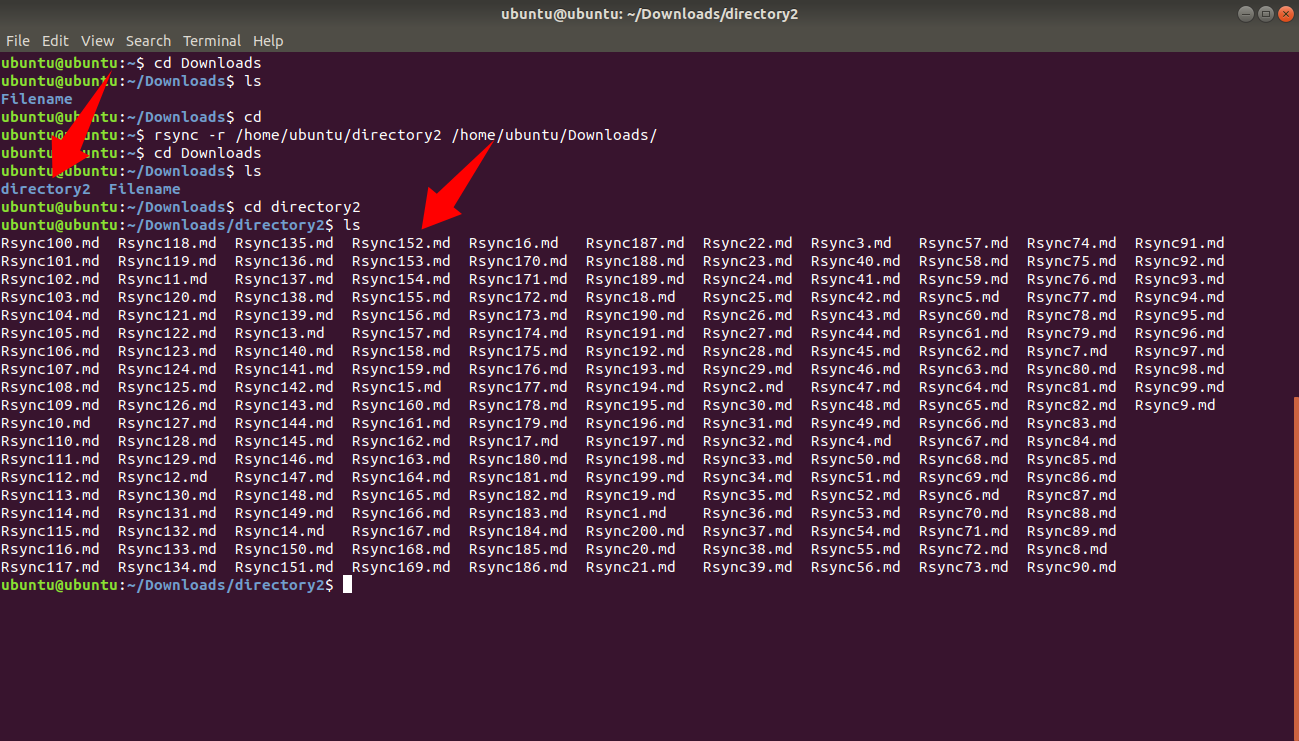
Step-by-Step: Copy Files to a Remote Server with Rsync
Transfer a local directory to a remote serverover SSH using Rsync with archive mode, verbose output, and compression.
rsync -avz /home/user/src/ user@203.0.113.10:/home/user/dest/Rsync's
-avzflags enable archive mode (preserves permissions, timestamps, and symlinks), verbose output, and compression. Rsync transfers only changed bytes on subsequent runs.Pull a remote directory to the local machineby reversing the source and destination arguments.
rsync -avz user@203.0.113.10:/home/user/src/ /home/user/dest/
How to Verify the Rsync Copy
Rsync confirms a successful transfer by printing a file list and a summary line showing the total bytes sent and received. Run
ls -la on the destination to verify that files, permissions, and timestamps match the source.
ls -la /home/ubuntu/Documents/Compare the source and destination using Rsync's dry-run mode with the
-i (itemize changes) flag. Rsync outputs nothing when the source and destination are identical.
rsync -avni /home/ubuntu/Rsync.md /home/ubuntu/Documents/Common Issues When Copying Files with Rsync
Rsync skips directories when the
-r or
-a flag is missing. Add
-a to enable recursive directory copying with metadata preservation.
Rsync copies the directory itself instead of its contents when the source path lacks a trailing slash. Add a trailing slash (
src/) to copy only the contents.
Rsync produces "
failed to set permissions on" errors when the destination filesystem (FAT32, NTFS) does not support Unix permissions. Add
--no-perms --no-o --no-g to skip permission and ownership preservation.
Rsync produces "Permission denied" errors when the user lacks write access to the destination directory. Verify ownership with
ls -la and adjust with
chown if needed.