
phpMyAdmin tutorial: advanced operations
Search across database tables, configure UTF-8 character encoding, change the phpMyAdmin access URL, and run advanced SQL queries through the phpMyAdmin web interface.
- What You Will Need
- Step 1: Search Across Database Tables in phpMyAdmin
- Use the phpMyAdmin Search Tab
- Search with SQL Queries in phpMyAdmin
- Use Full-Text Search in phpMyAdmin
- Step 2: Configure UTF-8 Character Encoding in phpMyAdmin
- Change Database Collation in phpMyAdmin
- Convert Existing Tables to UTF-8 in phpMyAdmin
- Configure PHP Applications to Use UTF-8 with MySQL
- Step 3: Change the phpMyAdmin Access URL
- Change the phpMyAdmin URL on XAMPP (Windows)
- Change the phpMyAdmin URL on Linux (Apache HTTP Server)
- Change the phpMyAdmin URL on Nginx
- What You Learned
- What to Do Next
This tutorial walks through three advanced phpMyAdmin operations: searching data across multiple tables, configuring UTF-8 character encoding for international text, and changing the default phpMyAdmin URL for security. By the end, you will understand how phpMyAdmin's Search, Operations, and configuration features map to underlying MySQL and Apache HTTP Server settings.
What You Will Need
- A running phpMyAdmin instance connected to MySQL 5.5+ or MariaDB 5.5+. See the phpMyAdmin installation tutorialfor setup instructions.
- A database with at least one table containing data. See the phpMyAdmin database management tutorialfor creating tables.
- Access to the web server configuration files (Apache
httpd.confor Nginxnginx.conf) for the URL change steps.
Step 1: Search Across Database Tables in phpMyAdmin
phpMyAdmin provides a global search feature that scans multiple tables for a text pattern. This feature executes SELECT queries with LIKE or REGEXP clauses against every selected table in the database.
Use the phpMyAdmin Search Tab
Select a database from the left sidebar. Click the Searchtab in the top navigation.
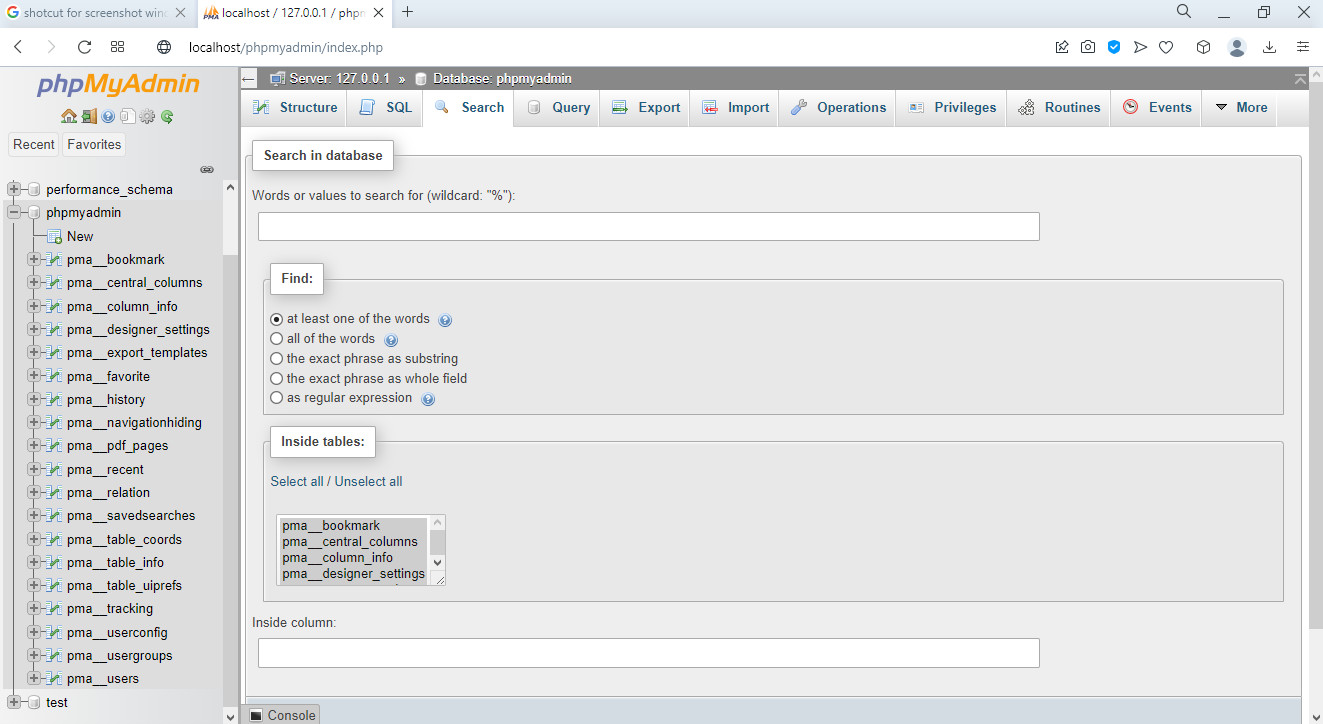 Search interface for finding data across tables
Enter a search term. Select which tables to include. Choose the search criteria:
- At least one of the words-- phpMyAdmin builds an OR query across all columns.
- All of the words-- phpMyAdmin builds an AND query requiring all terms.
- Exact phrase-- phpMyAdmin searches for the complete string match.
- Regular expression-- phpMyAdmin uses MySQL's REGEXP operator for pattern matching.
Click Go. phpMyAdmin displays matching rows from each table with links to edit or view the full row.
Search with SQL Queries in phpMyAdmin
phpMyAdmin's SQL tab accepts direct search queries for more control than the Search tab. These queries demonstrate common search patterns:
-- Search for a partial match in one table
SELECT * FROM users WHERE username LIKE '%john%';

-- Search across multiple columns in one query
SELECT * FROM products
WHERE product_name LIKE '%laptop%'
   OR description LIKE '%laptop%'
   OR category LIKE '%laptop%';

-- Case-sensitive search using the BINARY operator
SELECT * FROM articles WHERE BINARY title = 'Important Notice';

-- Pattern matching with MySQL regular expressions
SELECT * FROM emails WHERE email REGEXP '^[A-Z].*@example\.com$';
Use Full-Text Search in phpMyAdmin
MySQL's FULLTEXT index provides faster and more relevant results than LIKE queries on large text columns. phpMyAdmin supports creating FULLTEXT indexes through the Structure tab and executing MATCH...AGAINST queries through the SQL tab.
-- Full-text search requires a FULLTEXT index on the searched columns
SELECT * FROM posts
WHERE MATCH(title, content) AGAINST('database optimization' IN NATURAL LANGUAGE MODE);
FULLTEXT indexes work only with InnoDB (MySQL 5.6+) and MyISAM storage engines. phpMyAdmin creates FULLTEXT indexes by selecting the column in the Structure tab and choosing FULLTEXT from the Index dropdown.
Step 2: Configure UTF-8 Character Encoding in phpMyAdmin
phpMyAdmin stores and displays text using the character encoding configured on the database, table, and column levels. MySQL's
utf8mb4 character set supports the full 4-byte Unicode range, including emoji, CJK characters, and mathematical symbols. The older
utf8 character set in MySQL handles only 3-byte characters and fails on 4-byte Unicode codepoints.
Change Database Collation in phpMyAdmin
Select the database from the sidebar. Click the
Operationstab. Find the
Collationdropdown. Select
utf8mb4_unicode_ci and click
Go.
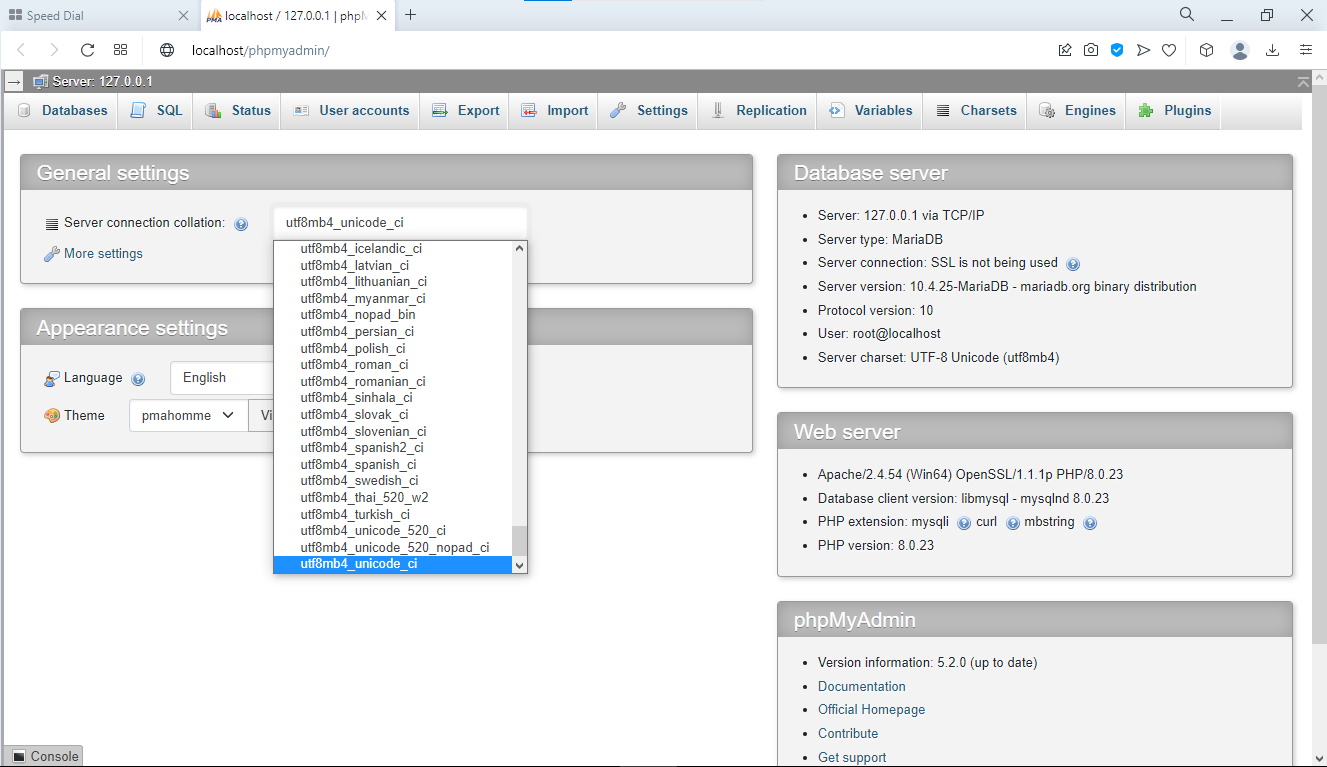 Database collation settings for UTF-8 character support
phpMyAdmin executes this ALTER DATABASE statement:
ALTER DATABASE database_name
CHARACTER SET utf8mb4
COLLATE utf8mb4_unicode_ci;
Convert Existing Tables to UTF-8 in phpMyAdmin
phpMyAdmin's Operations tab changes the database default, but existing tables retain their original character set. Convert each table explicitly:
ALTER TABLE table_name
CONVERT TO CHARACTER SET utf8mb4
COLLATE utf8mb4_unicode_ci;
Convert individual columns when only specific text fields need Unicode support:
ALTER TABLE users
MODIFY username VARCHAR(50)
CHARACTER SET utf8mb4
COLLATE utf8mb4_unicode_ci;
Configure PHP Applications to Use UTF-8 with MySQL
PHP applications connecting to the MySQL database must set the connection character set to
utf8mb4. Without this setting, PHP sends and receives text in the default
latin1 encoding, which corrupts multi-byte characters.
// MySQLi connection with utf8mb4
$conn = new mysqli($host, $user, $pass, $database);
$conn->set_charset("utf8mb4");

// PDO connection with utf8mb4
$pdo = new PDO(
    "mysql:host=$host;dbname=$database;charset=utf8mb4",
    $user,
    $pass
);
Step 3: Change the phpMyAdmin Access URL
phpMyAdmin installs at the default URL path
/phpmyadmin on most systems. Automated vulnerability scanners target this path to find exposed database interfaces. Changing the URL alias adds a layer of security by obscuring the phpMyAdmin location.
Change the phpMyAdmin URL on XAMPP (Windows)
Open the Apache configuration file that defines the phpMyAdmin alias:
cd C:\xampp\apache\conf\extra
notepad httpd-xampp.conf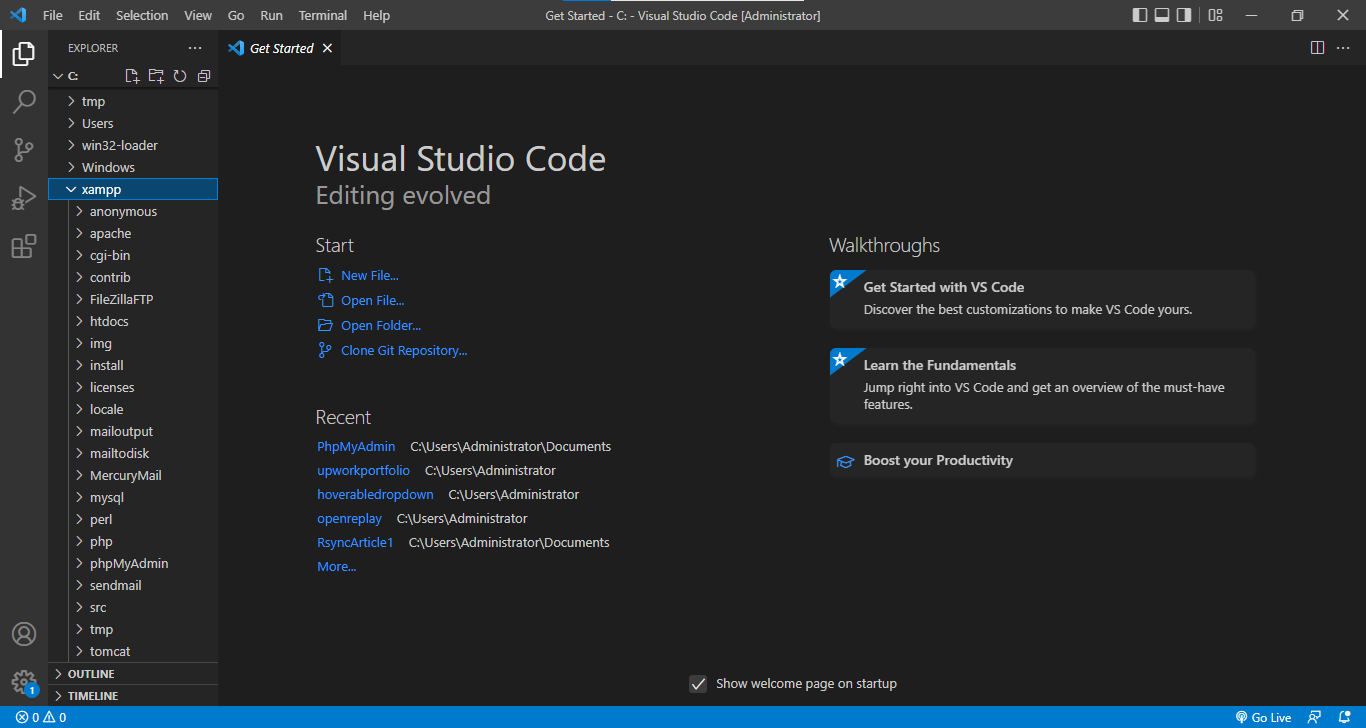 Navigating to Apache configuration file path
Find the Alias directive for phpMyAdmin:
Alias /phpmyadmin "C:/xampp/phpMyAdmin/"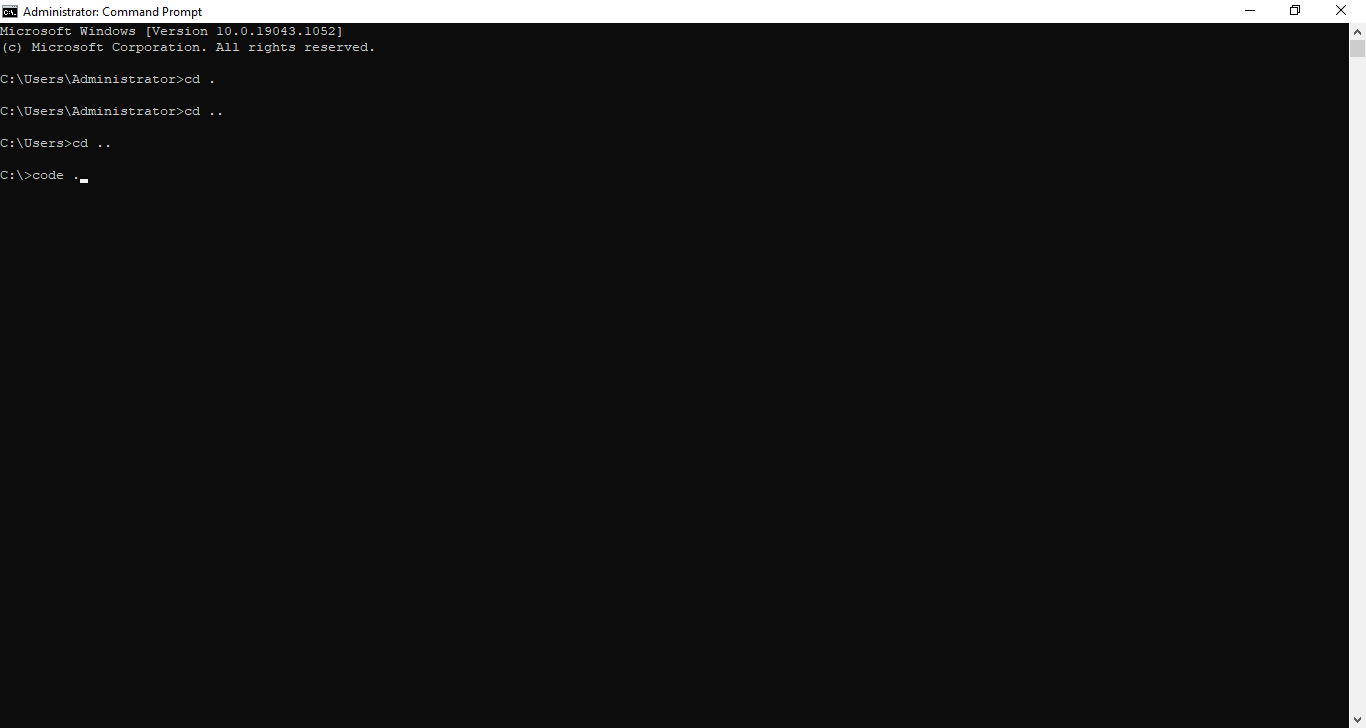 Opening XAMPP directory in Visual Studio Code
Change the path to a custom, hard-to-guess name:
Alias /my-secure-admin-panel "C:/xampp/phpMyAdmin/"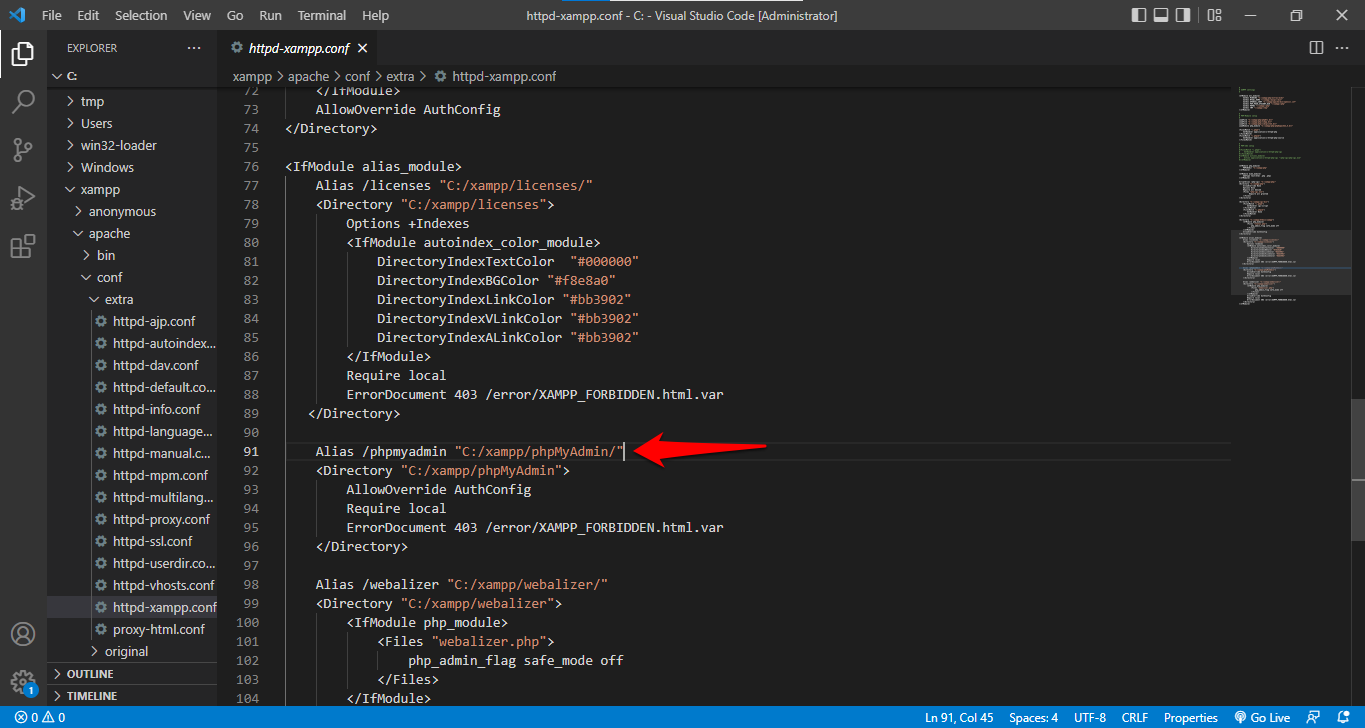 Modifying phpMyAdmin URL alias in configuration file
Save the file. Restart Apache from the XAMPP Control Panel. Access phpMyAdmin at the new URL:
http://localhost/my-secure-admin-panel.
Change the phpMyAdmin URL on Linux (Apache HTTP Server)
Edit the Apache configuration file for phpMyAdmin:
sudo nano /etc/apache2/conf-available/phpmyadmin.confChange the Alias directive:
Alias /secret-db-admin "/usr/share/phpmyadmin"Restart Apache HTTP Server:
sudo systemctl restart apache2Change the phpMyAdmin URL on Nginx
Edit the Nginx site configuration to define a custom location block for phpMyAdmin:
location /custom-admin-url {
    root /usr/share/phpmyadmin;
    index index.php;
}
Reload Nginx after saving:
sudo systemctl reload nginxWhat You Learned
This tutorial covered three advanced phpMyAdmin operations. The Search tab executes LIKE and REGEXP queries across multiple tables simultaneously. UTF-8 configuration with
utf8mb4 character set ensures full Unicode support at the database, table, and column levels. Changing the phpMyAdmin URL alias in the Apache or Nginx web server configuration hides the database interface from automated scanners.
What to Do Next
Build a complete relational database with foreign keys and sample data. See the phpMyAdmin student information system tutorialfor a full walkthrough.
Apply security hardening to the phpMyAdmin installation. See phpMyAdmin best practicesfor configuration recommendations.