
phpMyAdmin troubleshooting
Diagnose and fix common phpMyAdmin errors including access denied, connection refused, import failures, configuration storage warnings, and timeout issues.
- phpMyAdmin: Access denied for user 'root'@'localhost' (HY000/1045)
- What Causes "Access denied" in phpMyAdmin
- How to Fix "Access denied" in phpMyAdmin
- phpMyAdmin: Access denied (Using password: NO)
- How to Fix "Using password: NO" in phpMyAdmin
- phpMyAdmin: mysqli_real_connect(): (HY000/2002) Connection refused
- What Causes "Connection refused" in phpMyAdmin
- How to Fix "Connection refused" in phpMyAdmin
- phpMyAdmin: MySQL server has gone away (Error 2006)
- What Causes "MySQL server has gone away" in phpMyAdmin
- How to Fix "MySQL server has gone away" in phpMyAdmin
- phpMyAdmin: Incorrect format parameter or Script timeout (Import Errors)
- How to Fix Import Errors in phpMyAdmin
- phpMyAdmin: Duplicate entry for key 'PRIMARY'
- How to Fix "Duplicate entry" in phpMyAdmin
- phpMyAdmin: The configuration storage is not completely configured
- How to Fix the Configuration Storage Warning in phpMyAdmin
- phpMyAdmin: Fatal error -- Uncaught TypeError in Core.php
- How to Fix the Core.php Fatal Error in phpMyAdmin
- phpMyAdmin Not Loading in cPanel
- How to Fix phpMyAdmin in cPanel
- phpMyAdmin: MySQL server not running (MAMP)
- How to Fix phpMyAdmin in MAMP
- phpMyAdmin: Checking and Repairing Corrupted Tables
- How to Repair Tables in phpMyAdmin
phpMyAdmin troubleshooting covers authentication errors, connection failures, import problems, configuration warnings, and platform-specific issues with XAMPP, MAMP, and Docker.
phpMyAdmin: Access denied for user 'root'@'localhost' (HY000/1045)
phpMyAdmin displays "Access denied for user 'root'@'localhost'" when the MySQL username or password is incorrect, or when the MySQL user account lacks connection privileges for the specified host.
What Causes "Access denied" in phpMyAdmin
phpMyAdmin passes the submitted credentials to the MySQL server's authentication system. MySQL rejects the connection when the password does not match the stored hash, or when no user account exists for the
'root'@'localhost' host combination. On fresh XAMPP installations, the MySQL root account has no password, but phpMyAdmin may be configured to expect one.
How to Fix "Access denied" in phpMyAdmin
1. Reset the MySQL root password on Linux:
sudo systemctl stop mysql
sudo mysqld_safe --skip-grant-tables &
mysql -u root
FLUSH PRIVILEGES;
ALTER USER 'root'@'localhost' IDENTIFIED WITH mysql_native_password BY 'new_password';
EXIT;
sudo systemctl restart mysql2. Reset the MySQL root password on XAMPP:
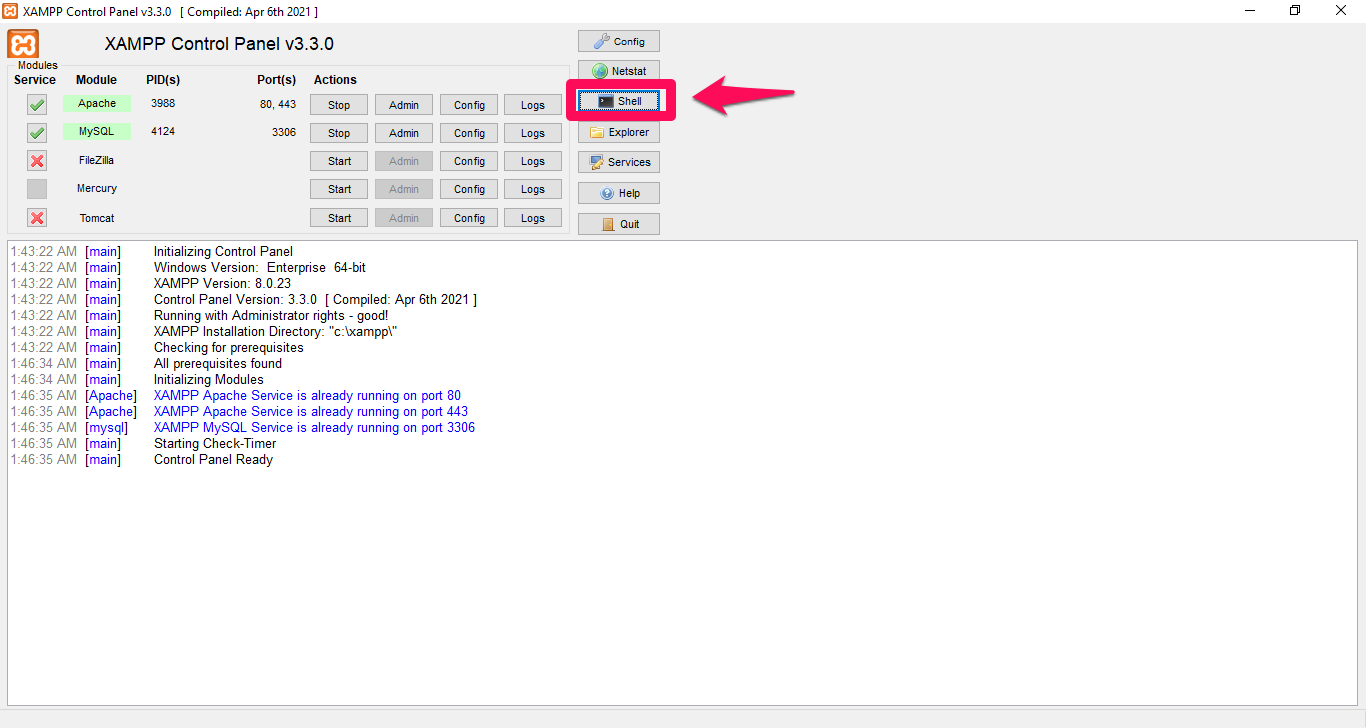 Access MySQL shell through XAMPP control panel for troubleshooting
Open the XAMPP Shell and run:
mysql -u root
USE mysql;
ALTER USER 'root'@'localhost' IDENTIFIED BY 'your_new_password';
FLUSH PRIVILEGES;
EXIT;
3. Update phpMyAdmin configuration to match the new password:
Edit
config.inc.php and set the authentication type to
cookie so phpMyAdmin prompts for credentials:
$cfg['Servers'][$i]['auth_type'] = 'cookie';
$cfg['Servers'][$i]['user'] = '';
$cfg['Servers'][$i]['password'] = '';
4. Verify MySQL user permissions:
SELECT User, Host FROM mysql.user WHERE User='root';
GRANT ALL PRIVILEGES ON *.* TO 'root'@'localhost' IDENTIFIED BY 'password';
FLUSH PRIVILEGES;
phpMyAdmin: Access denied (Using password: NO)
phpMyAdmin displays "Access denied (Using password: NO)" when it sends an empty password to a MySQL server that requires one. This happens when
config.inc.php has the
auth_type set to
config with a blank
password field.
How to Fix "Using password: NO" in phpMyAdmin
- Edit the phpMyAdmin configuration file:
# Linux
sudo nano /etc/phpmyadmin/config.inc.php

# XAMPP Windows
# Edit C:\xampp\phpMyAdmin\config.inc.php- Switch to cookie-based authentication so phpMyAdmin prompts for credentials:
$cfg['Servers'][$i]['auth_type'] = 'cookie';
$cfg['Servers'][$i]['password'] = '';- Clear the browser cache and all cookies starting with
pmato remove stale session data.
phpMyAdmin: mysqli_real_connect(): (HY000/2002) Connection refused
phpMyAdmin displays "Connection refused" when the MySQL server process is not running or phpMyAdmin connects to the wrong host, port, or socket.
What Causes "Connection refused" in phpMyAdmin
phpMyAdmin attempts a TCP connection to the MySQL server on the configured host and port. The operating system returns "Connection refused" when no process listens on that port. Common causes include a stopped MySQL service, a non-default port number, a firewall rule blocking port 3306, or a Docker container on a separate network.
How to Fix "Connection refused" in phpMyAdmin
1. Verify the MySQL service is running:
# Linux
sudo systemctl status mysql
sudo systemctl start mysql

# XAMPP: Check the Control Panel -- MySQL should show "Running"
2. Verify MySQL listens on the expected port:
netstat -an | grep 3306Update phpMyAdmin if MySQL runs on a non-default port:
$cfg['Servers'][$i]['host'] = 'localhost';
$cfg['Servers'][$i]['port'] = '3307';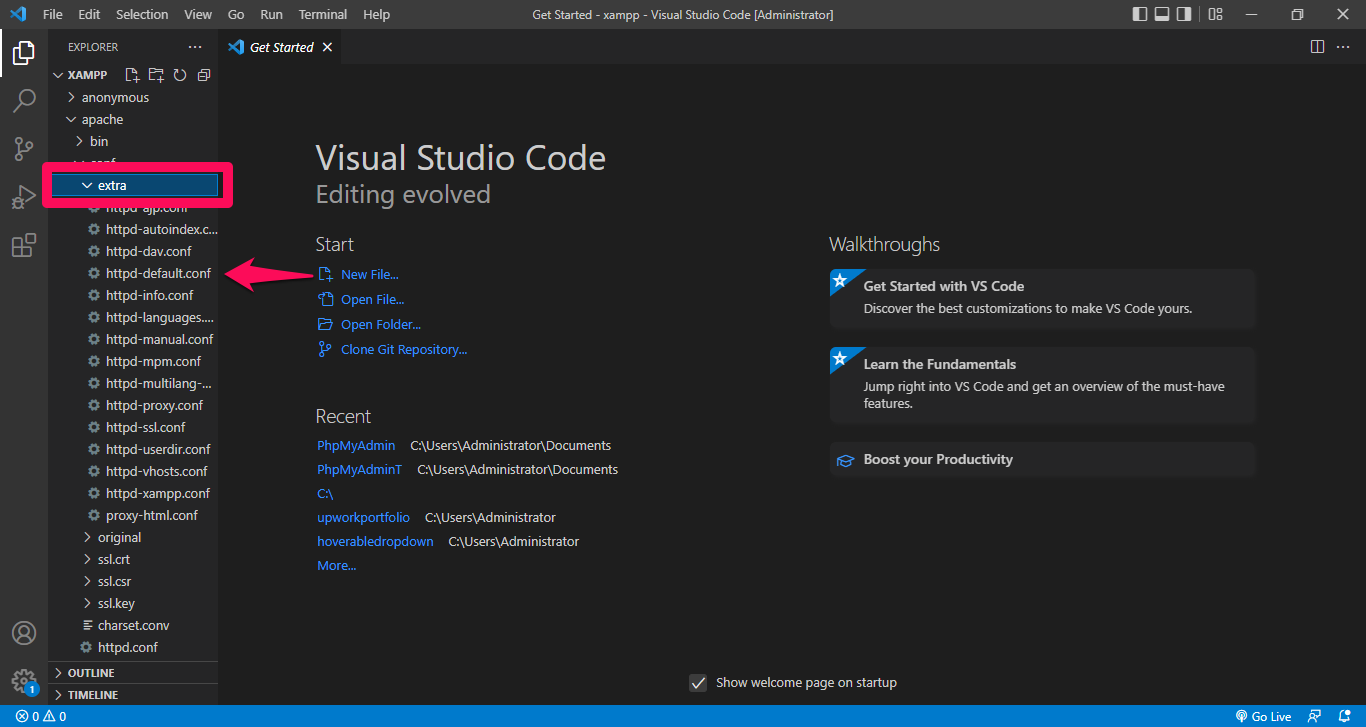 Editing phpMyAdmin configuration file to specify correct MySQL port
3. Open port 3306 in the firewall:
# Linux (UFW)
sudo ufw allow 3306/tcp
4. Fix Docker network isolation:
phpMyAdmin and MySQL containers must share the same Docker network. Define both services under the same network in
docker-compose.yml:
version: '3'
services:
  db:
    image: mysql:8.0
    networks:
      - backend
    environment:
      MYSQL_ROOT_PASSWORD: rootpassword

  phpmyadmin:
    image: phpmyadmin:latest
    networks:
      - backend
    environment:
      PMA_HOST: db
      PMA_PORT: 3306

networks:
  backend:
phpMyAdmin: MySQL server has gone away (Error 2006)
phpMyAdmin displays "MySQL server has gone away" when the MySQL server closes the connection during a long-running query or a large data transfer that exceeds the
max_allowed_packet size.
What Causes "MySQL server has gone away" in phpMyAdmin
phpMyAdmin sends SQL statements to the MySQL server over a persistent connection. MySQL drops the connection when a query exceeds the
wait_timeout value (default: 28800 seconds) or when a single packet exceeds
max_allowed_packet (default: 16 MB). Large SQL imports and complex queries trigger this error most frequently.
How to Fix "MySQL server has gone away" in phpMyAdmin
1. Increase the MySQL
max_allowed_packet value:
; In my.cnf or my.ini
[mysqld]
max_allowed_packet = 128M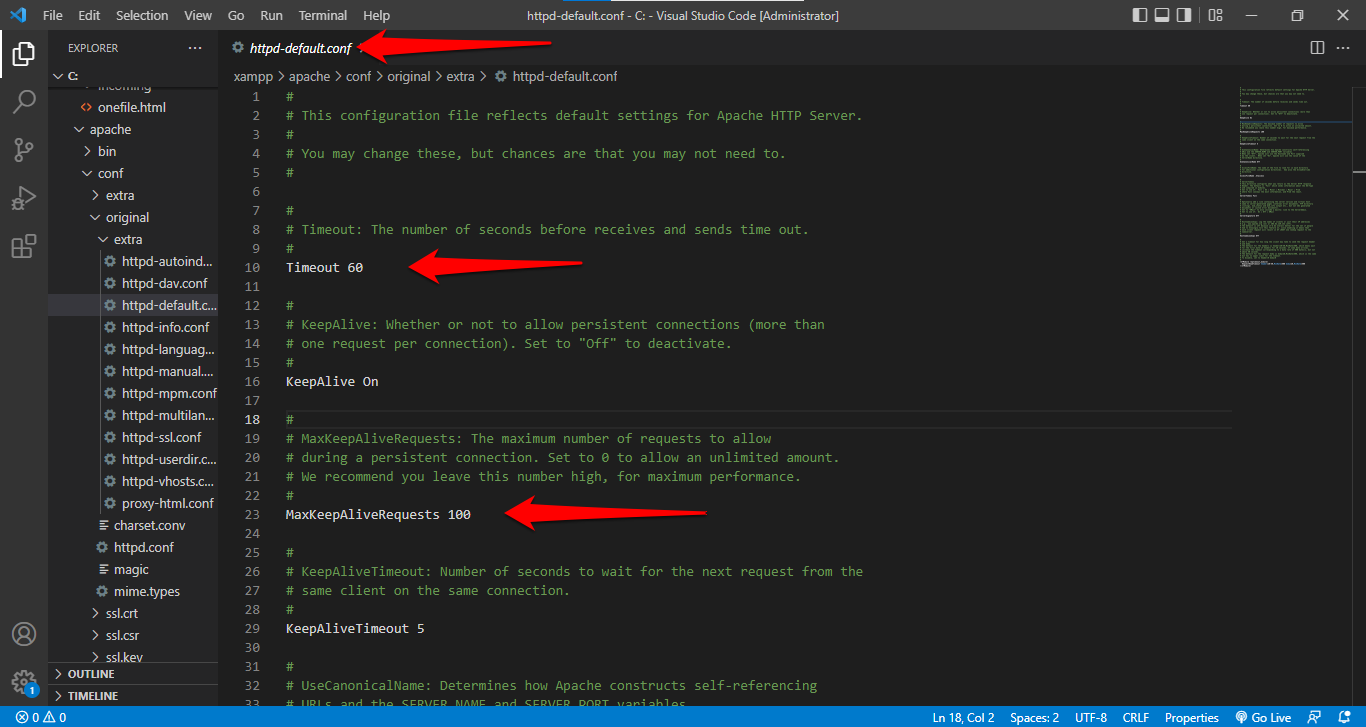 Configuring timeout values in Apache configuration file
2. Increase Apache timeout values:
# In httpd-default.conf
Timeout 1200
KeepAliveTimeout 15
3. Restart MySQL and verify the setting:
sudo systemctl restart mysql
SHOW VARIABLES LIKE 'max_allowed_packet';phpMyAdmin: Incorrect format parameter or Script timeout (Import Errors)
phpMyAdmin displays "Incorrect format parameter" when the imported file contains incompatible syntax, wrong encoding, or a Byte Order Mark (BOM). phpMyAdmin displays "Script timeout" or "503 Service Unavailable" when the import exceeds PHP's
max_execution_time limit.
How to Fix Import Errors in phpMyAdmin
1. Remove the BOM from SQL files:
sed -i '1s/^\xEF\xBB\xBF//' yourfile.sql2. Increase PHP timeout and memory limits for large imports:
; In php.ini
max_execution_time = 600
max_input_time = 600
memory_limit = 256M
post_max_size = 128M
upload_max_filesize = 128M
3. Use the MySQL command line for files larger than 50 MB:
mysql -u username -p database_name < large_file.sql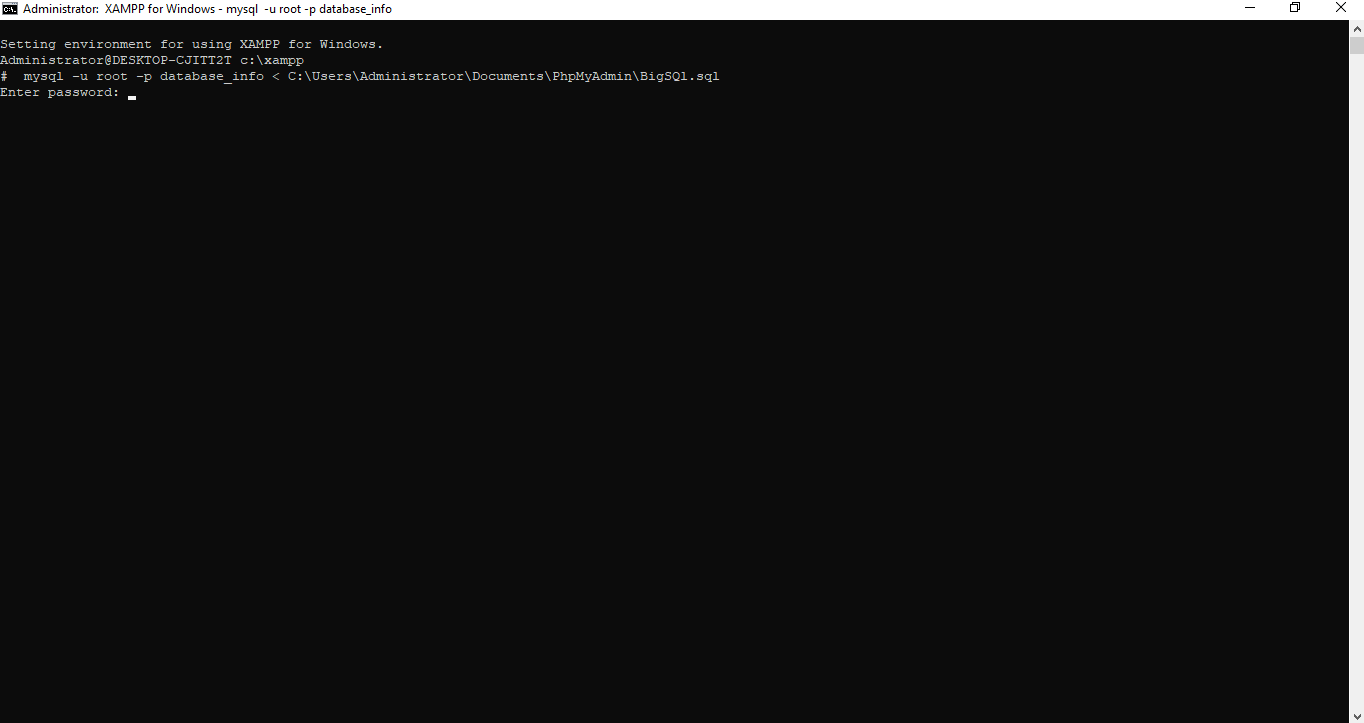 Importing large database file via MySQL command-line interface
4. Disable foreign key checks for imports with dependency errors:
Add these statements to the beginning and end of the SQL file:
-- At the beginning
SET FOREIGN_KEY_CHECKS=0;
SET SQL_MODE = "NO_AUTO_VALUE_ON_ZERO";
START TRANSACTION;

-- SQL import statements

-- At the end
SET FOREIGN_KEY_CHECKS=1;
COMMIT;
phpMyAdmin: Duplicate entry for key 'PRIMARY'
phpMyAdmin displays "Duplicate entry for key 'PRIMARY'" when an INSERT statement attempts to add a row with a primary key value that already exists in the table. This occurs during imports when the target table contains existing data.
How to Fix "Duplicate entry" in phpMyAdmin
1. Drop and recreate the database before importing:
DROP DATABASE IF EXISTS database_name;
CREATE DATABASE database_name;
USE database_name;
2. Modify SQL statements to handle duplicates:
-- Skip rows that conflict with existing primary keys
INSERT IGNORE INTO table_name VALUES (...);

-- Replace existing rows with the imported data
REPLACE INTO table_name VALUES (...);
phpMyAdmin: The configuration storage is not completely configured
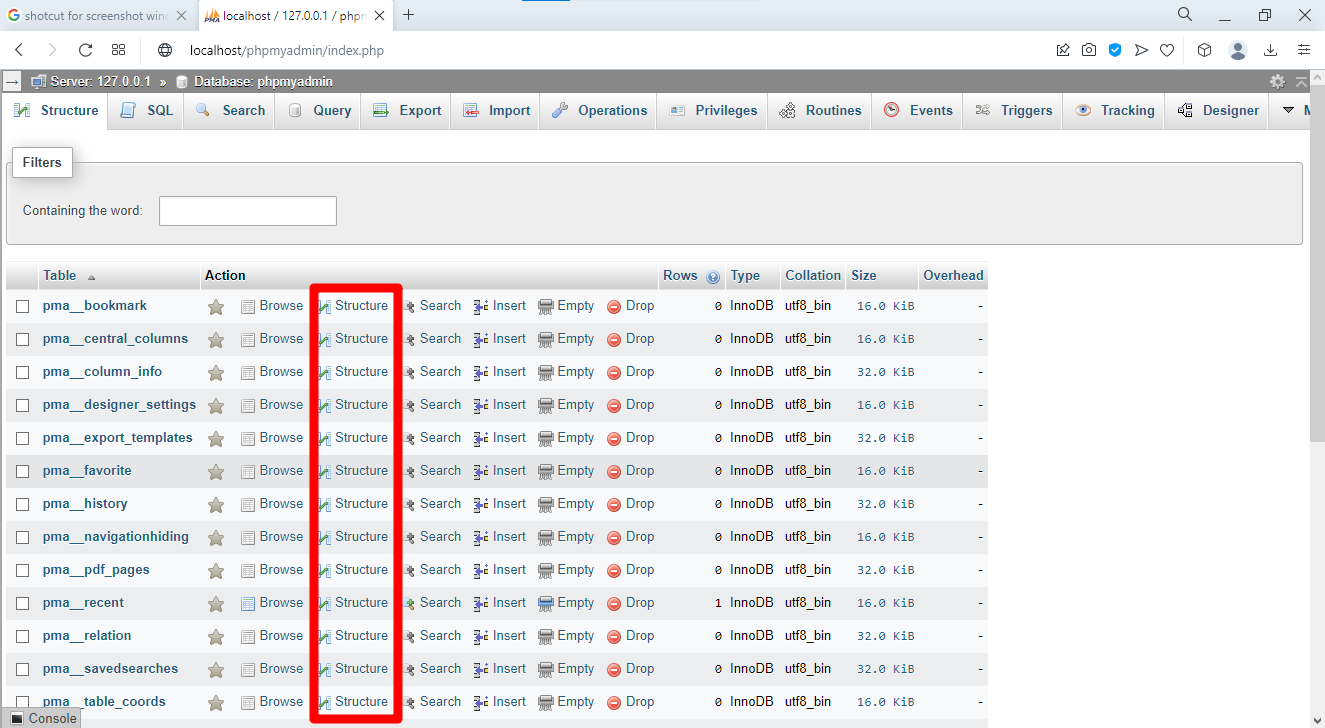
phpMyAdmin displays this warning when its internal metadata tables (bookmarks, query history, table relationships) do not exist in the MySQL server. phpMyAdmin's Designer view, query bookmarks, and tracking features require these tables.
How to Fix the Configuration Storage Warning in phpMyAdmin
1. Import the phpMyAdmin configuration tables:
mysql -u root -p < /usr/share/phpmyadmin/sql/create_tables.sql2. Enable configuration storage in
config.inc.php:
$cfg['Servers'][$i]['pmadb'] = 'phpmyadmin';
$cfg['Servers'][$i]['bookmarktable'] = 'pma__bookmark';
$cfg['Servers'][$i]['relation'] = 'pma__relation';
$cfg['Servers'][$i]['table_info'] = 'pma__table_info';
$cfg['Servers'][$i]['table_coords'] = 'pma__table_coords';
$cfg['Servers'][$i]['pdf_pages'] = 'pma__pdf_pages';
$cfg['Servers'][$i]['column_info'] = 'pma__column_info';
$cfg['Servers'][$i]['history'] = 'pma__history';
$cfg['Servers'][$i]['table_uiprefs'] = 'pma__table_uiprefs';
$cfg['Servers'][$i]['tracking'] = 'pma__tracking';
$cfg['Servers'][$i]['userconfig'] = 'pma__userconfig';
$cfg['Servers'][$i]['recent'] = 'pma__recent';
$cfg['Servers'][$i]['favorite'] = 'pma__favorite';
$cfg['Servers'][$i]['users'] = 'pma__users';
$cfg['Servers'][$i]['usergroups'] = 'pma__usergroups';
$cfg['Servers'][$i]['navigationhiding'] = 'pma__navigationhiding';
$cfg['Servers'][$i]['savedsearches'] = 'pma__savedsearches';
$cfg['Servers'][$i]['central_columns'] = 'pma__central_columns';
$cfg['Servers'][$i]['designer_settings'] = 'pma__designer_settings';
$cfg['Servers'][$i]['export_templates'] = 'pma__export_templates';
3. Create a control user with access to the phpMyAdmin database:
GRANT SELECT, INSERT, UPDATE, DELETE ON phpmyadmin.* TO 'pma'@'localhost' IDENTIFIED BY 'pmapass';
FLUSH PRIVILEGES;
phpMyAdmin: Fatal error -- Uncaught TypeError in Core.php
phpMyAdmin displays "Uncaught TypeError in Core.php" when corrupted session data or a damaged phpMyAdmin configuration database causes a PHP runtime error.
How to Fix the Core.php Fatal Error in phpMyAdmin
1. Clear the browser cache and delete all cookies starting with
pma.
2. Delete PHP session files on the server:
# Linux
sudo rm -rf /var/lib/php/sessions/sess_*

# XAMPP: Delete files in C:\xampp\tmp\
3. Restore the phpMyAdmin database if corruption occurred:
mysql -u root -p phpmyadmin < phpmyadmin_backup.sqlphpMyAdmin Not Loading in cPanel
phpMyAdmin fails to load in cPanel environments when the PHP
mysqli extension is missing, cPanel Feature Manager has disabled phpMyAdmin for the account, or file permissions prevent the web server from reading phpMyAdmin files.
How to Fix phpMyAdmin in cPanel
1. Verify the PHP
mysqli extension is installed:
php -m | grep mysqliInstall it if missing:
sudo apt install php-mysqli
sudo systemctl restart apache2
2. Check cPanel Feature Manager:Log into WHM, open Feature Manager, and verify phpMyAdmin is enabled for the account.
3. Verify file permissions:
chmod 755 /usr/share/phpmyadmin
chmod 644 /usr/share/phpmyadmin/*.php
4. Check error logs for specific failure messages:
tail -f /usr/local/cpanel/logs/error_log
tail -f /var/log/apache2/error.log
phpMyAdmin: MySQL server not running (MAMP)
phpMyAdmin in MAMP displays "MySQL server not running" when MAMP's MySQL service has stopped or when
config.inc.php points to the wrong socket path or port number. MAMP uses non-standard defaults: port 8889 for MySQL and a custom socket path on macOS.
How to Fix phpMyAdmin in MAMP
1. Verify MySQL is running in the MAMP Control Panel.
2. Update the phpMyAdmin connection settings for MAMP:
# macOS
nano /Applications/MAMP/bin/phpMyAdmin/config.inc.php
$cfg['Servers'][$i]['host'] = 'localhost';
$cfg['Servers'][$i]['port'] = '8889';
$cfg['Servers'][$i]['socket'] = '/Applications/MAMP/tmp/mysql/mysql.sock';
$cfg['Servers'][$i]['connect_type'] = 'socket';
3. Restart both Apache and MySQL in the MAMP Control Panel after changing configuration.
phpMyAdmin: Checking and Repairing Corrupted Tables
phpMyAdmin displays errors such as "Table is marked as crashed" or returns unexpected query results when a MySQL table becomes corrupted due to an unclean server shutdown, disk failure, or software bug.
How to Repair Tables in phpMyAdmin
Use the phpMyAdmin interface:
- Select the database containing the corrupted table.
- Check the box next to the affected table.
- Select Repair tablefrom the "With selected:" dropdown.
- Click Go.
 phpMyAdmin table operations interface with repair options
Use SQL statements in the phpMyAdmin SQL editor:
CHECK TABLE table_name;
REPAIR TABLE table_name;
OPTIMIZE TABLE table_name;
ANALYZE TABLE table_name;
Use command-line tools for severe corruption:
sudo systemctl stop mysql

# MyISAM tables
myisamchk -r /var/lib/mysql/database_name/table_name.MYI

# All table types
mysqlcheck -u root -p --auto-repair --all-databases

sudo systemctl start mysql