
phpMyAdmin best practices
Security hardening, backup strategies, performance tuning, and configuration recommendations for phpMyAdmin on production and development servers.
- phpMyAdmin Security Best Practices
- Change the Default phpMyAdmin Access URL
- Restrict phpMyAdmin Access by IP Address
- Enable HTTPS for phpMyAdmin
- Add HTTP Authentication Before phpMyAdmin Login
- Disable Root Login in phpMyAdmin
- Set a Strong Blowfish Secret in phpMyAdmin
- Keep phpMyAdmin Updated to the Latest Version
- phpMyAdmin Configuration Best Practices
- Configure phpMyAdmin Session Timeouts
- Use Cookie Authentication in phpMyAdmin
- Grant Minimum Database Privileges Through phpMyAdmin
- phpMyAdmin Backup Best Practices
- Export phpMyAdmin Databases in SQL Format
- Use mysqldump for phpMyAdmin Databases Over 1 GB
- Store phpMyAdmin Database Backups Outside the Web Root
- phpMyAdmin Performance Best Practices
- Increase PHP Upload Limits for phpMyAdmin Imports
- Enable phpMyAdmin Template Caching
- Tune MySQL Server Settings for phpMyAdmin Operations
phpMyAdmin best practices cover security hardening, backup strategies, performance tuning, and configuration settings for production and development environments.
phpMyAdmin Security Best Practices
Change the Default phpMyAdmin Access URL
phpMyAdmin installs at the predictable URL path
/phpmyadmin by default. Automated scanners and attackers target this path to locate the login page. Changing the URL alias forces attackers to guess the correct path, which reduces exposure to brute-force login attempts.
# In /etc/apache2/conf-available/phpmyadmin.conf
# Replace /phpmyadmin with a custom path
Alias /secure-db-panel "C:/xampp/phpMyAdmin/"
Restart Apache HTTP Server after changing the alias:
sudo systemctl restart apache2Restrict phpMyAdmin Access by IP Address
phpMyAdmin should accept connections only from known IP addresses on production servers. IP-based restrictions block login attempts from unauthorized networks before credentials are even submitted. This reduces the attack surface to trusted administrator workstations.
<Directory /usr/share/phpmyadmin>
    Options SymLinksIfOwnerMatch
    DirectoryIndex index.php
    AllowOverride All

    <RequireAll>
        Require ip 203.0.113.4
        Require ip 198.51.100.0/24
    </RequireAll>
</Directory>
Enable HTTPS for phpMyAdmin
phpMyAdmin transmits database credentials and query results over HTTP by default. Without TLS encryption, attackers on the same network can intercept usernames, passwords, and database contents through packet sniffing. Configure HTTPS with a valid TLS certificate to encrypt all traffic between the browser and the phpMyAdmin web interface.
# Install a Let's Encrypt TLS certificate on Ubuntu/Debian
sudo apt install certbot python3-certbot-apache
sudo certbot --apache -d {YOUR_DOMAIN}
Force phpMyAdmin to require HTTPS connections by adding this directive to
config.inc.php:
$cfg['ForceSSL'] = true;Add HTTP Authentication Before phpMyAdmin Login
phpMyAdmin's login page should sit behind an additional Apache HTTP Server authentication layer. This creates a two-step login process: first the HTTP Basic Authentication prompt, then the phpMyAdmin MySQL credential form. Attackers must bypass both layers to reach the database.
# Create the HTTP password file
sudo htpasswd -c /etc/phpmyadmin/.htpasswd admin_user
Add these directives to
/usr/share/phpmyadmin/.htaccess:
AuthType Basic
AuthName "Restricted Access"
AuthUserFile /etc/phpmyadmin/.htpasswd
Require valid-user
Disable Root Login in phpMyAdmin
phpMyAdmin should block direct root access to the MySQL server. The MySQL root account has unrestricted privileges on all databases, tables, and user accounts. A compromised root session gives an attacker complete control over the database server.
// In config.inc.php
$cfg['Servers'][$i]['AllowRoot'] = false;
Create dedicated database users with the minimum required privileges instead:
CREATE USER 'dbadmin'@'localhost' IDENTIFIED BY 'strong_password';
GRANT ALL PRIVILEGES ON specific_database.* TO 'dbadmin'@'localhost';
FLUSH PRIVILEGES;
Set a Strong Blowfish Secret in phpMyAdmin
phpMyAdmin uses the blowfish secret string to encrypt session cookies when cookie-based authentication is enabled. A weak or missing blowfish secret makes session tokens predictable and vulnerable to forgery. Set a random string of at least 32 characters in
config.inc.php.
$cfg['blowfish_secret'] = 'your-32-character-random-string-here123456789';Generate a cryptographically secure random string with OpenSSL:
openssl rand -base64 32Keep phpMyAdmin Updated to the Latest Version
phpMyAdmin receives regular security patches for XSS (Cross-Site Scripting), SQL injection, and authentication bypass vulnerabilities. Running an outdated version exposes the database server to known exploits. Check for updates at phpmyadmin.netand apply patches promptly.
# Update phpMyAdmin on Ubuntu/Debian
sudo apt update && sudo apt upgrade phpmyadmin
phpMyAdmin Configuration Best Practices
Configure phpMyAdmin Session Timeouts
phpMyAdmin session cookies should expire after a short idle period on shared or public workstations. The
LoginCookieValidity setting controls the session duration in seconds. Set it to 1800 (30 minutes) for a balance between security and usability. Match the PHP
session.gc_maxlifetime value to avoid premature session garbage collection.
// In config.inc.php
$cfg['LoginCookieValidity'] = 1800;
$cfg['LoginCookieStore'] = 0;
; In php.ini
session.gc_maxlifetime = 1800
Use Cookie Authentication in phpMyAdmin
phpMyAdmin supports three authentication types:
cookie,
config, and
http. Cookie-based authentication prompts for MySQL credentials on each login and stores them in an encrypted session cookie. The
config type stores plaintext credentials in
config.inc.php, which creates a security risk if the file becomes readable. Always use
cookie authentication on production servers.
$cfg['Servers'][$i]['auth_type'] = 'cookie';
$cfg['Servers'][$i]['host'] = 'localhost';
$cfg['Servers'][$i]['port'] = 3306;
$cfg['Servers'][$i]['compress'] = true;
Grant Minimum Database Privileges Through phpMyAdmin
phpMyAdmin displays all privileges granted to the authenticated MySQL user. Application database users should receive only the SELECT, INSERT, UPDATE, and DELETE privileges required by the application. Avoid granting FILE, PROCESS, SUPER, or SHUTDOWN privileges to non-administrative accounts, because these allow reading server files, viewing all running queries, or shutting down the MySQL server.
CREATE USER 'webapp_user'@'localhost' IDENTIFIED BY 'secure_password';
GRANT SELECT, INSERT, UPDATE, DELETE ON webapp_db.* TO 'webapp_user'@'localhost';
FLUSH PRIVILEGES;
phpMyAdmin Backup Best Practices
Export phpMyAdmin Databases in SQL Format
phpMyAdmin supports SQL, CSV, JSON, XML, and Excel export formats. SQL format preserves the complete database structure (CREATE TABLE statements, indexes, foreign keys) and data (INSERT statements) in a single file. Use SQL format for backup purposes because it restores the exact database state including constraints, triggers, and AUTO_INCREMENT values.
Export settings for reliable backups:
- Method: Quickfor a complete backup of all tables.
- Format: SQLfor structure and data preservation.
- Compression: gzipor zipto reduce file size.
- Include DROP TABLEstatements to allow clean restores.
- Include CREATE DATABASE / USEstatements for standalone import.
 phpMyAdmin export interface with backup configuration options
Use mysqldump for phpMyAdmin Databases Over 1 GB
phpMyAdmin's browser-based export hits PHP timeout and memory limits on large databases. The
mysqldump command-line utility exports directly from the MySQL server without PHP overhead. Use
mysqldump for any database larger than 1 GB, and pipe the output through gzip for compression.
mysqldump -u username -p --single-transaction --quick \
  --lock-tables=false database_name \
  | gzip > backup_$(date +%Y%m%d_%H%M%S).sql.gz
Store phpMyAdmin Database Backups Outside the Web Root
phpMyAdmin export files contain the complete database contents, including user credentials and sensitive application data. Store backup files in a directory outside the web server's document root to prevent direct HTTP access. Encrypt sensitive backups with GPG or AES-256 before transferring them to remote storage.
# Encrypt a backup file with GPG
gpg --symmetric --cipher-algo AES256 database_backup.sql
Follow the 3-2-1 backup rule: maintain 3 copies of the data, store them on 2 different media types, and keep 1 copy offsite.
phpMyAdmin Performance Best Practices
Increase PHP Upload Limits for phpMyAdmin Imports
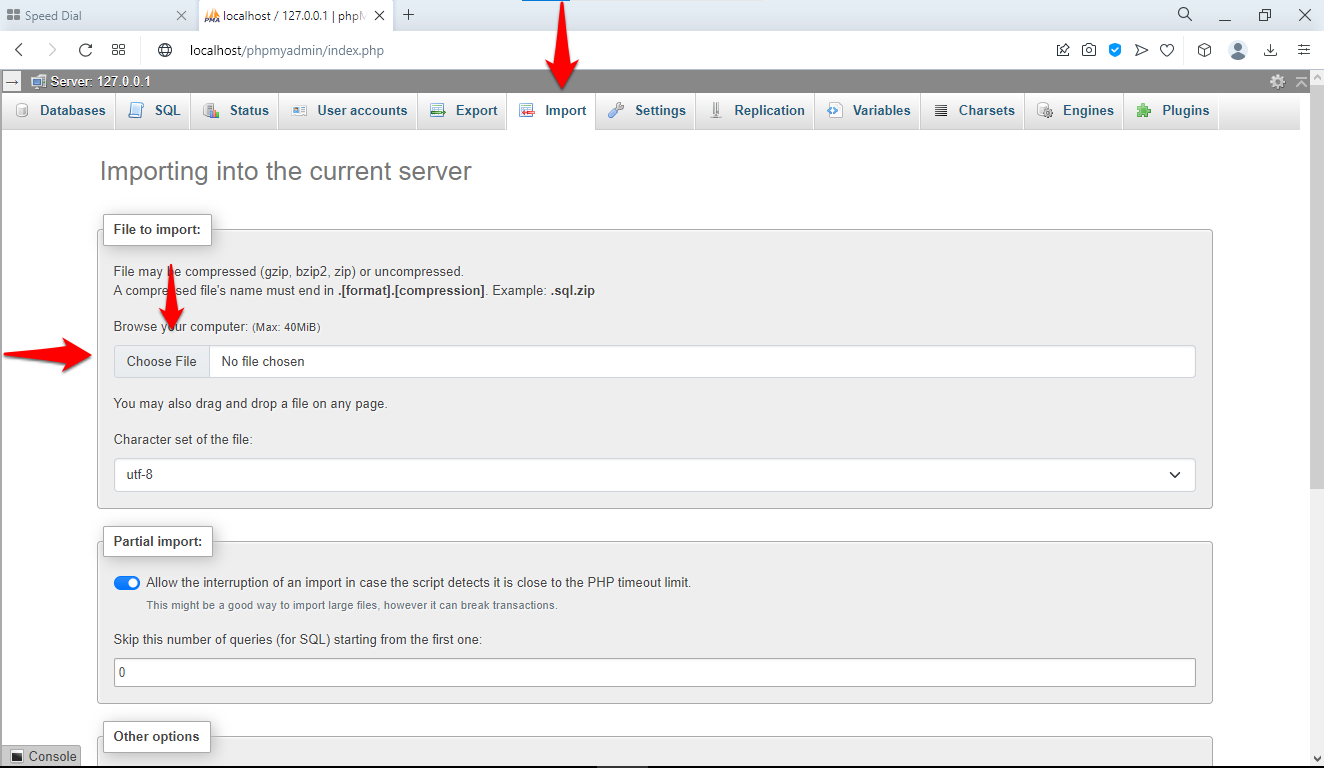
phpMyAdmin's import function respects PHP's
upload_max_filesize and
post_max_size limits. The default values (often 2 MB) prevent importing medium-to-large SQL dump files. Increase these values in
php.ini to match the largest import file expected.
; In php.ini
upload_max_filesize = 128M
post_max_size = 128M
max_execution_time = 600
max_input_time = 600
memory_limit = 256M
Enable phpMyAdmin Template Caching
phpMyAdmin renders HTML templates on every page load. Enabling template caching stores compiled templates in a temporary directory, which reduces CPU usage and page load times on repeated visits. Create the cache directory with web server write permissions.
// In config.inc.php
$cfg['TempDir'] = '/tmp/phpmyadmin';
mkdir -p /tmp/phpmyadmin
chmod 775 /tmp/phpmyadmin
chown www-data:www-data /tmp/phpmyadmin
Tune MySQL Server Settings for phpMyAdmin Operations
phpMyAdmin relies on the MySQL server's
max_allowed_packet setting for large imports and exports. The default value (often 16 MB) causes "MySQL server has gone away" errors when importing large SQL files. Increase this value in the MySQL configuration file (
my.cnf or
my.ini).
[mysqld]
max_allowed_packet = 128M
innodb_buffer_pool_size = 1G
tmp_table_size = 64M
max_heap_table_size = 64M
Restart MySQL after changing configuration values:
sudo systemctl restart mysql