
phpMyAdmin
phpMyAdmin is a free, open-source web interface for managing MySQL and MariaDB databases through a browser without command-line access.
- What phpMyAdmin Does and When to Use It
- How to Install phpMyAdmin
- Core Concepts of phpMyAdmin
- How phpMyAdmin Connects to MySQL and MariaDB
- How phpMyAdmin Organizes Database Objects
- How phpMyAdmin Handles SQL Queries
- Common Tasks with phpMyAdmin
- How to Create a Database with phpMyAdmin
- How to Create a Table with phpMyAdmin
- How to Run SQL Queries in phpMyAdmin
- How to Export a Database with phpMyAdmin
- How to Import Data into phpMyAdmin
- Related Tools and Guides
phpMyAdmin is a free, open-source web application that manages MySQL and MariaDB databases through a browser-based graphical interface.
What phpMyAdmin Does and When to Use It
phpMyAdmin provides a web-based interface for administering MySQL and MariaDB database servers. It handles common database tasks such as creating databases, designing tables, running SQL queries, importing and exporting data, and managing user privileges. phpMyAdmin runs on any system with PHP and a web server, including Apache HTTP Server and Nginx.
phpMyAdmin suits web hosting environments where direct SSH access to the MySQL command line is unavailable. Development stacks such as XAMPP, WAMP, and MAMP bundle phpMyAdmin as the default database management tool. The current stable version is 5.2.3, released in October 2025, compatible with PHP 7.2+ and MySQL/MariaDB 5.5+.
phpMyAdmin does not support PostgreSQL, MongoDB, or other non-MySQL database engines. For large databases exceeding several gigabytes, the MySQL command-line client (
mysql) or MySQL Workbench handles bulk operations more reliably than phpMyAdmin's browser-based interface. phpMyAdmin also lacks built-in scheduled backup features and requires manual exports or external scripts for automation.
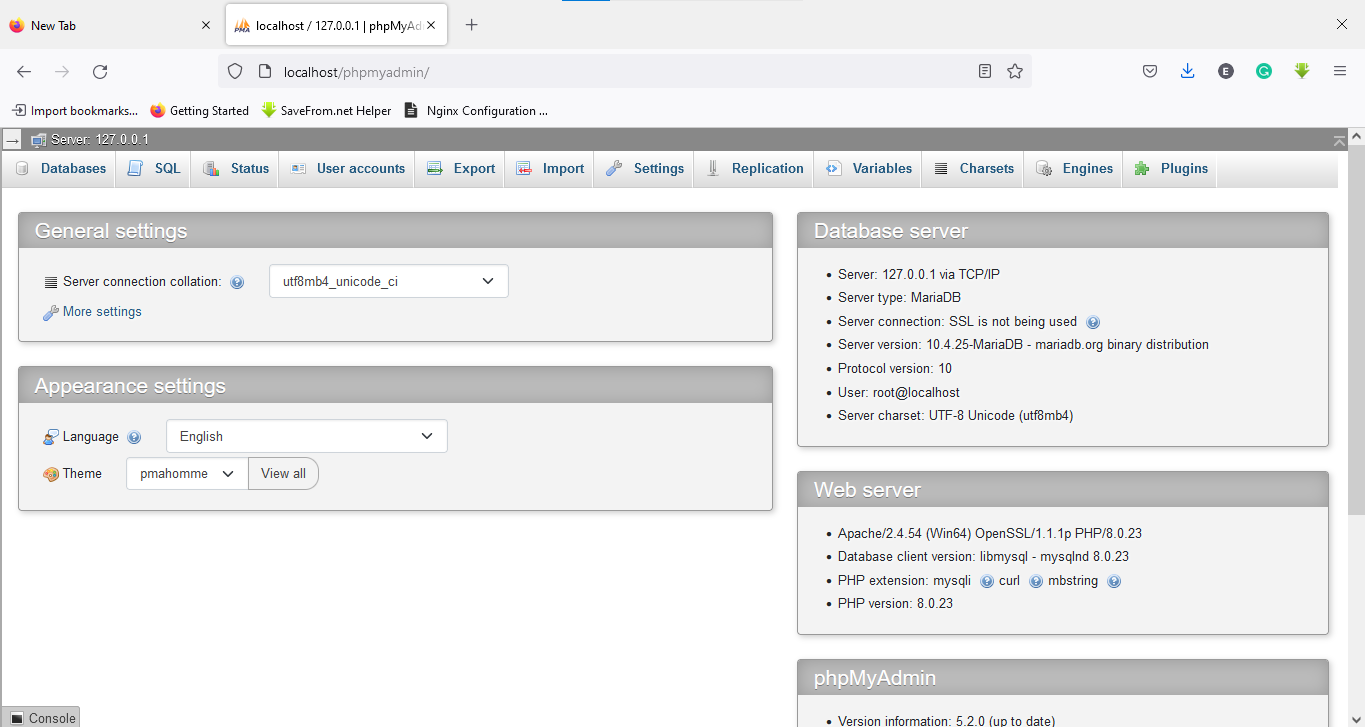 The phpMyAdmin dashboard interface showing database management options
How to Install phpMyAdmin
phpMyAdmin installs through package managers on Linux, bundled stacks on Windows and macOS, or Docker containers.
=== "Ubuntu / Debian"
sudo apt update
sudo apt install phpmyadmin php-mbstring php-zip php-gd
=== "XAMPP (Windows / macOS)"
Download XAMPP from
apachefriends.org. phpMyAdmin ships pre-installed with XAMPP. Start Apache and MySQL from the XAMPP Control Panel, then open
http://localhost/phpmyadmin in a browser.
=== "Docker"
docker run --name phpmyadmin -d -e PMA_ARBITRARY=1 -p 8080:80 phpmyadmin:latestFor a step-by-step walkthrough of each installation method, see the phpMyAdmin installation tutorial.
Core Concepts of phpMyAdmin
How phpMyAdmin Connects to MySQL and MariaDB
phpMyAdmin connects to MySQL or MariaDB through PHP's
mysqli extension. The
config.inc.php file stores connection parameters including the host address, port number, socket path, and authentication method. phpMyAdmin supports three authentication modes:
cookie (prompts for credentials at login),
config (stores credentials in the config file), and
http (uses HTTP Basic Authentication).
How phpMyAdmin Organizes Database Objects
phpMyAdmin displays the database hierarchy in a left sidebar navigation panel. The panel lists all databases the authenticated user can access. Each database expands to show its tables, views, stored procedures, and functions. The top navigation bar provides tabs for Structure, SQL, Search, Query, Export, Import, and Operations on the selected database or table.
How phpMyAdmin Handles SQL Queries
phpMyAdmin includes a built-in SQL editor that executes queries against the selected database. The editor supports syntax highlighting, autocompletion, and query history. phpMyAdmin also provides a Query by Example (QBE) interface for building SELECT statements visually without writing raw SQL.
Common Tasks with phpMyAdmin
How to Create a Database with phpMyAdmin
Click the
Databasestab in the top navigation. Enter a database name and select the
utf8mb4_unicode_ci collation for full Unicode support. Click
Create. phpMyAdmin executes the
CREATE DATABASE statement and displays the new database in the sidebar.
How to Create a Table with phpMyAdmin
Select a database from the sidebar. Enter the table name and number of columns in the Create tablesection. Define each column's name, data type (INT, VARCHAR, TEXT, DATE), length, default value, and index type (PRIMARY, UNIQUE, INDEX). Set the primary key column to AUTO_INCREMENT for automatic ID generation.
How to Run SQL Queries in phpMyAdmin
Select a database or table from the sidebar. Click the
SQLtab to open the query editor. Type a SQL statement such as
SELECT * FROM users WHERE is_active = 1; and click
Go. phpMyAdmin displays the result set in a browsable table with options to edit, copy, or delete individual rows.
How to Export a Database with phpMyAdmin
Select the database from the sidebar. Click the
Exporttab. Choose
Quickfor a full SQL dump or
Customto select specific tables and output formats. phpMyAdmin supports SQL, CSV, JSON, XML, and Excel export formats. Click
Goto download the export file. For databases larger than 50 MB, use
mysqldump from the command line instead.
How to Import Data into phpMyAdmin
Select the target database from the sidebar. Click the
Importtab. Click
Choose Fileand select a
.sql,
.csv, or
.json file. Set the character encoding to UTF-8. Click
Goto start the import. phpMyAdmin's default upload limit depends on the PHP
upload_max_filesize setting, typically 2 MB to 128 MB.
Related Tools and Guides
MySQL Workbench provides a desktop application with advanced features such as visual schema design, performance tuning, and server administration that phpMyAdmin does not offer. See the MySQL documentationfor command-line alternatives.
Adminer is a single-file PHP alternative to phpMyAdmin that supports MySQL, MariaDB, PostgreSQL, SQLite, and other databases. It provides a lighter-weight interface for environments where phpMyAdmin's full feature set is unnecessary.
For phpMyAdmin security hardening, see phpMyAdmin best practices. For common error solutions, see phpMyAdmin troubleshooting.