
nslookup tutorial: interactive mode
Learn how to use nslookup interactive mode to run multiple DNS queries, change servers, set record types, and enable debug output.
- What You Will Need
- Step 1: Enter nslookup Interactive Mode
- Step 2: Query a Domain Name in nslookup Interactive Mode
- Step 3: Change the DNS Query Type in nslookup Interactive Mode
- Step 4: Change the DNS Server in nslookup Interactive Mode
- Step 5: Enable Debug Output in nslookup Interactive Mode
- Step 6: Exit nslookup Interactive Mode
- What You Learned
- What to Do Next
This tutorial walks through nslookup interactive mode step by step. By the end, you will understand how to run multiple DNS queries in a single session, change DNS servers, set query types, and enable debug output.
What You Will Need
- nslookup installed on the system (included by default on Linux, macOS, and Windows).
- Terminal or command prompt access.
- Internet connectivity to reach DNS servers.
Step 1: Enter nslookup Interactive Mode
nslookup starts in interactive mode when no arguments follow the command. Interactive mode keeps the tool running and accepts multiple queries at the
> prompt. This eliminates the need to retype
nslookup before each lookup.
Open a terminal and type:
nslookupThe prompt changes from the system shell to the nslookup
> prompt:
>
nslookup connects to the system's default DNS resolver and waits for input. Every query entered at this prompt uses the default resolver until a different server is specified.
Step 2: Query a Domain Name in nslookup Interactive Mode
nslookup performs an A record (IPv4 address) lookup when a domain name is entered at the interactive prompt. Type a domain name and press Enter.
> example.comnslookup sends the query to the default DNS resolver and returns the resolved IP address:
Server:  192.168.0.1
Address: 192.168.0.1#53

Non-authoritative answer:
Name:    example.com
Address: 93.184.216.34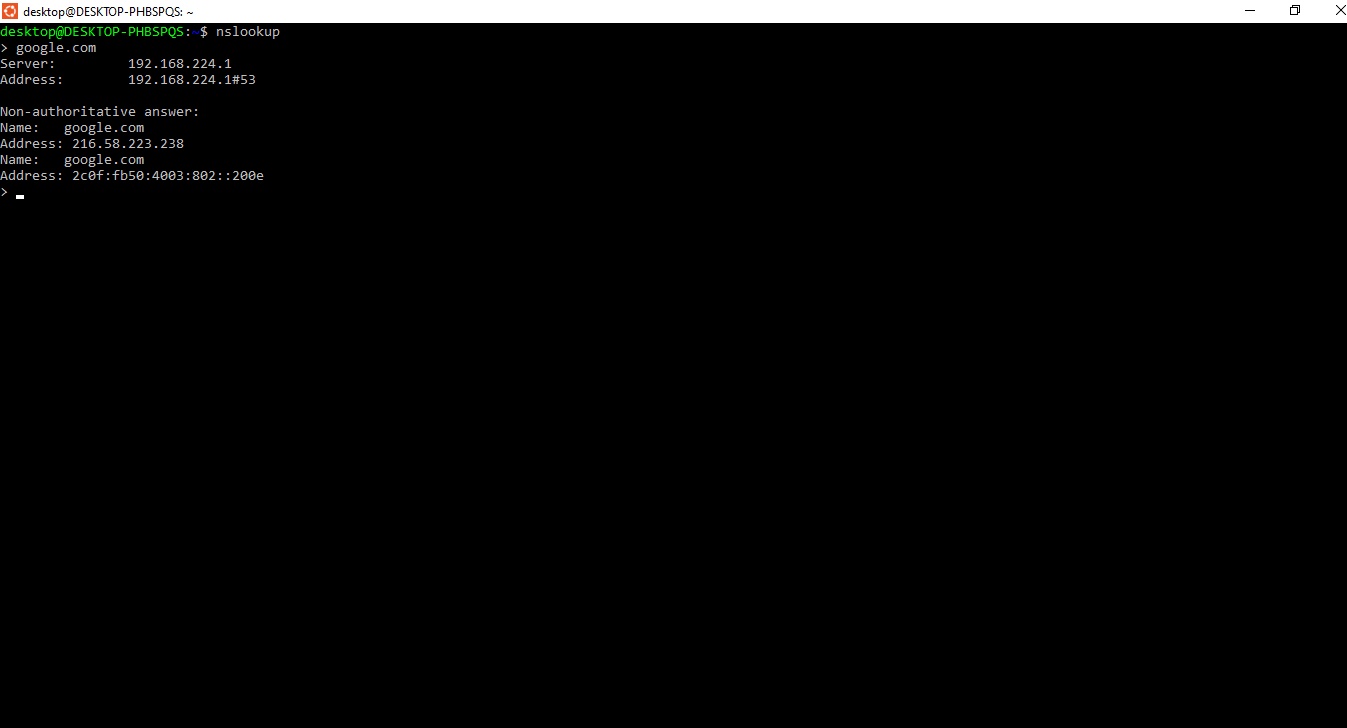
The "Server" line identifies the DNS resolver that answered the query. The "Non-authoritative answer" label means the response came from the resolver's cache, not from the domain's authoritative nameserver. nslookup includes both the domain name and its resolved IP address in the answer.
Step 3: Change the DNS Query Type in nslookup Interactive Mode
nslookup queries A records by default. The
set type command changes the record type for all subsequent queries in the session. This allows querying MX records (mail servers), NS records (nameservers), TXT records (verification data), and other DNS record types without leaving interactive mode.
Set the query type to MX to retrieve mail exchange records:
> set type=mx
> example.com
nslookup returns the MX records for the domain, showing the mail server hostnames and their priority values.
Set the query type to ANY to retrieve all available record types:
> set type=any
> example.com
nslookup returns every DNS record type available for the domain -- A, AAAA, MX, NS, SOA, and TXT records -- in a single response. Some DNS servers restrict ANY queries as a security measure.
To reset the query type back to A records:
> set type=aStep 4: Change the DNS Server in nslookup Interactive Mode
nslookup queries the system's default DNS resolver by default. The
server command switches to a different DNS server for all subsequent queries. This is useful for comparing results between DNS providers or querying an authoritative nameserver directly.
Switch to Google Public DNS:
> server 8.8.8.8nslookup confirms the server change:
Default server: dns.google
Address: 8.8.8.8#53
Every query entered after this command goes to Google Public DNS (8.8.8.8) instead of the system's default resolver. Switch to Cloudflare DNS or Quad9 DNS the same way:
> server 1.1.1.1
> server 9.9.9.9Step 5: Enable Debug Output in nslookup Interactive Mode
nslookup displays abbreviated output by default. The
set debug command enables verbose output that includes TTL values, query sections, authority records, and additional records. Debug mode is essential for diagnosing DNS resolution problems, verifying cache expiration, and inspecting the full DNS response packet.
Enable debug mode:
> set debug
> example.com
nslookup displays the full response structure:
------------
    QUESTIONS:
    example.com, type = A, class = IN
    ANSWERS:
    ->  example.com
    internet address = 93.184.216.34
    ttl = 3600
    AUTHORITY RECORDS:
    ADDITIONAL RECORDS:
------------
Non-authoritative answer:
Name:    example.com
Address: 93.184.216.34
The ANSWERS section shows the TTL (Time to Live) value in seconds. This value indicates how long the resolver caches the record before requesting a fresh copy from the authoritative nameserver.
Disable debug mode without exiting interactive mode:
> set nodebugStep 6: Exit nslookup Interactive Mode
nslookup exits interactive mode and returns to the system shell when the
exit command is entered.
> exitThe prompt returns to the standard system shell. All query settings (server, type, debug) are discarded when nslookup exits.
What You Learned
nslookup interactive mode accepts multiple DNS queries in a single session without re-entering the
nslookup command. The
set type command changes the DNS record type for subsequent queries -- A, MX, NS, TXT, SOA, PTR, or ANY. The
server command directs queries to a specific DNS resolver, such as Google Public DNS (8.8.8.8) or Cloudflare DNS (1.1.1.1). The
set debug command enables verbose output that reveals TTL values, authority records, and full response packet details. The
exit command ends the interactive session and returns to the system shell.
What to Do Next
For quick, one-off DNS lookups without entering interactive mode, see How to check DNS records with nslookup.
To learn the full set of nslookup commands, flags, and interactive options, see the nslookup command reference.
For a streamlined alternative to nslookup with more detailed output and scripting support, see the dig article.