
How to change the timeout interval with nslookup
Adjust the nslookup timeout interval to increase or decrease the wait time for DNS server responses on slow or unreliable networks.
Adjust the nslookup timeout interval to wait longer or shorter for DNS server responses when querying across slow or unreliable networks.
Prerequisites
- nslookup installed on the system (included by default on Linux, macOS, and Windows).
- Terminal or command prompt access.
- The domain name to query.
Step-by-Step: Change the Timeout Interval with nslookup
Open a terminal and run nslookup with the
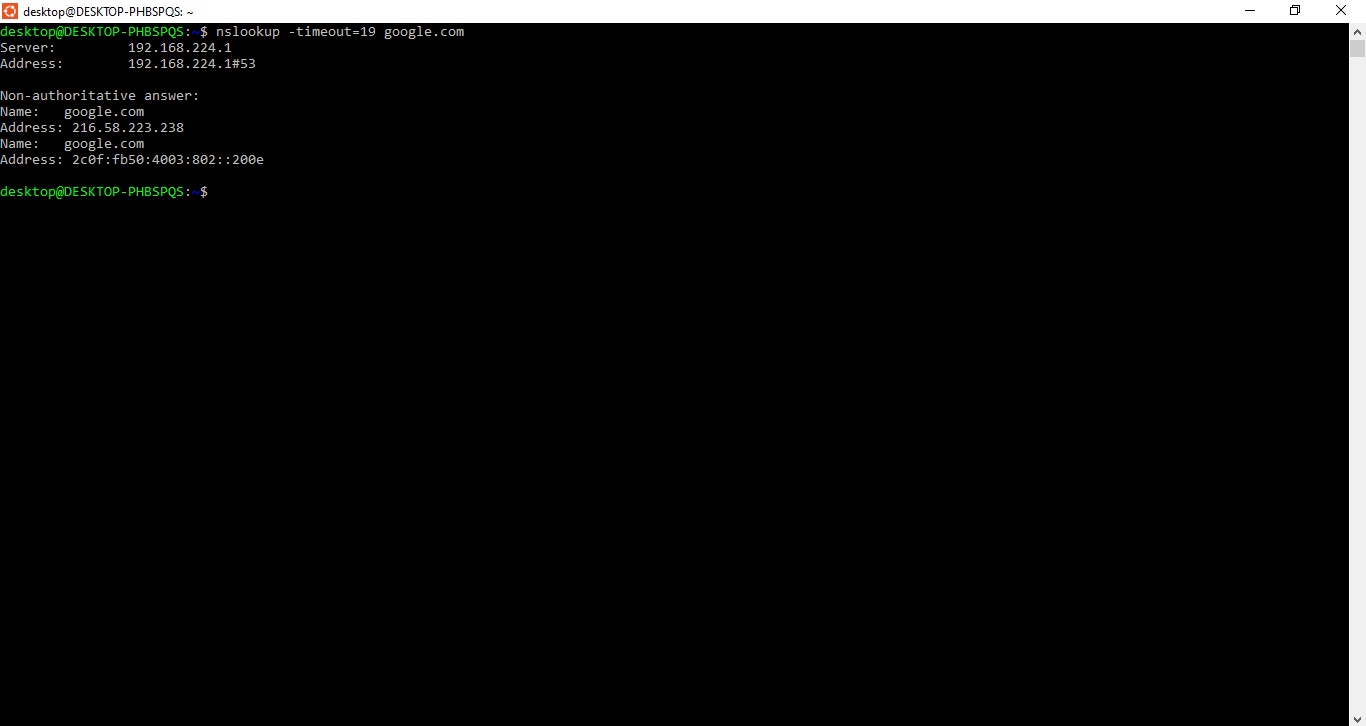
-timeoutflag set to the desired number of seconds:nslookup -timeout=10 example.comnslookup waits 10 seconds for a DNS server response before timing out. The default timeout is 5 seconds. Increase the timeout when querying DNS servers across high-latency networks or unreliable connections.
Example output:
Server:  192.168.0.1
Address: 192.168.0.1#53

Non-authoritative answer:
Name:    example.com
Address: 93.184.216.34
To set the timeout in nslookup interactive mode, use the
set timeoutcommand:nslookup> set timeout=10 > example.comnslookup applies the 10-second timeout to all subsequent queries in the interactive session.
Combine the timeout with the retry option to control how many times nslookup retries a failed query:
nslookup -timeout=10 -retry=3 example.comnslookup waits 10 seconds per attempt and retries up to 3 times before reporting failure. The default retry count is 1.
How to Verify
nslookup returns the query results within the configured timeout period. If the DNS server responds before the timeout expires, the output appears immediately. If no response arrives within the timeout window, nslookup displays a "connection timed out" message.
To confirm the current timeout setting in interactive mode, run:
> set allnslookup displays all configuration settings, including the active timeout value.
Common Issues
nslookup returns "connection timed out; no servers could be reached."The DNS server did not respond within the timeout period. Increase the timeout value or verify that the DNS server is reachable. Check network connectivity with
ping or test a different DNS server.
nslookup times out when querying remote authoritative nameservers.Authoritative nameservers in different geographic regions may have higher latency. Set the timeout to 15 or 20 seconds when querying distant servers:
nslookup -timeout=20 example.com ns1.remote-server.comnslookup timeout has no visible effect on fast networks.The timeout value sets the maximum wait time. On fast, reliable networks, DNS responses arrive within milliseconds. The timeout value matters only when responses are delayed or lost.