
Logrotate tutorial: configure log rotation from scratch
Learn how Logrotate configuration works by building a complete log rotation setup with scheduling, compression, retention, and postrotate hooks.
- What You Will Need
- Step 1: Understand the Logrotate Configuration Structure
- Step 2: Set the Logrotate Rotation Schedule
- Step 3: Configure Logrotate Retention with the Rotate Directive
- Step 4: Enable Logrotate Compression
- Step 5: Handle Missing and Empty Log Files in Logrotate
- Step 6: Set File Permissions with the Logrotate Create Directive
- Step 7: Add Logrotate Postrotate Hooks
- Step 8: Test and Verify the Complete Logrotate Configuration
- What You Learned
- What to Do Next
This tutorial walks through configuring Logrotate from scratch for Nginx log files. By the end, you will understand how Logrotate configuration files work and have a complete rotation setup with scheduling, compression, retention, and postrotate hooks.
What You Will Need
- Ubuntu 20.04, 22.04, or 24.04 (other Linux distributions work with minor path differences).
- Logrotate installed (
sudo apt install logrotate). - Nginx installed and generating log files in
/var/log/nginx/. - Root or sudo access.
Step 1: Understand the Logrotate Configuration Structure
Logrotate reads configuration from two locations on Linux systems. The global configuration file
/etc/logrotate.conf sets default directives that apply to all log files. The per-application directory
/etc/logrotate.d/ holds individual configuration files that override global defaults.
Each application package installs its own file in
/etc/logrotate.d/. When you install Nginx, the package manager creates
/etc/logrotate.d/nginx. Logrotate processes every file in this directory on each run.
View the default Nginx Logrotate configuration to understand the format:
cat /etc/logrotate.d/nginxLogrotate displays the current configuration block:
/var/log/nginx/*.log {
    weekly
    missingok
    rotate 52
    compress
    delaycompress
    notifempty
    create 0640 www-data adm
    sharedscripts
    prerotate
        if [ -d /etc/logrotate.d/httpd-prerotate ]; then \
            run-parts /etc/logrotate.d/httpd-prerotate; \
        fi \
    endscript
    postrotate
        invoke-rc.d nginx rotate >/dev/null 2>&1
    endscript
}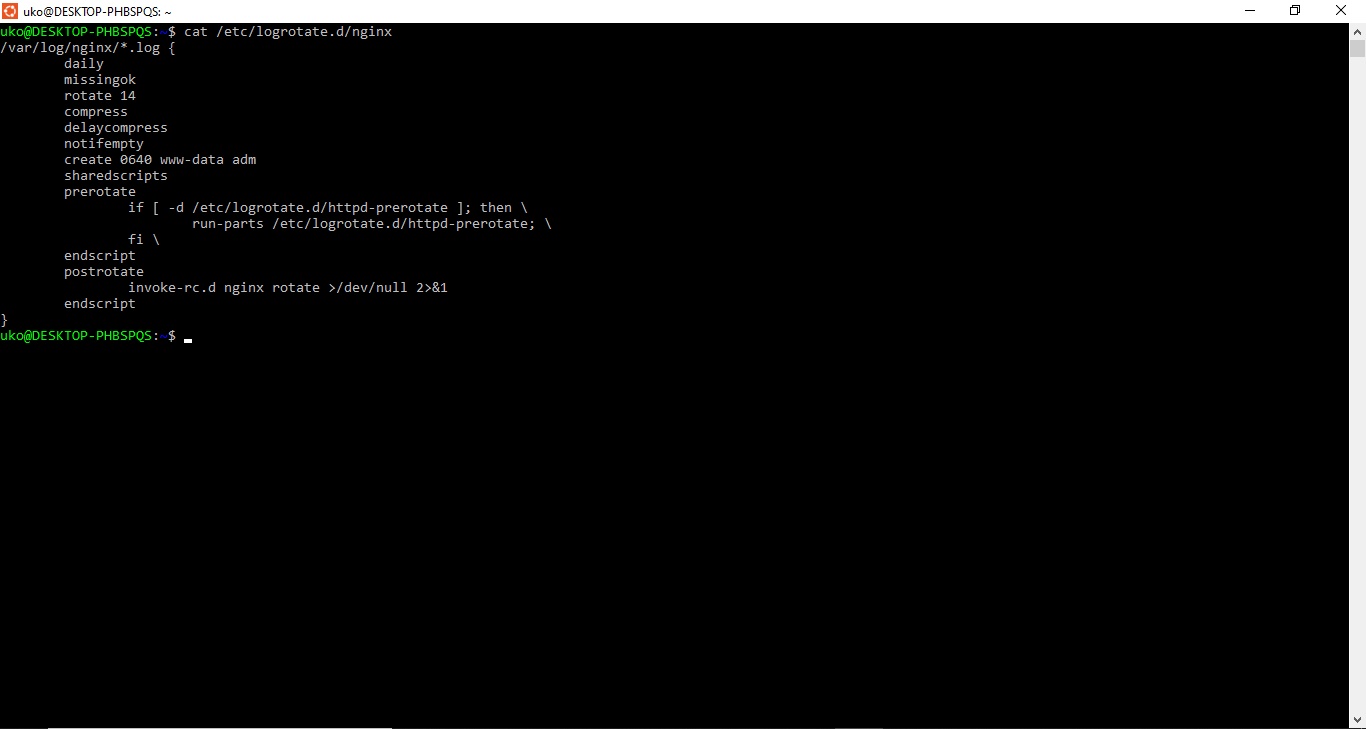
Logrotate uses a block structure. The first line specifies the log file path pattern. The directives inside the curly braces control how Logrotate handles files matching that pattern.
Step 2: Set the Logrotate Rotation Schedule
Logrotate uses the
daily,
weekly,
monthly, or
yearly directive to control how often it rotates each log file. The cron job in
/etc/cron.daily/logrotate triggers Logrotate once per day. On each run, Logrotate checks the state file to determine whether the rotation interval has elapsed for each configured file.
Open the Nginx Logrotate configuration for editing:
sudo nano /etc/logrotate.d/nginxThe
weekly directive tells Logrotate to rotate the log file once per week. Change it to
daily if you want daily rotation:
/var/log/nginx/*.log {
    daily
}
Without a schedule directive, Logrotate does not know when to rotate. Every configuration block requires one schedule directive. If you omit it, Logrotate falls back to the global default in
/etc/logrotate.conf.
Step 3: Configure Logrotate Retention with the Rotate Directive
Logrotate keeps a specified number of rotated copies and deletes the oldest when the count is exceeded. The
rotate directive controls this count.
Add the
rotate directive to keep 14 daily copies:
/var/log/nginx/*.log {
    daily
    rotate 14
}
Logrotate numbers rotated files sequentially:
access.log.1,
access.log.2, up to
access.log.14. On the 15th rotation, Logrotate deletes
access.log.14 and shifts all files down by one number. A
rotate 0 value deletes old log files immediately after rotation.
Step 4: Enable Logrotate Compression
Logrotate compresses rotated files with gzip when the
compress directive is active. Compression reduces disk usage significantly for text-based log files. The
delaycompress directive postpones compression until the next rotation cycle.
Add both directives to the configuration block:
/var/log/nginx/*.log {
    daily
    rotate 14
    compress
    delaycompress
}
Logrotate uses
delaycompress because some applications may still write to the previous log file briefly after rotation. By delaying compression by one cycle, Logrotate avoids compressing a file that is still in use. Without
delaycompress, gzip would compress the file immediately, which could cause data loss if the application has not yet reopened its log file.
Step 5: Handle Missing and Empty Log Files in Logrotate
Logrotate reports errors when a configured log file does not exist. The
missingok directive suppresses these errors. The
notifempty directive prevents Logrotate from rotating empty log files, which avoids accumulating zero-byte rotated copies.
Add both directives:
/var/log/nginx/*.log {
    daily
    rotate 14
    compress
    delaycompress
    missingok
    notifempty
}
Logrotate processes the wildcard pattern
/var/log/nginx/*.log. If Nginx has not created an error log yet, Logrotate skips it silently thanks to
missingok. Without
missingok, Logrotate prints an error message for each missing file and the cron job sends a notification email to root.
Step 6: Set File Permissions with the Logrotate Create Directive
Logrotate creates a new empty log file after rotating the original. The
create directive specifies the file permissions, owner, and group for the new file. This ensures the application has write access to the fresh log file.
Add the
create directive with permissions matching what Nginx expects:
/var/log/nginx/*.log {
    daily
    rotate 14
    compress
    delaycompress
    missingok
    notifempty
    create 0640 www-data adm
}
Logrotate sets the new file to mode
0640 (owner read/write, group read, no access for others), owned by
www-data (the Nginx worker process user) and group
adm. If the permissions are wrong, Nginx cannot write to the new log file and logs stop recording.
Step 7: Add Logrotate Postrotate Hooks
Logrotate executes scripts after rotation through the
postrotate/
endscript block. Nginx keeps file descriptors open to its log files. After Logrotate renames the old file and creates a new one, Nginx continues writing to the old (renamed) file unless it receives a signal to reopen its logs.
Add the
postrotate hook and
sharedscripts directive:
/var/log/nginx/*.log {
    daily
    rotate 14
    compress
    delaycompress
    missingok
    notifempty
    create 0640 www-data adm
    sharedscripts
    postrotate
        [ -f /var/run/nginx.pid ] && kill -USR1 $(cat /var/run/nginx.pid)
    endscript
}
Logrotate sends the
USR1 signal to Nginx, which tells Nginx to gracefully reopen its log files. The
sharedscripts directive ensures Logrotate runs the
postrotate script only once per rotation cycle, even when multiple log files match the pattern. Without
sharedscripts, Logrotate sends the signal once per file, which is unnecessary and wasteful.
The
[ -f /var/run/nginx.pid ] check prevents an error if Nginx is stopped. Logrotate skips the signal if the PID file does not exist.
Step 8: Test and Verify the Complete Logrotate Configuration
Logrotate provides a debug mode that simulates rotation without modifying any files. Run the debug check to verify the complete configuration:
sudo logrotate -d /etc/logrotate.d/nginxLogrotate prints each step it would take: which files match, whether they meet rotation conditions, what the rotated filenames would be, and which scripts it would execute.
Force an actual rotation to confirm everything works in practice:
sudo logrotate -vf /etc/logrotate.d/nginxVerify the result by listing the Nginx log directory:
ls -la /var/log/nginx/Logrotate should have created rotated copies (e.g.,
access.log.1) and a fresh
access.log file with the correct permissions.
Check that Nginx continues logging to the new file:
tail -f /var/log/nginx/access.logNew requests should appear in the log output.
What You Learned
Logrotate uses a block-based configuration format where each block targets a set of log files with a path pattern. The
daily,
weekly,
monthly, and
yearly directives control the rotation schedule. The
rotate directive controls how many old copies Logrotate retains. The
compress and
delaycompress directives reduce disk usage while avoiding conflicts with applications that keep file descriptors open. The
create directive ensures the new log file has correct permissions for the application. The
postrotate hook signals the application to reopen its log files after rotation.
For quick-reference versions of individual tasks, see the Logrotate how-to guides:
- How to remove old log files with Logrotate
- How to set maximum log file size with Logrotate
- How to add timestamps to rotated log filenames with Logrotate
What to Do Next
To look up any Logrotate directive, see the Logrotate directives reference.
To move rotated logs to a separate directory, see How to move rotated logs to a different folder with Logrotate.
To rotate Apache HTTP Server logs without restarting the server, see How to avoid Apache restart during Logrotate rotation.