
How to move rotated logs to a different folder with Logrotate
Configure the Logrotate olddir directive to move rotated log files to a separate archive directory instead of keeping them alongside the active log.
Configure Logrotate to store rotated log files in a separate directory using the
olddirdirective.
Prerequisites
- Linux system with Logrotate installed.
- Root or sudo access to edit files in
/etc/logrotate.d/. - An existing Logrotate configuration file for the target application.
Step-by-Step: Move Rotated Logs to a Different Folder with Logrotate
Create the destination directory where Logrotate will store rotated log files. This example uses an archive folder within the Nginx log directory:
sudo mkdir -p /var/log/nginx/archiveOpen the Logrotate configuration file for the target application:
sudo nano /etc/logrotate.d/nginxAdd the
olddirdirective inside the log file block. Logrotate moves rotated files to the specified directory:/var/log/nginx/*.log { weekly rotate 12 compress olddir /var/log/nginx/archive missingok notifempty }Logrotate moves each rotated file from
/var/log/nginx/to/var/log/nginx/archive/during rotation. The active log file remains in the original directory.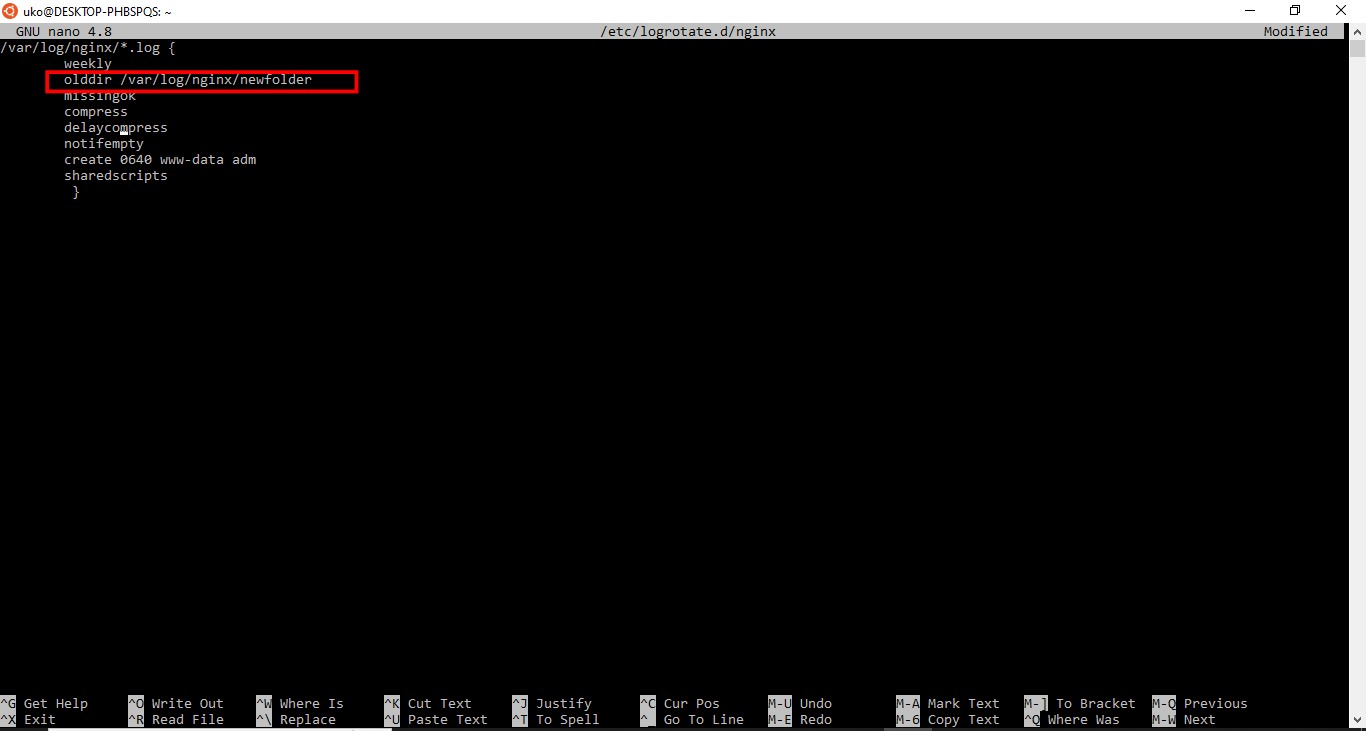
Save the configuration file and exit the editor.
Test the updated Logrotate configuration in debug mode:
sudo logrotate -d /etc/logrotate.d/nginxLogrotate displays the target directory for each rotated file without modifying any files.
How to Verify Rotated Logs Move to the New Folder
Force a rotation and check the destination directory:
sudo logrotate -f /etc/logrotate.d/nginx
ls -la /var/log/nginx/archive/
Logrotate places the rotated and compressed files in the archive directory.
Common Issues When Moving Rotated Logs with Logrotate
Logrotate reports "error: olddir does not exist."The
olddir target directory must exist before Logrotate runs. Create it with
mkdir -p and set ownership matching the log files.
Logrotate cannot move files across filesystems.The
olddir directory must reside on the same filesystem as the original log files. Logrotate uses
rename() which does not work across mount points. To archive logs on a different partition, use a
postrotate script with
mv or
rsync instead.
Permissions prevent Logrotate from writing to the archive directory.Set the directory ownership and permissions to match the user and group that Logrotate runs as (typically root):
sudo chown root:root /var/log/nginx/archive
sudo chmod 755 /var/log/nginx/archive
For a full reference of all Logrotate directives, see the Logrotate directives reference.