
ipconfig: The operation failed as no adapter is in the state permissible for this operation
Fix ipconfig 'The operation failed as no adapter is in the state permissible' error by switching to DHCP, running the network troubleshooter, or resetting Winsock.
- When ipconfig Produces This Error
- What Causes "The Operation Failed as No Adapter Is in the State Permissible" in ipconfig
- How to Fix "The Operation Failed as No Adapter Is in the State Permissible" in ipconfig
- Run the Windows Network Troubleshooter
- Set the IPv4 Configuration to Automatic DHCP Assignment
- Reset Winsock and TCP/IP Stack
- How to Verify the Fix
- Edge Cases and Variations
- Related ipconfig Errors
ipconfig produces the "The operation failed as no adapter is in the state permissible for this operation" message when no network adapter on the computer can process the requested DHCP command.
When ipconfig Produces This Error
ipconfig displays "The operation failed as no adapter is in the state permissible for this operation" when running
ipconfig /release or
ipconfig /renew and no network adapter is in a state that accepts DHCP commands. This error prevents the computer from releasing or renewing its IP address lease through the Dynamic Host Configuration Protocol (DHCP).
ipconfig also produces this error when all network adapters use manually assigned static IP addresses. The
/release and
/renew commands communicate with the DHCP server, and adapters with static IP configurations do not participate in DHCP lease management.
What Causes "The Operation Failed as No Adapter Is in the State Permissible" in ipconfig
ipconfig reports this error when every network adapter on the computer is in one of these states: disabled, disconnected, or configured with a static IP address. The
/release and
/renew commands require at least one adapter that uses automatic DHCP assignment and has an active network connection.
ipconfig also fails with this error when antivirus or firewall software interferes with the DHCP client service on Windows. Some security applications block the Windows DHCP Client service or filter DHCP traffic on UDP ports 67 and 68, which prevents the network adapter from communicating with the DHCP server on the router.
How to Fix "The Operation Failed as No Adapter Is in the State Permissible" in ipconfig
Run the Windows Network Troubleshooter
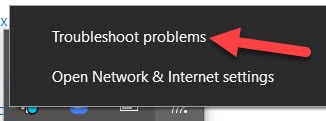
Run the Windows Network Troubleshooter to detect and resolve common network adapter issues automatically. Right-click the network icon in the taskbar and select Troubleshoot problemsto launch the diagnostic tool.
Set the IPv4 Configuration to Automatic DHCP Assignment
Verify that the network adapter uses automatic DHCP assignment instead of a manually assigned static IP address.
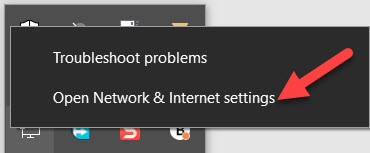
Open Windows Network & Internet Settings. Right-click the network icon in the bottom-right corner of the taskbar and select "Open Network & Internet settings".
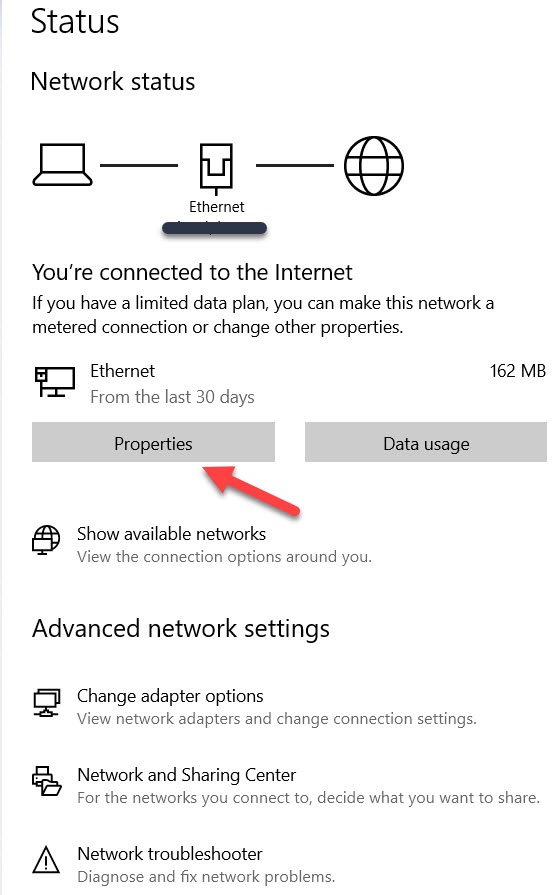
Click "Properties" under the active network connection.
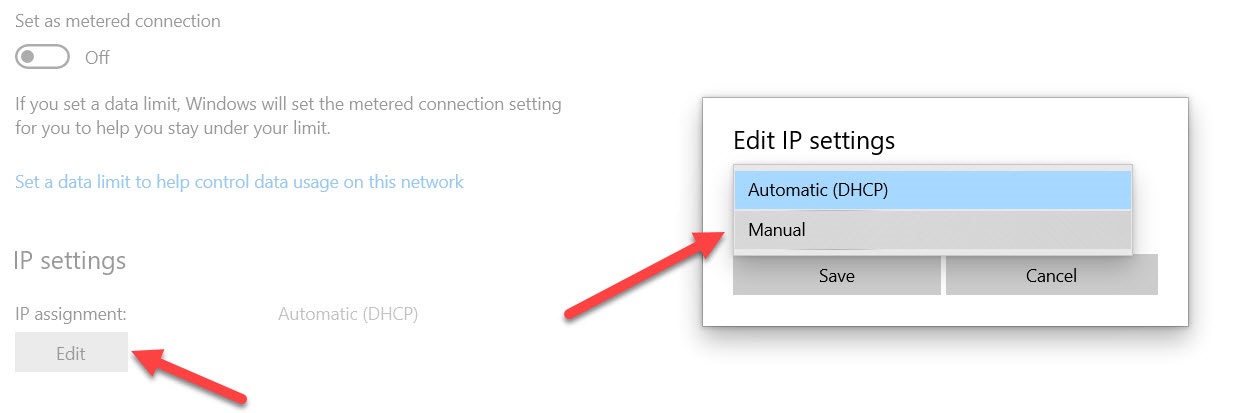
Check the IP assignmentfield. The value should read "Automatic (DHCP)". If it shows "Manual", click "Edit" and switch the assignment to automatic.
Reset Winsock and TCP/IP Stack
Reset the Windows Sockets (Winsock) catalog and TCP/IP configuration to restore the network stack to its default state. Corrupted Winsock entries or TCP/IP configuration data can prevent network adapters from processing DHCP commands.
Open Windows Command Prompt as Administrator. Type
cmdin the Windows search bar, right-click Command Prompt, and select "Run as administrator".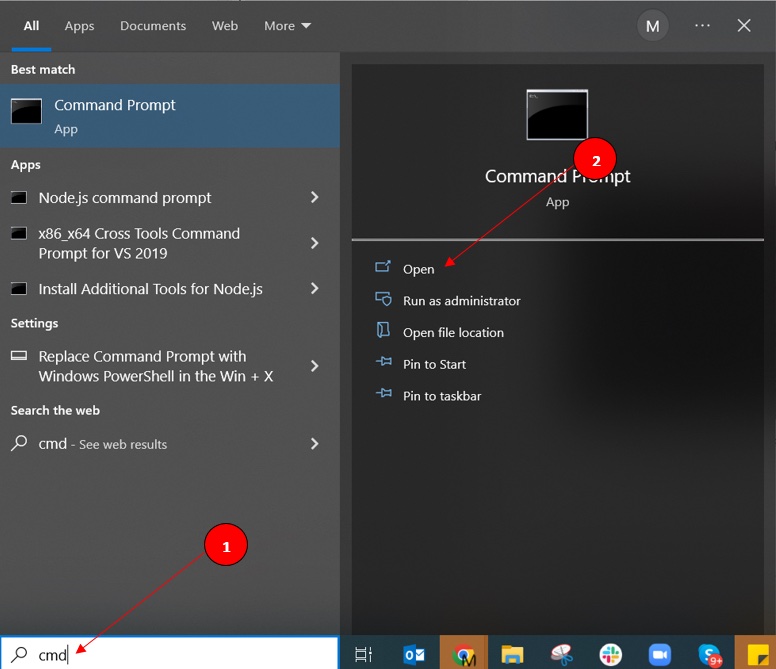
Run
netsh winsock resetto reset the Winsock catalog. This command removes all Winsock Layered Service Providers (LSPs) and restores the catalog to its clean default state.netsh winsock reset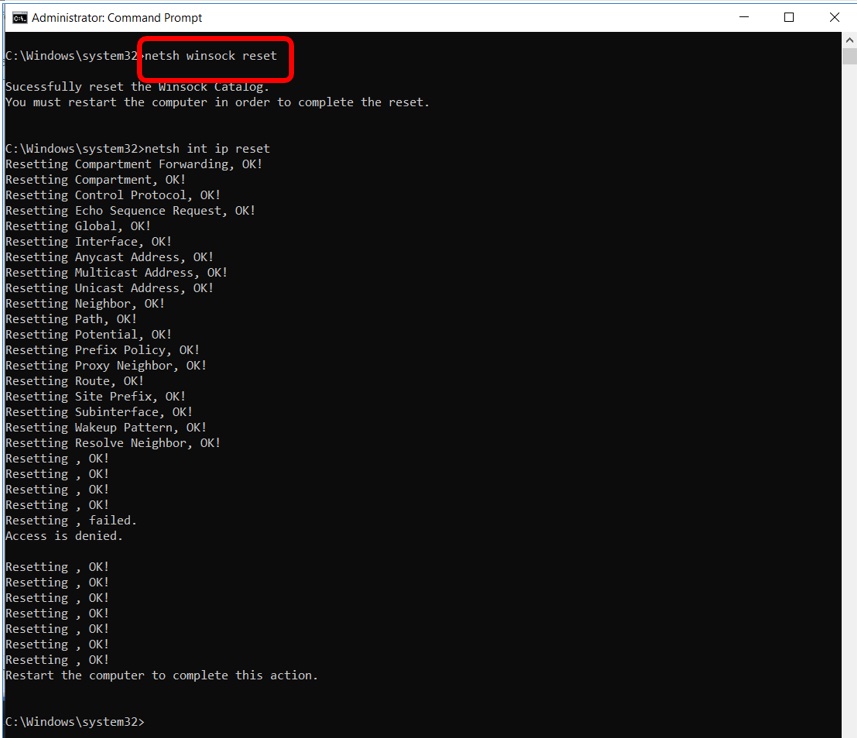
Run
netsh int ip resetto reset the TCP/IP stack configuration. This command rewrites the TCP/IP registry keys and restores the IP configuration to its default values.netsh int ip reset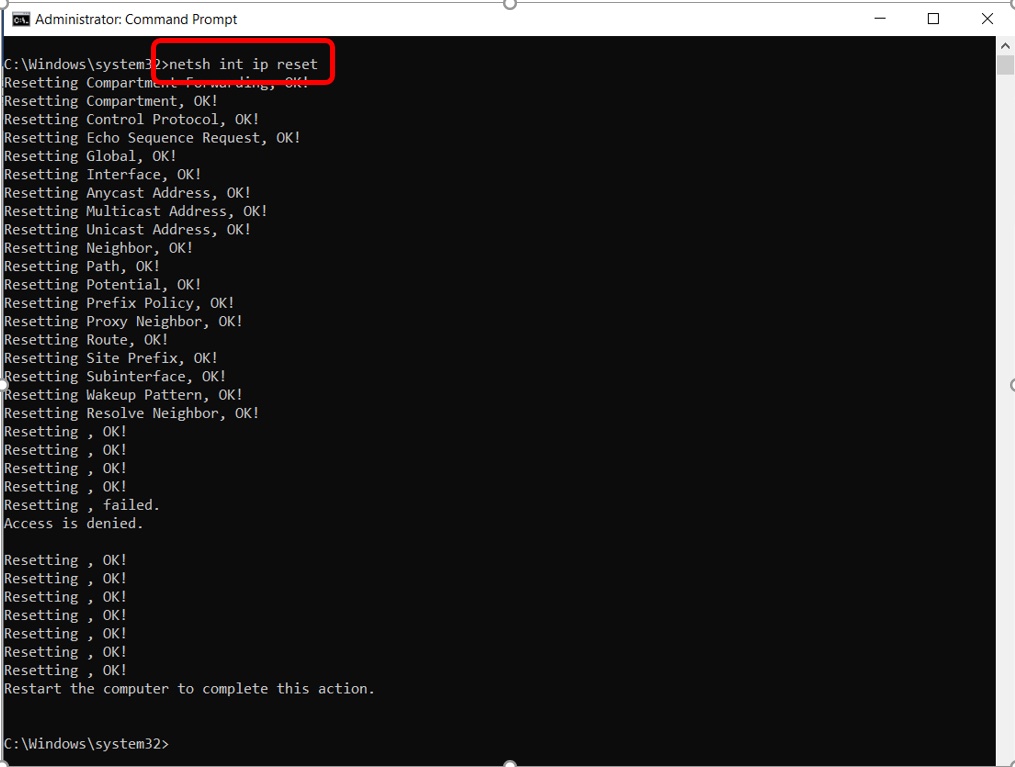
Restart the computer to apply the Winsock and TCP/IP reset changes.
How to Verify the Fix
Run
ipconfig /renew in Windows Command Prompt after applying the fix. ipconfig should display the renewed IP address, subnet mask, and default gateway without the "no adapter is in the state permissible" error. Verify the
IPv4 Addressfield shows a valid address in the expected network range.
Edge Cases and Variations
ipconfig produces this error when all adapters are virtual (such as VPN adapters or Hyper-V virtual switches) and no physical network adapter is present or enabled. Enable the physical Ethernet or Wi-Fi adapter in Device Manager before running DHCP commands.
ipconfig may fail with this error after a Windows update resets the DHCP Client service configuration. Open the Windows Services console (
services.msc), locate the "DHCP Client" service, verify it is set to "Automatic" startup, and start it if it is stopped.
Related ipconfig Errors
- ipconfig: Unable to contact your DHCP server-- the DHCP server is unreachable, but the adapter is in a valid state to attempt the connection.
- ipconfig: IPv4 address is missing or shows 0.0.0.0-- the DHCP server did not assign an IP address, which may result from the same underlying adapter state issue.
- ipconfig: Default gateway is blank or missing-- a missing gateway often accompanies the adapter state error when DHCP lease renewal fails.