
ipconfig: Unable to contact your DHCP server
Fix the ipconfig 'Unable to contact your DHCP server' error that prevents IP address renewal on Windows by releasing and renewing the DHCP lease.
ipconfig produces the "Unable to contact your DHCP server. Request has timed out" message when the network adapter cannot reach the Dynamic Host Configuration Protocol (DHCP) server to obtain a new IP address lease.
When ipconfig Produces This Error
ipconfig displays the "Unable to contact your DHCP server" error when running
ipconfig /renew and the DHCP server does not respond within the timeout period. This occurs when the router (which runs the DHCP server) is unreachable due to a network cable disconnection, Wi-Fi signal loss, or router failure.
ipconfig also produces this error when the DHCP server's address pool is exhausted. The DHCP server cannot assign a new IP address when all available addresses in its configured range are already leased to other devices on the network.
What Causes "Unable to Contact Your DHCP Server" in ipconfig
ipconfig sends a DHCPDISCOVER broadcast message when running
/renew. The DHCP server must receive this broadcast and respond with a DHCPOFFER message containing a new IP address. When the DHCP server does not respond, ipconfig times out and displays the error. The timeout occurs because the network path between the computer and the DHCP server is broken.
ipconfig cannot renew the IP address when the network adapter is disabled or disconnected. Windows disables the adapter when the physical cable is unplugged (for wired Ethernet connections) or when the Wi-Fi signal drops below the minimum threshold. A disabled adapter cannot send DHCP broadcast messages to the network.
How to Fix "Unable to Contact Your DHCP Server" in ipconfig
Verify the physical network connection. Check that the Ethernet cable is plugged in securely at both ends (computer and router or switch). For Wi-Fi connections, verify that the wireless adapter is enabled and connected to the correct network.
Open Windows Command Prompt. Type
cmdin the Windows search bar and select the Command Prompt app.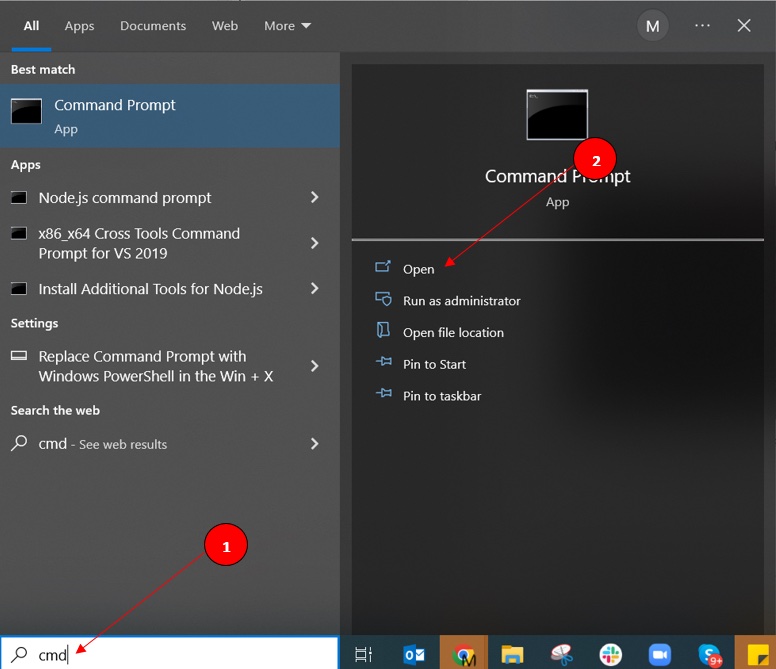
Run
ipconfig /releaseto release any existing DHCP lease. This command sends a DHCPRELEASE message to the DHCP server and clears the current IP address assignment.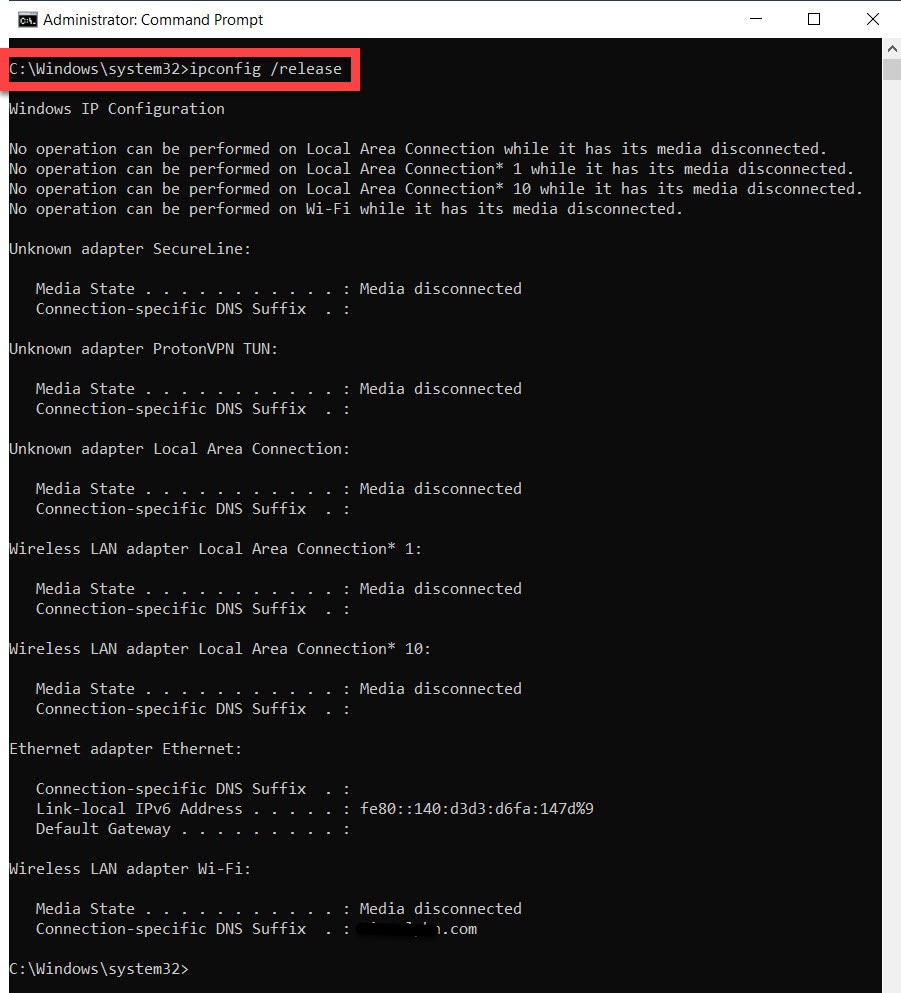
Run
ipconfig /renewto request a new IP address lease from the DHCP server. This command sends a DHCPDISCOVER broadcast message and waits for the DHCP server to respond with a new address.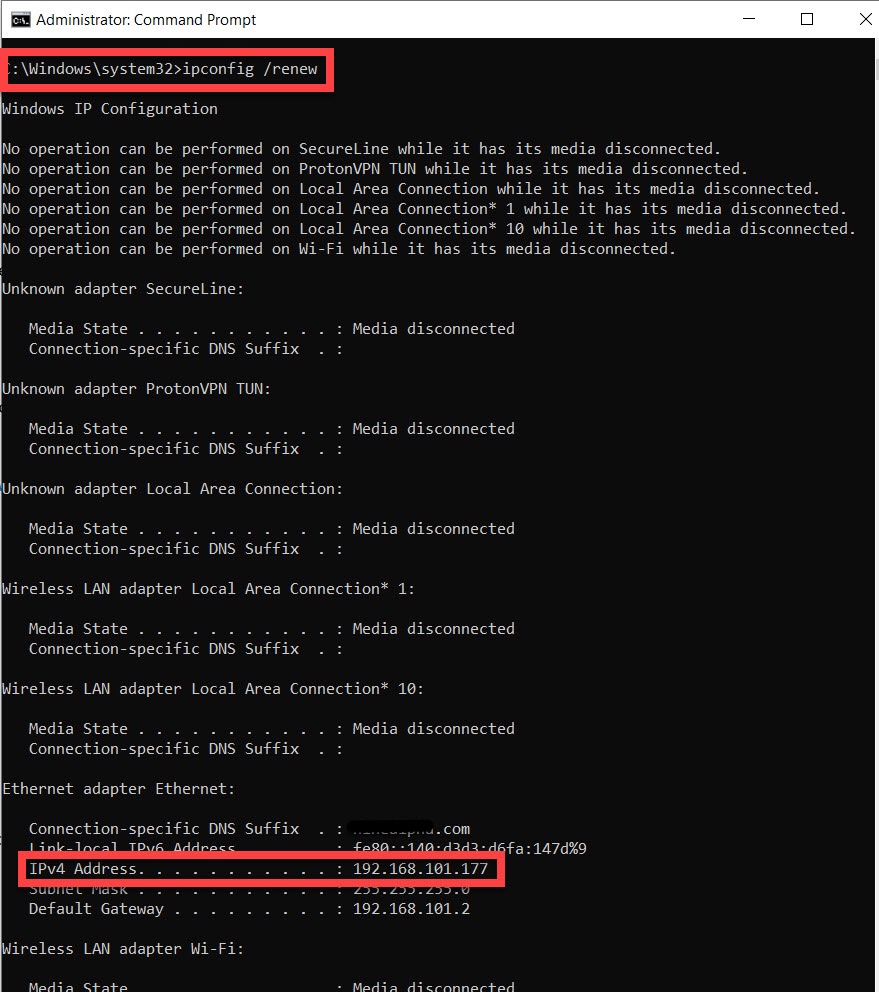
Restart the router if
ipconfig /renewstill fails. Power off the router, wait 30 seconds, and power it back on. The DHCP server on the router reinitializes its address pool during the restart.
How to Verify the Fix
Run
ipconfig after the renewal completes. Look for the
IPv4 Addressfield in the output. A valid IP address in the expected range (such as
192.168.x.x or
10.x.x.x) confirms that the DHCP server assigned a new lease. An address starting with
169.254.x.x indicates Windows used Automatic Private IP Addressing (APIPA) because the DHCP server was still unreachable.
Edge Cases and Variations
ipconfig may fail to renew when a third-party firewall or antivirus application blocks DHCP traffic on UDP ports 67 and 68. Temporarily disable the firewall to test whether it blocks the DHCP handshake between the network adapter and the router.
ipconfig cannot renew an IP address on adapters configured with a static IP assignment. Verify the adapter uses automatic DHCP assignment by opening Windows Network Adapter Properties and checking that "Obtain an IP address automatically" is selected.
Related ipconfig Errors
- ipconfig: missing IP address-- occurs when ipconfig shows no IPv4 address, which may indicate the same DHCP communication failure.
- ipconfig: missing default gateway-- the DHCP server failed to provide a default gateway along with the IP address.
- ipconfig: The operation failed as no adapter is in the state permissible for this operation-- the adapter is in a state that prevents DHCP communication.