
ipconfig command snippets
Copy-paste-ready ipconfig commands for viewing DNS cache, flushing DNS records, and managing network configuration on Windows.
View the DNS Resolver Cache with ipconfig
ipconfig displays all cached DNS entries stored on the local computer with the
/displaydns parameter. Each entry shows the domain name, record type, Time to Live (TTL), and the resolved IP address.
ipconfig /displaydnsRun
/displaydns in Windows Command Prompt:
Type
cmdin the Windows search bar to open the Command Prompt app: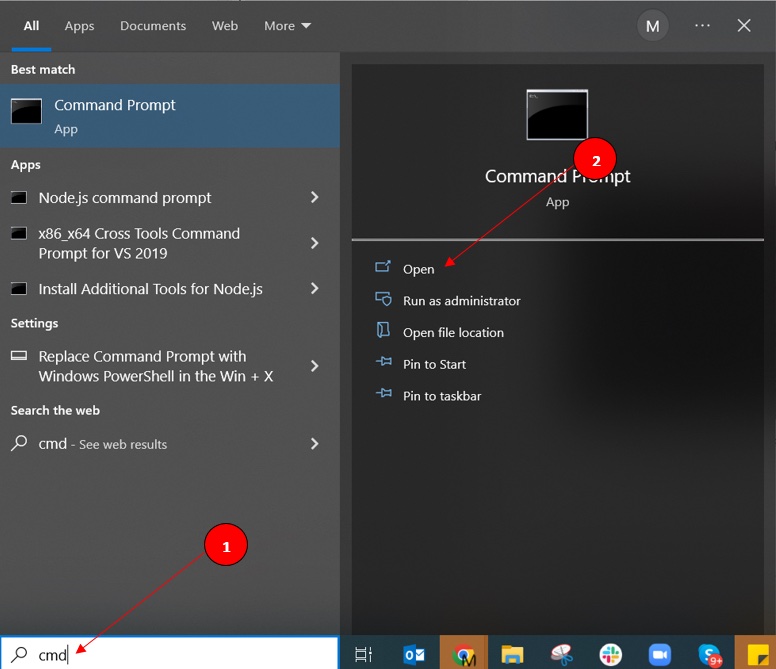
Type
ipconfig /displaydnsand pressEnter: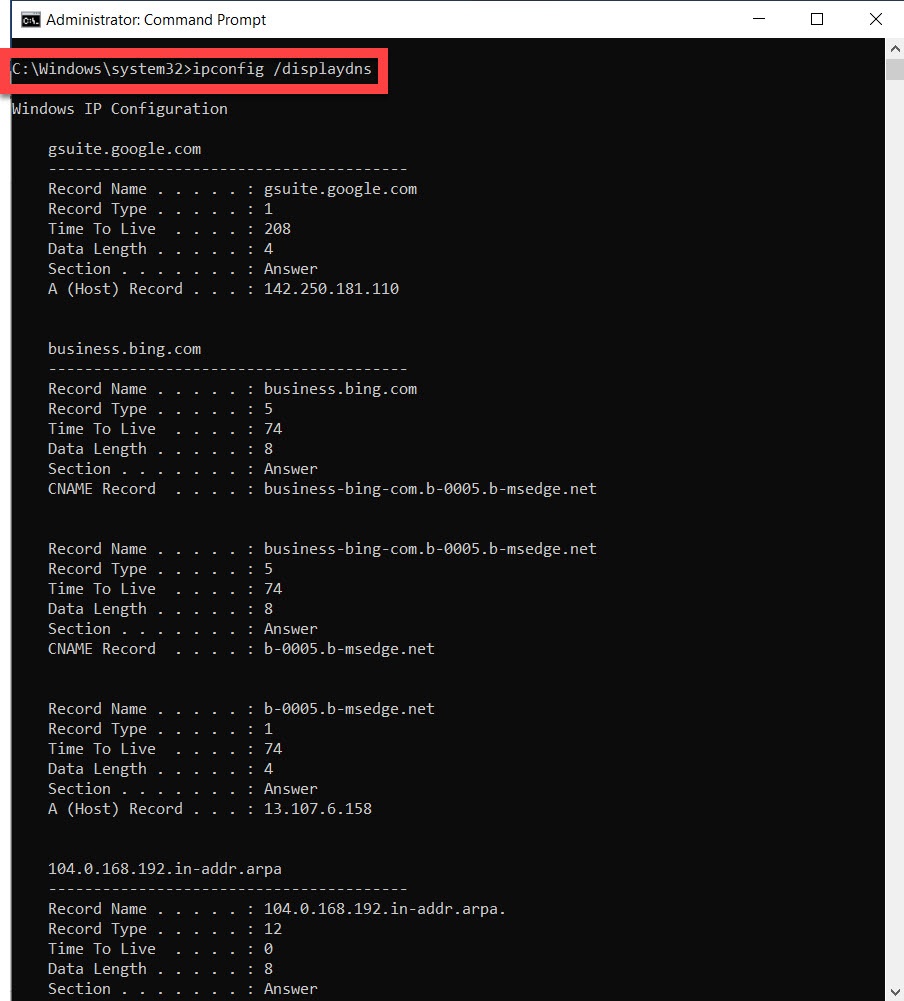
Flush the DNS Resolver Cache with ipconfig
ipconfig clears all cached DNS entries from the local DNS resolver with the
/flushdns parameter. This forces Windows to fetch fresh DNS records from the configured DNS server on the next domain lookup.
ipconfig /flushdnsRun
/flushdns in Windows Command Prompt:
Type
cmdin the Windows search bar to open the Command Prompt app:Type
ipconfig /flushdnsand pressEnter: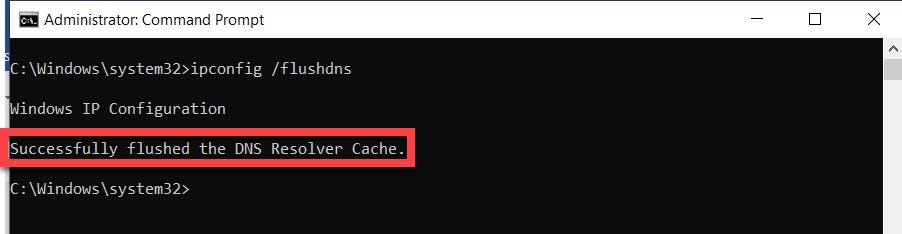
ipconfig confirms the operation with a "Successfully flushed the DNS Resolver Cache" message.
Release and Renew a DHCP Lease with ipconfig
ipconfig releases the current DHCP lease and requests a new IP address from the DHCP server. Run these two commands in sequence to resolve DHCP-related connectivity issues.
ipconfig /release
ipconfig /renew
Display Full TCP/IP Configuration with ipconfig
ipconfig displays the complete TCP/IP configuration for all network adapters with the
/all parameter. The output includes the MAC address, DHCP status, DNS servers, and lease timestamps.
ipconfig /all