
How to save ipconfig output to a text file
Save ipconfig network configuration output to a text file using the redirect operator in Windows Command Prompt.
ipconfig output can be saved to a text file using the
>redirect operator in Windows Command Prompt. This method captures the full TCP/IP configuration for documentation, troubleshooting records, or sharing with network administrators.
Prerequisites
- Windows operating system (Windows 7, 8, 10, or 11).
- Access to the Windows Command Prompt application.
- Write permissions to the destination folder.
Step-by-Step: Save ipconfig Output to a Text File
Open Windows Command Prompt. Type
cmdin the Windows search bar and select the Command Prompt app.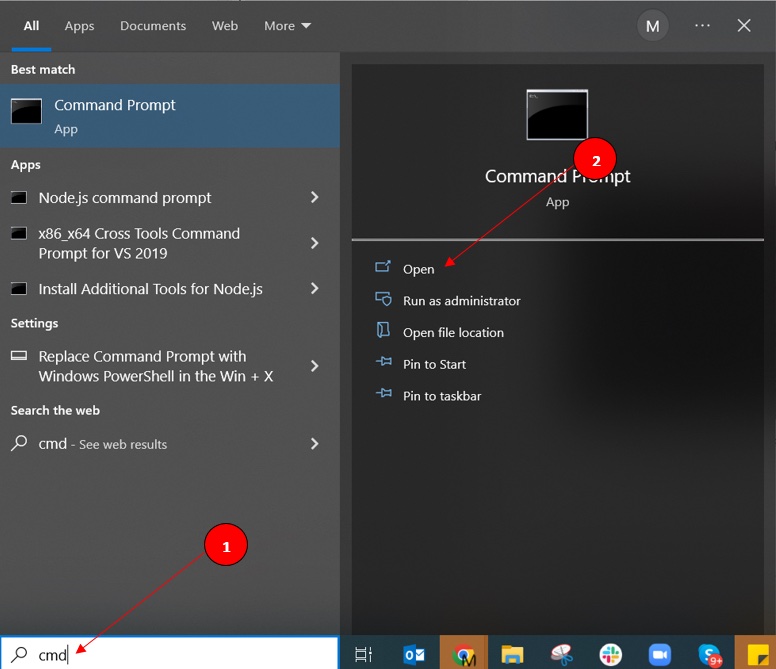
Run
ipconfigto verify the command produces the expected network configuration output. The command displays the IPv4 address, subnet mask, and default gateway for each active network adapter.IPv4 address: 192.168.101.102 Network subnet mask: 255.255.255.0 Default Gateway: 192.168.101.2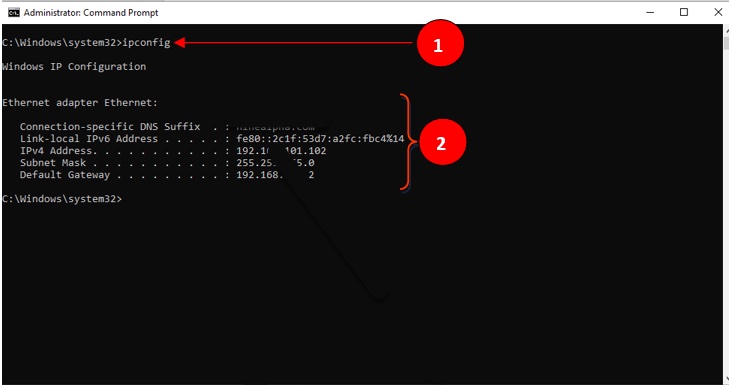
Run ipconfig with the
>redirect operator followed by the full file path. The redirect operator sends the ipconfig output to the specified text file instead of displaying it in the Command Prompt window.ipconfig > C:\temp\ipconfig-results.txt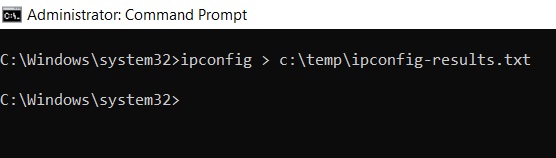
Use
ipconfig /all > C:\temp\ipconfig-results.txtto save the detailed TCP/IP configuration, including the MAC address, DHCP status, and DNS server addresses.Open the saved text file to verify the ipconfig output was captured. The file contains the same output that would appear in the Command Prompt window.
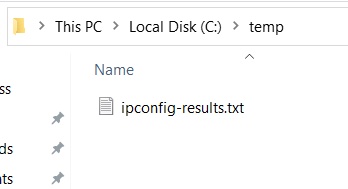
How to Verify the Saved File
Open the text file in Notepad or any text editor. The file should contain the complete ipconfig output, including all network adapter sections. Verify that the IPv4 address, subnet mask, and default gateway values match the live ipconfig output in Command Prompt.
Common Issues When Saving ipconfig Output
- "Access is denied" error:The current user does not have write permissions to the destination folder. Choose a folder with write access, such as
C:\Users\{username}\Desktop\, or run Command Prompt as Administrator. - File is empty:The redirect operator
>overwrites the file on each run. If ipconfig produces no output, the file will be empty. Verify the ipconfig command works without the redirect first. - Append instead of overwrite:Use
>>instead of>to append ipconfig output to an existing file. The>operator overwrites the file; the>>operator adds to the end of the file. This is useful for logging ipconfig output over time.