
How to find your IP address with ipconfig
Find the IPv4 address assigned to your Windows computer using the ipconfig /all command in Windows Command Prompt.
ipconfig displays the IPv4 address assigned to each network adapter on a Windows computer. Use the
ipconfig /allcommand to view the full TCP/IP configuration, including the IP address, subnet mask, default gateway, and DHCP lease details.
Prerequisites
- Windows operating system (Windows 7, 8, 10, or 11).
- Access to the Windows Command Prompt application.
Step-by-Step: Find Your IP Address with ipconfig
Open Windows Command Prompt. Type
cmdin the Windows search bar and select the Command Prompt app.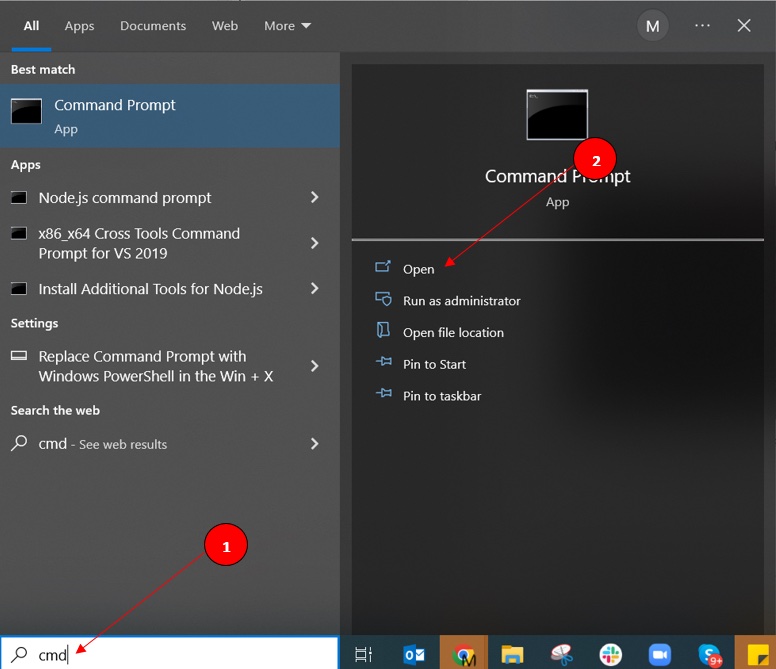
Run
ipconfig /allto display the full TCP/IP configuration for all network adapters on the computer.ipconfig /allLocate the IPv4 Addressfield in the ipconfig output. The IPv4 Address line shows the IP address assigned to the network adapter by the DHCP server or through static assignment.
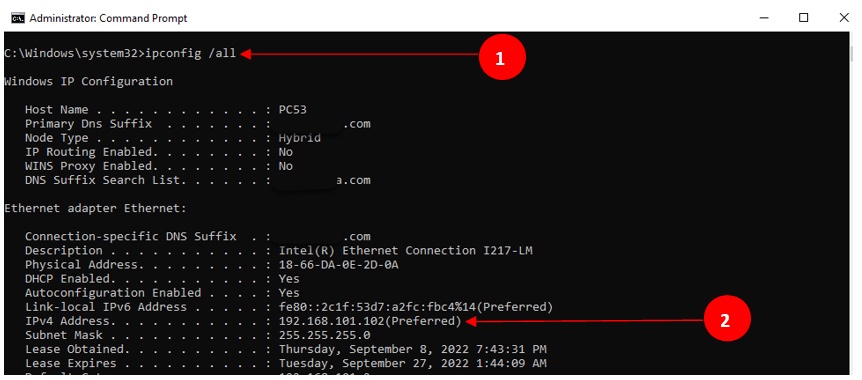
C:\Windows\system32>ipconfig /all

Windows IP Configuration

    Host Name . . . . . . . . . . . . . . . . . : PC53
    Primary Dns Suffix. . . . . . . . . . . . . : ____.com
    Node Type . . . . . . . . . . . . . . . . . : Hybrid
    IP Routing Enabled. . . . . . . . . . . . . : No
    WINS Proxy Enabled. . . . . . . . . . . . . : No
    DNS Suffix Search List. . . . . . . . . . . : ____.com

Ehternet adapter Ethernet

    Connection-specific DNS Suffix . . . : ____.com
    Description. . . . . . . . . . . . . : Intel (R) Ethernet Connection I217-LM
    Physical Address . . . . . . . . . . : 18-66-DA-0E-2D-0A
    DHCP Enabled . . . . . . . . . . . . : Yes
    Autoconfiguration Enabled  . . . . . : Yes
    Link-local IPv6 Address. . . . . . . : fe80::2c1f:53df:a2fc:fbc4%14(Preferred)
    IPv4 Address . . . . . . . . . . . . : 192.168.101.102(Preferred)
    Subnet Mask. . . . . . . . . . . . . : 255.255.255.0
    Lease Obtained . . . . . . . . . . . : Thursday, September 8, 2022 7:43:31 PM
How to Verify the IP Address
ipconfig shows the IP address directly in the output. Confirm the
IPv4 Addressline displays a valid address in the expected range for the local network (commonly
192.168.x.x or
10.x.x.x for private networks). An address starting with
169.254.x.x indicates that the DHCP server did not assign an IP address, and Windows used Automatic Private IP Addressing (APIPA) as a fallback.
Common Issues When Finding the IP Address with ipconfig
- No IPv4 Address displayed:The DHCP server did not assign an address. Run
ipconfig /releasefollowed byipconfig /renewto request a new DHCP lease. See ipconfig: missing IP addressfor detailed troubleshooting steps. - Address shows 169.254.x.x:Windows assigned an APIPA address because the DHCP server was unreachable. Check the physical network connection and verify that the router's DHCP service is running.
- Multiple adapters listed:ipconfig displays all network adapters, including virtual adapters and VPN connections. Identify the correct adapter by its description (such as "Ethernet" for wired or "Wi-Fi" for wireless connections).