
ipconfig
ipconfig is a Windows command-line utility that displays and manages TCP/IP network configuration, DHCP leases, and DNS resolver cache.
- What ipconfig Does and When to Use It
- Core Concepts of ipconfig
- DHCP and ipconfig
- IP Address, Subnet Mask, and Default Gateway in ipconfig
- DNS Resolver Cache and ipconfig
- Common Tasks with ipconfig
- How to View Network Configuration with ipconfig
- How to Release and Renew an IP Address with ipconfig
- How to Flush the DNS Cache with ipconfig
- How to Run ipconfig
- ipconfig Command Reference
- ipconfig Troubleshooting
- Related Tools and Guides
ipconfig is a Windows command-line utility that displays and manages TCP/IP network configuration on local network adapters.
What ipconfig Does and When to Use It
ipconfig ships with every version of Windows since Windows NT and provides direct access to the TCP/IP configuration of all network adapters on a computer. The utility reads the current IP address, subnet mask, default gateway, DNS server addresses, and DHCP lease status for each adapter. On older Windows 95/98/ME systems, this utility was named winipcfgand included a graphical interface.
ipconfig serves two roles: displaying network configuration and managing DHCP leases and DNS resolver cache. The display commands (
ipconfig and
ipconfig /all) read the current state without changing anything. The management commands (
/release,
/renew,
/flushdns,
/registerdns) modify the active network configuration by communicating with DHCP servers or the local DNS resolver.
Use ipconfig when troubleshooting network connectivity issues on Windows. The utility helps diagnose problems such as missing IP addresses, expired DHCP leases, stale DNS cache entries, and missing default gateway assignments. ipconfig does not configure static IP addresses or modify adapter settings permanently -- use the Windows Network Adapter Properties dialog or
netsh for persistent changes. On Linux and macOS, the equivalent utility is
ifconfig or
ip addr.
Core Concepts of ipconfig
DHCP and ipconfig
Dynamic Host Configuration Protocol (DHCP) assigns IP addresses to network adapters automatically. ipconfig interacts with the DHCP server through the
/release and
/renew commands. The
/release command tells the DHCP server to revoke the current IP address lease. The
/renew command requests a new lease from the DHCP server.
ipconfig DHCP commands work only on adapters configured for automatic IP assignment. Adapters with manually assigned static IP addresses ignore
/release and
/renew commands. The DHCP server typically runs on the local router, while the network adapter acts as the DHCP client.
IP Address, Subnet Mask, and Default Gateway in ipconfig
ipconfig displays three core TCP/IP values for each network adapter: the IPv4 address, the subnet mask, and the default gateway. The IPv4 address identifies the computer on the local network. The subnet mask defines the boundary of the local network segment. The default gateway is the router address that forwards traffic to external networks.
DNS Resolver Cache and ipconfig
ipconfig manages the local DNS resolver cache through the
/displaydns and
/flushdns commands. The DNS resolver cache stores recent domain-to-IP-address mappings to speed up repeated lookups. The
/flushdns command clears all cached DNS entries and forces Windows to fetch fresh records from the configured DNS server.
Common Tasks with ipconfig
How to View Network Configuration with ipconfig
Run
ipconfig in Windows Command Prompt to display the IP address, subnet mask, and default gateway for each active network adapter:
ipconfigRun
ipconfig /all to display detailed TCP/IP configuration including the MAC address (Physical Address), DHCP status, DNS servers, and lease timestamps:
ipconfig /allHow to Release and Renew an IP Address with ipconfig
Release the current DHCP-assigned IP address and request a new one from the DHCP server:
ipconfig /release
ipconfig /renew
ipconfig sends a DHCPRELEASE message to the router, then sends a DHCPDISCOVER message to obtain a new IP address lease. This two-step process resolves most DHCP-related connectivity issues.
How to Flush the DNS Cache with ipconfig
Clear the local DNS resolver cache to force Windows to fetch updated DNS records:
ipconfig /flushdnsipconfig confirms the flush with a "Successfully flushed the DNS Resolver Cache" message. Use this command after DNS record changes to ensure the computer resolves the correct IP address for a domain.
How to Run ipconfig
ipconfig runs from the Windows Command Prompt application:
Type
cmdin the Windows search bar to open the Command Prompt app: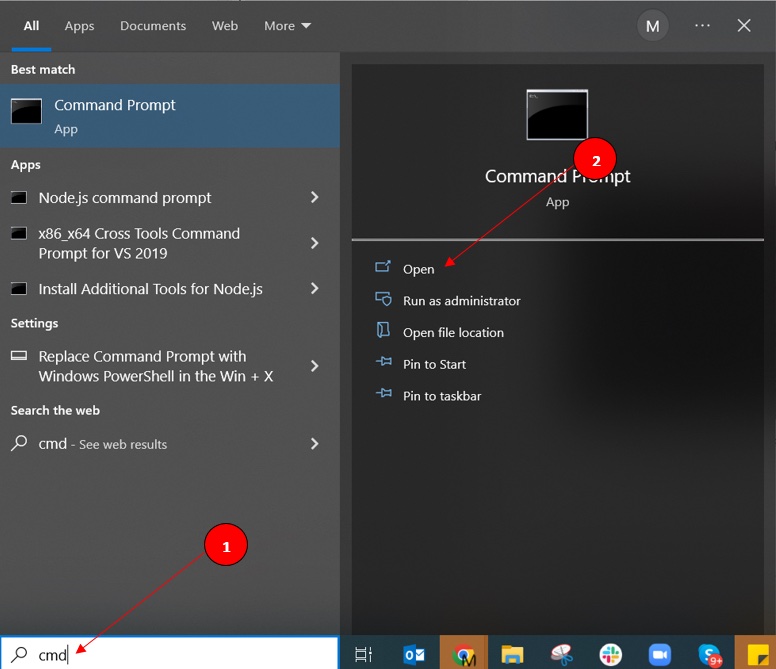
Type
ipconfigand press Enter:
ipconfig Command Reference
| Parameter | Description |
|---|---|
ipconfig | Displays the IPv4 address, subnet mask, and default gateway for each active network adapter. |
ipconfig /all | Displays detailed TCP/IP configuration for all adapters, including MAC address, DHCP status, DNS servers, and lease timestamps. |
ipconfig /release | Releases the IPv4 address lease from the DHCP server for all adapters. Does not affect statically assigned IP addresses. |
ipconfig /release6 | Releases the IPv6 address lease from the DHCP server for all adapters. |
ipconfig /renew | Requests a new IPv4 address lease from the DHCP server. Specify an adapter name to renew a single adapter. |
ipconfig /renew6 | Requests a new IPv6 address lease from the DHCP server. |
ipconfig /flushdns | Clears all entries from the local DNS resolver cache. Forces Windows to fetch fresh DNS records on the next lookup. |
ipconfig /displaydns | Displays all entries stored in the local DNS resolver cache, including domain names and their resolved IP addresses. |
ipconfig /registerdns | Refreshes all DHCP leases and re-registers DNS names with the Active Directory DNS server. Useful for computers joined to a Windows domain. |
ipconfig /? | Displays the help menu with all available parameters and usage examples. |
ipconfig Troubleshooting
| Error | Cause | Fix |
|---|---|---|
| Cannot renew IP address | The DHCP server cannot assign an IP address due to configuration or hardware issues. | Full article |
| Missing default gateway | The network adapter uses a static IP assignment, or the DHCP server failed to provide a gateway. | Full article |
| Missing IP address | The DHCP server did not assign an IP address, or the physical network connection is faulty. | Full article |
| The operation failed as no adapter is in the state permissible for this operation | The adapter uses a static IP, or antivirus software blocks the DHCP client. | Full article |
Related Tools and Guides
netsh is the Windows command-line tool for advanced network configuration. Use
netsh to set static IP addresses, configure firewall rules, and reset the TCP/IP stack. See
netsh interface ip set addressfor static IP assignment.
ifconfig is the equivalent utility on Linux and macOS systems. The
ifconfig command displays and configures network adapter settings on Unix-based operating systems. On modern Linux distributions, the
ip addr command from the iproute2 package replaces
ifconfig.
nslookup is a Windows DNS diagnostic tool that queries DNS servers directly. Use
nslookup to test DNS resolution independently from the local DNS resolver cache that ipconfig manages.