
How to Set Default Options with the .digrc File
Create and configure the .digrc file to apply default query options to every dig command automatically.
Configure default query options for Domain Information Groper (dig) by creating a
.digrcfile in the home directory.
Prerequisites
- A Linux, macOS, or Windows (WSL) system with terminal access.
- The
digcommand installed. On Debian/Ubuntu, install it withsudo apt install dnsutils. On RHEL/CentOS/Fedora, install it withsudo dnf install bind-utils. - Write permission to the home directory (
$HOME).
Step-by-Step: Configure Default dig Options with .digrc
- Create a
.digrcfile in the home directory. dig reads this file before processing command-line arguments and applies any query options it contains. Write the desired default options to the file usingecho:
echo "+noall +answer" > ~/.digrcdig applies
+noall +answer to every subsequent query. The
+noall option suppresses all output sections, and
+answer re-enables the ANSWER section. This combination produces clean output showing DNS records without headers, comments, or statistics.

- Run dig to confirm the
.digrcsettings take effect. dig applies the options from.digrcautomatically without requiring them on the command line:
dig example.comdig displays the answer section only:
example.com. 86400 IN A 93.184.216.34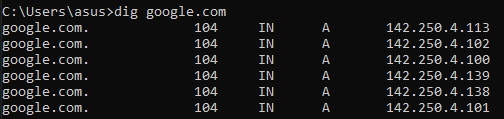
- Add more default options to the
.digrcfile. dig supports any query option in this file. Append options to customize the default output further:
echo "+noall +answer +nocmd +nostats" > ~/.digrcdig suppresses the command header, answer metadata, and statistics footer for every query.
- Override
.digrcoptions on the command line when needed. dig processes command-line options after.digrcoptions, allowing temporary overrides. Request full output by passing+all:
dig example.com +alldig displays the complete verbose output, overriding the
+noall setting from
.digrc for this single query.
- Remove the
.digrcfile to restore dig to its default behavior. Delete the file when the custom defaults are no longer needed:
rm ~/.digrcdig reverts to displaying the full detailed output for all queries.
How to Verify the .digrc Configuration Is Active
Domain Information Groper (dig) confirms the
.digrc file is active when the output format changes to match the options in the file. Run
dig example.com and compare the output to the expected format. If
+noall +answer is set in
.digrc, dig shows the ANSWER section records without any headers or statistics. Running
dig example.com +all should temporarily override the
.digrc defaults and display the full output.
Common Issues When Using .digrc with dig
.digrcoptions not applied: Verify the file is located at~/.digrc(the home directory). dig reads${HOME}/.digrcon startup. Check the file path withls -la ~/.digrc.- Options conflict between
.digrcand command line: dig processes.digrcoptions first, then command-line options. Command-line options override conflicting.digrcsettings. If+noallis in.digrcand+statsis on the command line, dig displays only the statistics section. - Unexpected output after creating
.digrc: The.digrcfile may contain extra whitespace or invalid options. Verify the file contents withcat ~/.digrcand ensure each option uses the+optionformat. - Batch scripts produce different output: Scripts that rely on specific dig output formatting may break if
.digrcmodifies the default output. Explicitly set all required options in the dig command within scripts to avoid dependency on.digrc.