
How to configure CORS on Amazon S3
Enable Cross-Origin Resource Sharing (CORS) on an Amazon S3 bucket by adding a JSON CORS configuration in the bucket's Permissions tab.
Configure Cross-Origin Resource Sharing (CORS) on an Amazon S3 bucket to allow web applications hosted on other domains to request objects from the bucket.
Prerequisites
- An Amazon Web Services (AWS) account with access to the S3 console.
- An existing S3 bucket.
- Permissions to modify the bucket's CORS configuration (
s3:PutBucketCors).
Step-by-Step: Enable CORS on Amazon S3
Open the Amazon S3 console and navigate to the bucket that needs Cross-Origin Resource Sharing (CORS) headers.
Select the Permissionstab in the bucket settings.
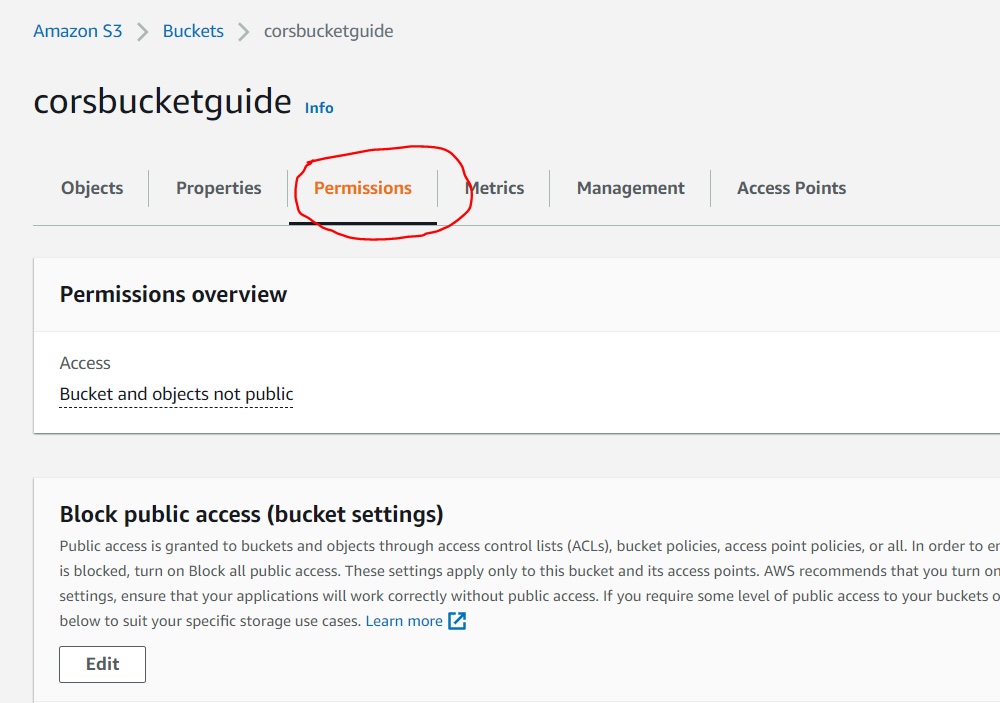
Scroll to the Cross-origin resource sharing (CORS)section and select Edit.
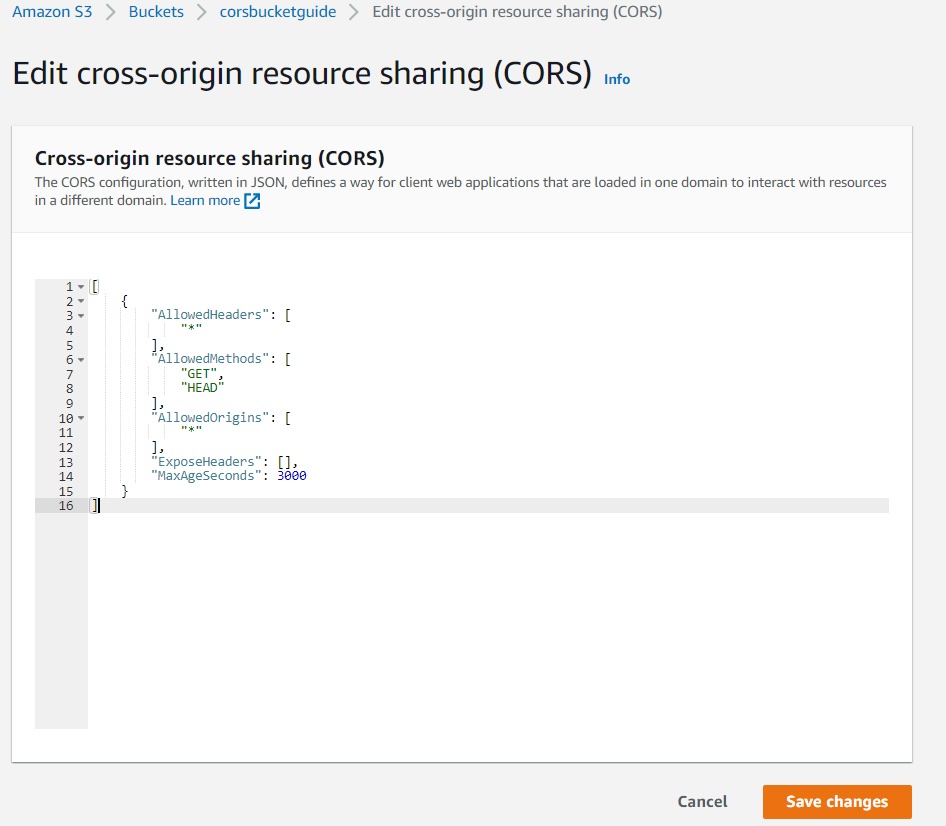
Add the CORS configuration in JSON format. Choose one of the following options.
Option A: Allow a specific origin-- Restrict access to a single domain:
[
    {
        "AllowedHeaders": ["Content-Type", "Authorization"],
        "AllowedMethods": ["GET", "HEAD"],
        "AllowedOrigins": ["https://app.example.com"],
        "ExposeHeaders": ["ETag"],
        "MaxAgeSeconds": 86400
    }
]
Option B: Allow all origins-- Permit any website to request objects from the bucket. Use this for public assets such as images, fonts, and stylesheets:
[
    {
        "AllowedHeaders": ["*"],
        "AllowedMethods": ["GET", "HEAD"],
        "AllowedOrigins": ["*"],
        "ExposeHeaders": [],
        "MaxAgeSeconds": 3600
    }
]
Option C: Allow multiple origins with different methods-- Define separate rules for different access patterns:
[
    {
        "AllowedHeaders": ["*"],
        "AllowedMethods": ["GET", "HEAD"],
        "AllowedOrigins": ["https://app.example.com", "https://cdn.example.com"],
        "ExposeHeaders": ["ETag", "x-amz-request-id"],
        "MaxAgeSeconds": 86400
    },
    {
        "AllowedHeaders": ["Content-Type", "Authorization"],
        "AllowedMethods": ["PUT", "POST"],
        "AllowedOrigins": ["https://admin.example.com"],
        "ExposeHeaders": [],
        "MaxAgeSeconds": 3600
    }
]
Each object in the JSON array is a separate CORS rule. Amazon S3 evaluates the rules in order and applies the first matching rule.
Select Save changesto apply the CORS configuration.
How to Verify CORS Is Working on Amazon S3
Send a test request with
curl to confirm Amazon S3 returns Cross-Origin Resource Sharing (CORS) headers:
curl -I \
  -H "Origin: https://app.example.com" \
  https://{YOUR_BUCKET}.s3.amazonaws.com/asset.png
The response should include:
Access-Control-Allow-Origin: https://app.example.comTest a preflight request for upload operations:
curl -X OPTIONS \
  -H "Origin: https://admin.example.com" \
  -H "Access-Control-Request-Method: PUT" \
  -i https://{YOUR_BUCKET}.s3.amazonaws.com/upload-path
Common Issues When Configuring CORS on Amazon S3
- CORS headers missing from response.Amazon S3 returns CORS headers only when the request includes an
Originheader. Direct browser navigation without JavaScript does not trigger CORS. - CloudFront caches a response without CORS headers.Amazon CloudFront caches the first response variant. If the first request lacks an
Originheader, CloudFront caches the response without CORS headers. AddOriginto the CloudFront distribution's cache key by configuring it in the origin request policy. - Wrong rule order.Amazon S3 applies the first matching CORS rule. Place more specific rules before broader ones in the JSON array.
For a detailed explanation of the CORS mechanism, see CORS tutorial: How Cross-Origin Resource Sharing works.