
BeautifulSoup tutorial: scrape e-commerce product data to CSV
Learn how to extract product names, prices, and discounts from an e-commerce page with BeautifulSoup and save the data to a CSV file in Python.
- What You Will Need
- Step 1: Import the Required Python Libraries
- Step 2: Fetch the Product Listing Page with the Python Requests Library
- Step 3: Inspect the HTML Structure with Browser Developer Tools
- Step 4: Parse the HTML and Locate Product Containers with BeautifulSoup
- Step 5: Extract Product Names and Prices from Each BeautifulSoup Tag
- Step 6: Save the Extracted Product Data to a CSV File
- Step 7: Add Error Handling to the Complete BeautifulSoup Scraping Script
- What You Learned
- What to Do Next
This tutorial walks through extracting product information from an e-commerce listing page with BeautifulSoup (bs4). By the end, you will understand how to inspect HTML structure, locate product containers, extract names and prices, and save the results to a CSV file using Python.
What You Will Need
- Python 3.7 or later installed on your system.
- The
beautifulsoup4package (pip install beautifulsoup4). - The
requestspackage (pip install requests). - The
lxmlparser (pip install lxml). - A web browser with developer tools (F12) for inspecting HTML.
Step 1: Import the Required Python Libraries
BeautifulSoup (bs4) parses HTML into a navigable tree. The Python requests library fetches web pages over HTTP. The
csv module from Python's standard library writes structured data to CSV files.
from bs4 import BeautifulSoup
import requests
from csv import writer
The
csv.writer function handles escaping, quoting, and delimiter management automatically. Using it instead of manual string formatting prevents data corruption when product names or prices contain commas or quotation marks.
Step 2: Fetch the Product Listing Page with the Python Requests Library
The Python requests library sends an HTTP GET request to the e-commerce product listing URL. The
response.status_code confirms whether the server returned the page content. A
timeout parameter prevents the script from hanging when the server does not respond.
url = "https://www.example-shop.com/products"
response = requests.get(url, timeout=10)
print(f"Status Code: {response.status_code}")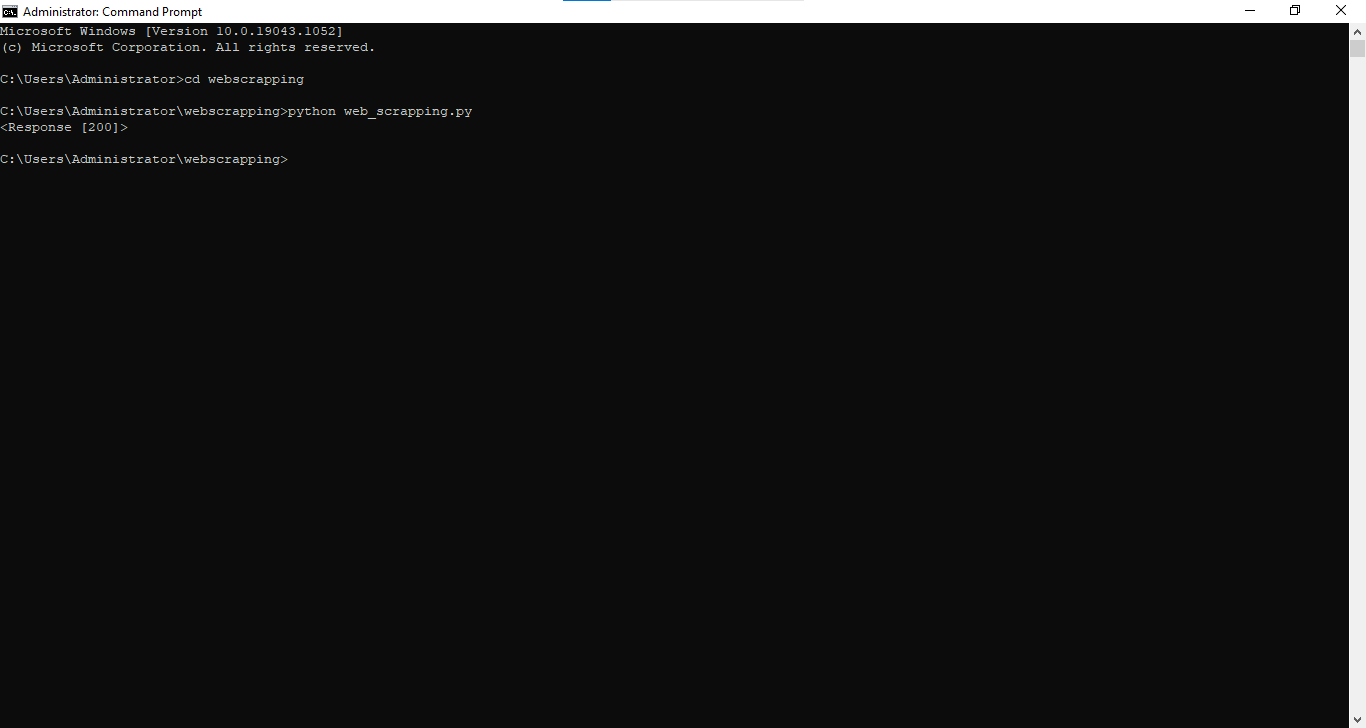
The
response.content property returns the raw bytes of the response. The
response.text property returns the decoded string. BeautifulSoup accepts either format. Use
response.content for pages with mixed or uncertain character encodings, because BeautifulSoup auto-detects the encoding from the raw bytes.
Step 3: Inspect the HTML Structure with Browser Developer Tools
BeautifulSoup extracts data based on HTML tag names, class names, and attribute values. Open the target page in a browser and press F12 to open the developer tools. Use the element inspector to identify the HTML structure of each product listing.
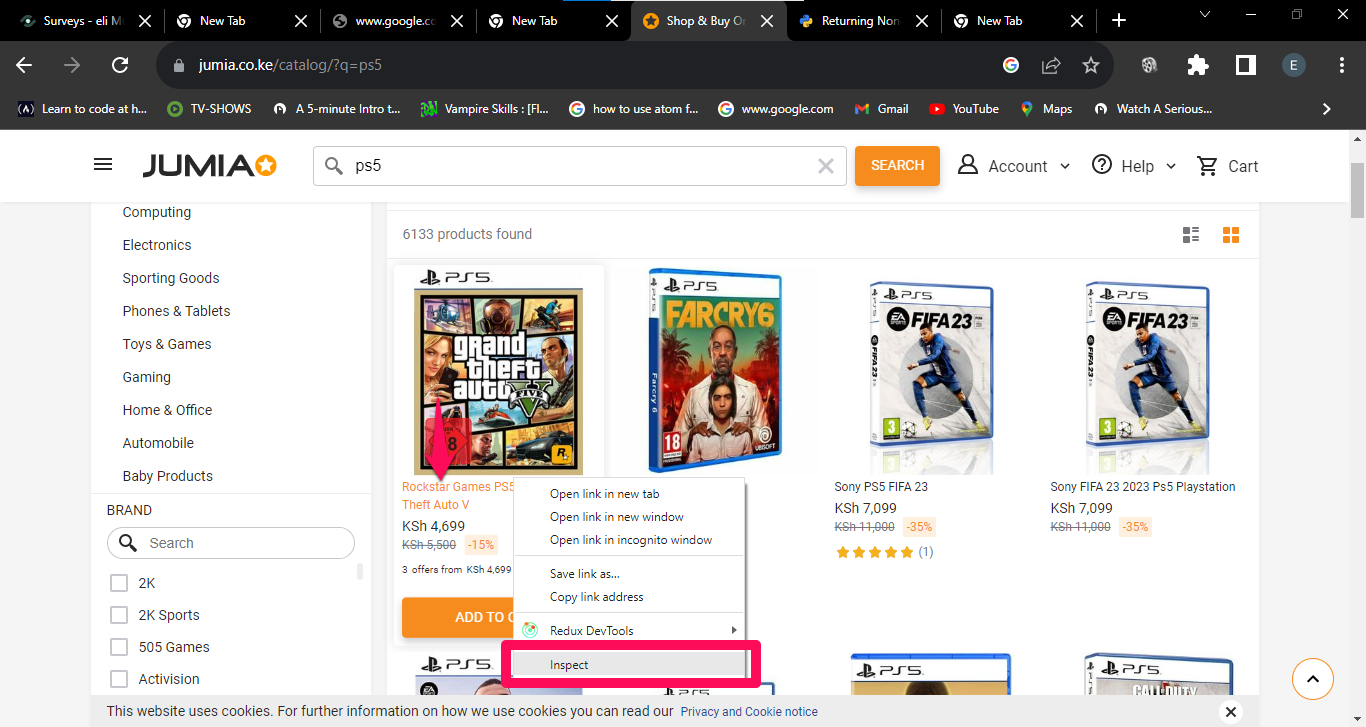
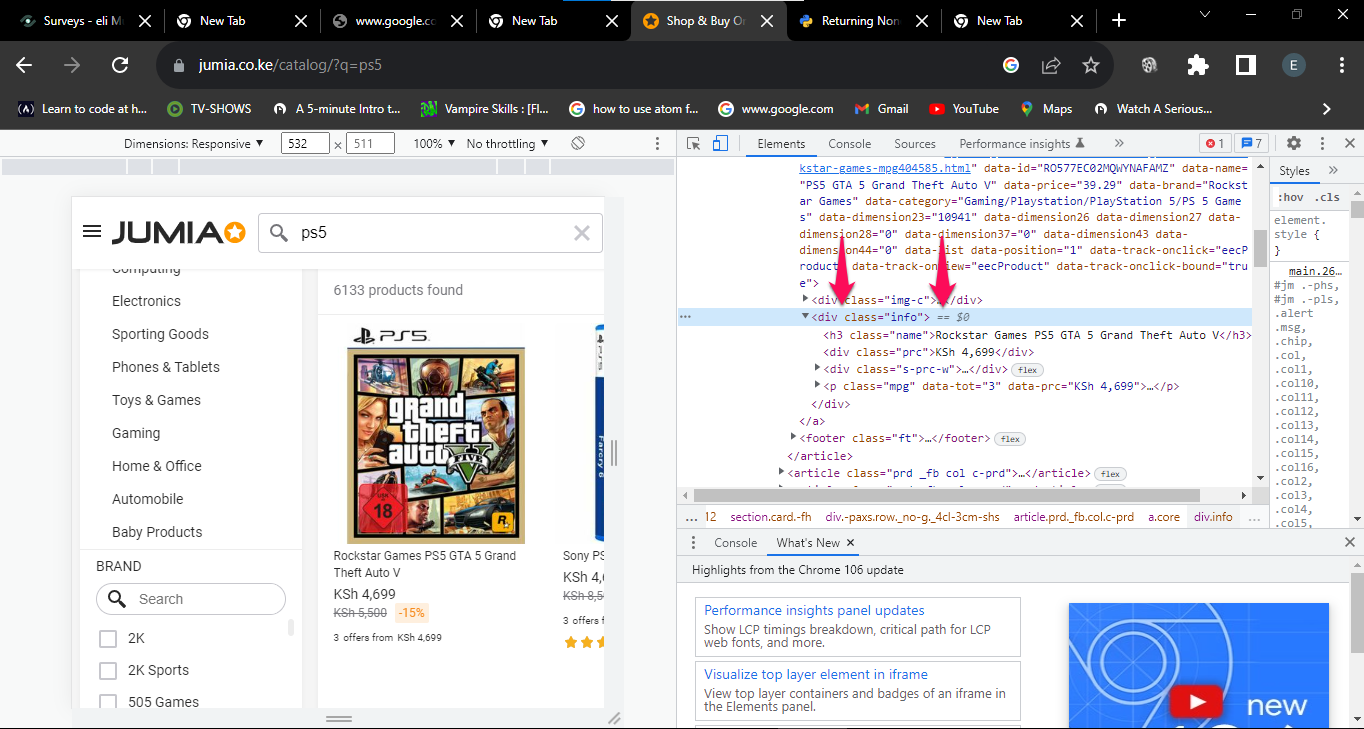
Look for a repeating container element that wraps each product (such as
<div class="info">). Inside each container, identify the child elements that hold the product name, current price, and original price. Note the exact tag names and class names. BeautifulSoup uses these identifiers to locate each piece of data in the parse tree.
Inspecting the HTML before writing code prevents trial-and-error debugging. The HTML structure varies across websites, and class names change when sites update their front-end code. If the scraper stops working, re-inspect the HTML to find updated class names.
Step 4: Parse the HTML and Locate Product Containers with BeautifulSoup
BeautifulSoup's
find_all() method returns a
ResultSet of all elements matching the specified tag and class. Pass
response.content to the constructor for reliable encoding detection.
soup = BeautifulSoup(response.content, "lxml")

products = soup.find_all("div", class_="info")
print(f"Found {len(products)} products")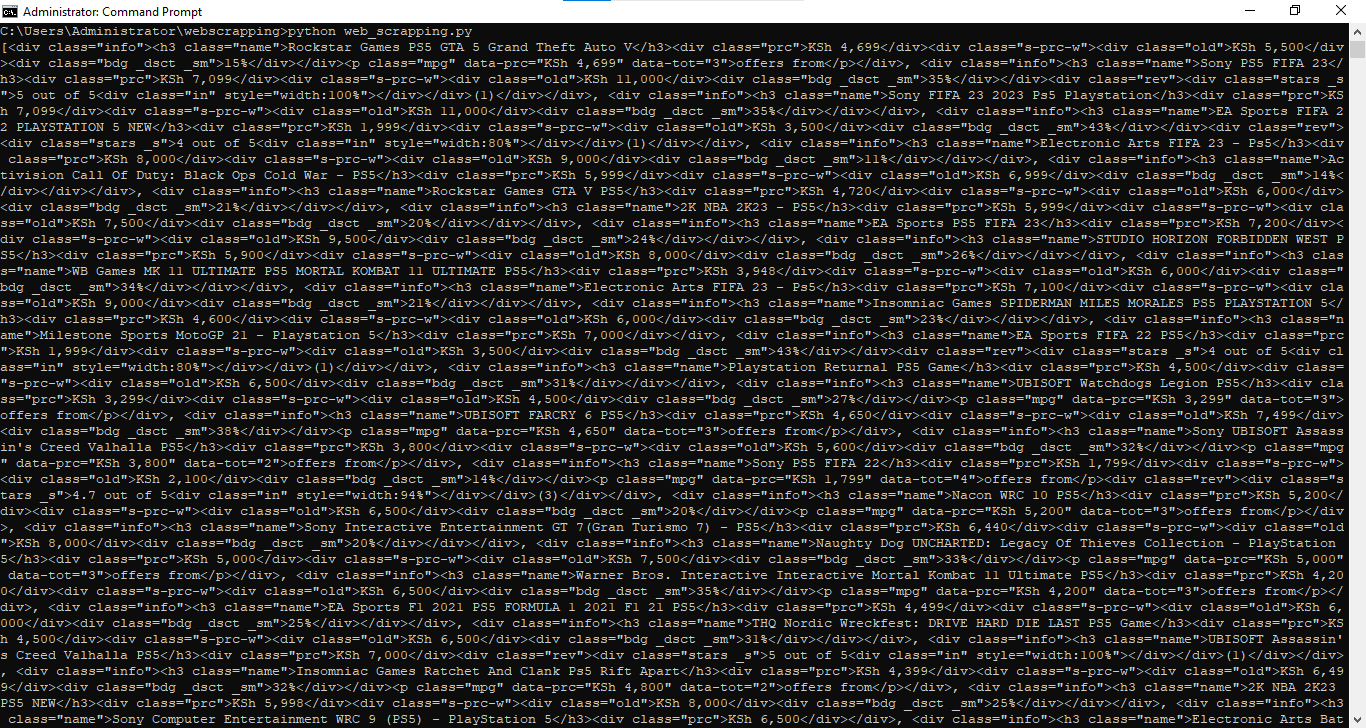
The
find_all("div", class_="info") call returns every
<div> element with the CSS class
info. Each element in the
ResultSet is a
Tag object that supports further searching with
find(),
find_all(), and
select(). If
find_all() returns an empty list, the class name or tag name does not match the actual HTML. Re-inspect the page to verify the selectors.
Step 5: Extract Product Names and Prices from Each BeautifulSoup Tag
BeautifulSoup's
find() method locates child elements within each product container. The
get_text(strip=True) method returns the element's text content with whitespace removed. Always check for
None before accessing text properties.
for product in products:
    name_element = product.find("h3", class_="name")
    product_name = name_element.get_text(strip=True) if name_element else "N/A"

    price_element = product.find("div", class_="prc")
    current_price = price_element.get_text(strip=True) if price_element else "N/A"

    old_price_element = product.find("div", class_="old")
    old_price = old_price_element.get_text(strip=True) if old_price_element else "N/A"

    print(f"{product_name} | {current_price} | {old_price}")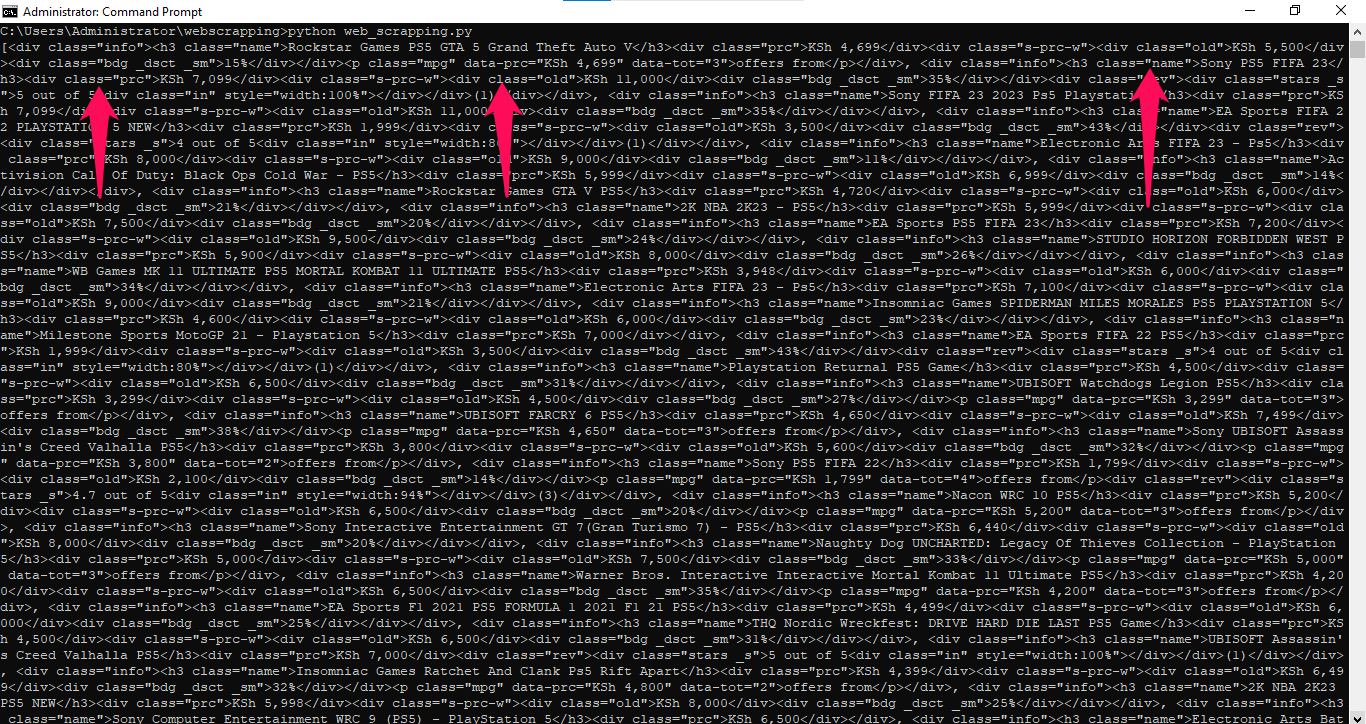
The conditional expression
element.get_text(strip=True) if element else "N/A" handles missing elements gracefully. Some products may lack an old price (no discount), which means the
<div class="old"> tag does not exist for those items. Without this check, BeautifulSoup would raise an
AttributeError when
find() returns
None.
Step 6: Save the Extracted Product Data to a CSV File
Python's
csv.writer writes each product as a row in a CSV file. Open the file with
encoding="utf-8" to handle product names that contain non-ASCII characters. The
newline="" parameter prevents blank rows between entries on Windows.
with open("products.csv", "w", encoding="utf-8", newline="") as f:
    csv_writer = writer(f)

    csv_writer.writerow(["Product Name", "Current Price", "Old Price"])

    for product in products:
        name_elem = product.find("h3", class_="name")
        price_elem = product.find("div", class_="prc")
        old_elem = product.find("div", class_="old")

        name = name_elem.get_text(strip=True) if name_elem else "N/A"
        price = price_elem.get_text(strip=True) if price_elem else "N/A"
        old = old_elem.get_text(strip=True) if old_elem else "N/A"

        csv_writer.writerow([name, price, old])

print("Data saved to products.csv")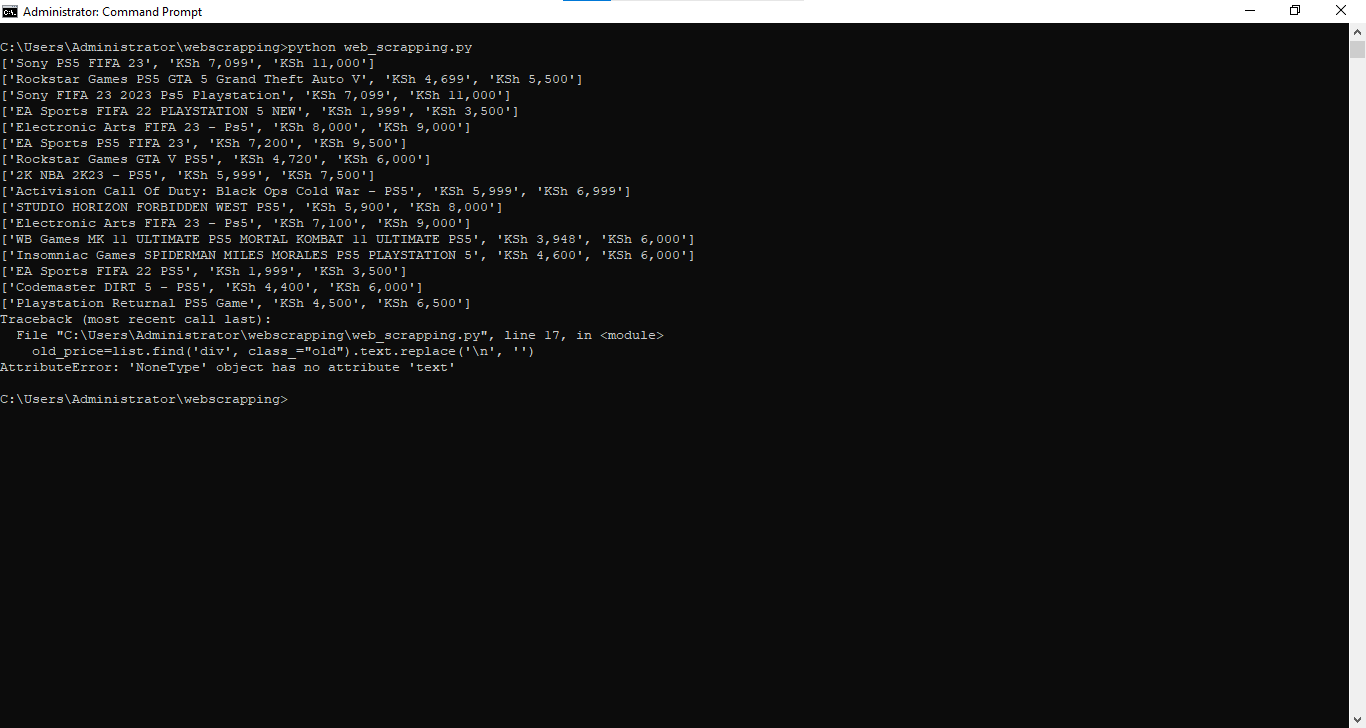
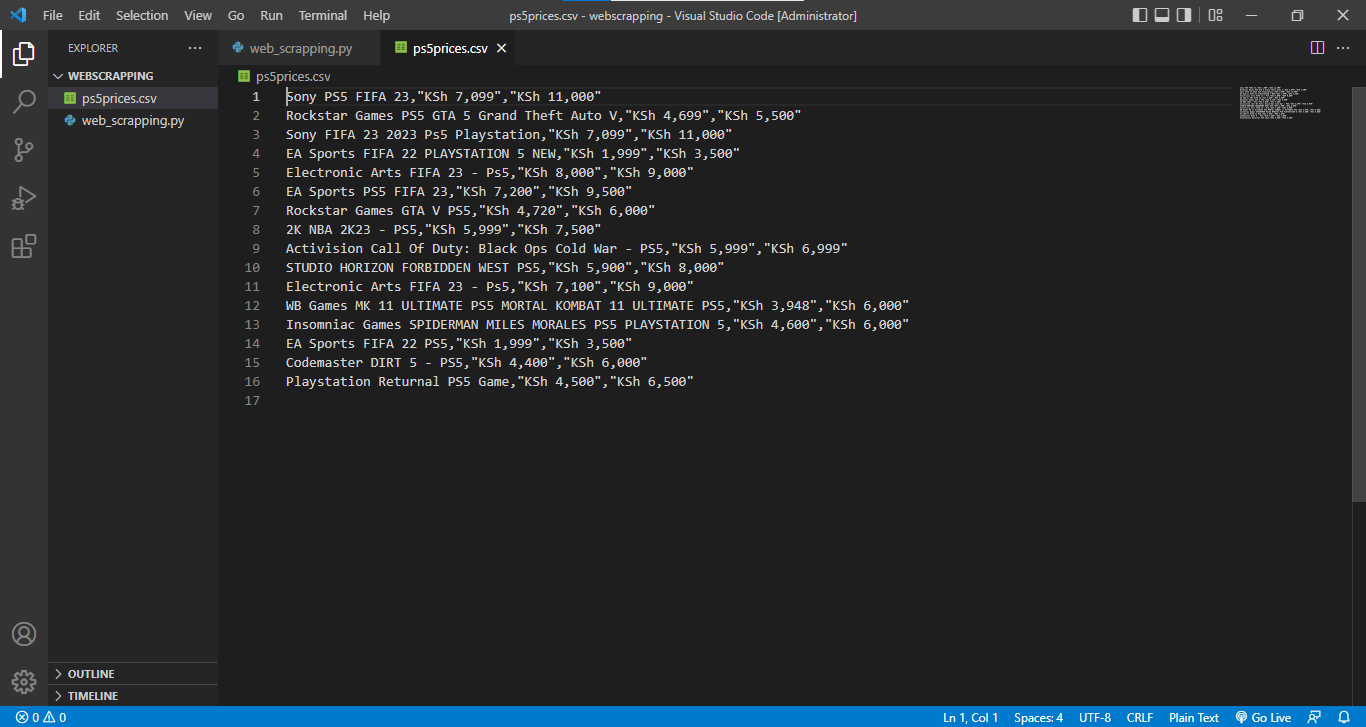
The
csv.writer escapes commas, quotation marks, and newlines inside field values automatically. Writing the header row first (
["Product Name", "Current Price", "Old Price"]) makes the CSV file self-describing for spreadsheet applications and data analysis tools.
Step 7: Add Error Handling to the Complete BeautifulSoup Scraping Script
This complete script combines all steps with error handling for HTTP failures and parsing exceptions.
from bs4 import BeautifulSoup
import requests
from csv import writer

url = "https://www.example-shop.com/products"

try:
    response = requests.get(url, timeout=10)
    response.raise_for_status()

    soup = BeautifulSoup(response.content, "lxml")
    products = soup.find_all("div", class_="info")

    with open("products.csv", "w", encoding="utf-8", newline="") as f:
        csv_writer = writer(f)
        csv_writer.writerow(["Product Name", "Current Price", "Old Price"])

        for product in products:
            name_elem = product.find("h3", class_="name")
            price_elem = product.find("div", class_="prc")
            old_elem = product.find("div", class_="old")

            name = name_elem.get_text(strip=True) if name_elem else "N/A"
            price = price_elem.get_text(strip=True) if price_elem else "N/A"
            old = old_elem.get_text(strip=True) if old_elem else "N/A"

            csv_writer.writerow([name, price, old])

    print(f"Successfully scraped {len(products)} products to products.csv")

except requests.exceptions.RequestException as e:
    print(f"Error fetching data: {e}")
except Exception as e:
    print(f"An error occurred: {e}")
The
response.raise_for_status() call raises an
HTTPError for 4xx and 5xx status codes. This stops the script from parsing error pages as if they contained product data. The broad
except Exception block catches unexpected parsing errors without crashing the script.
What You Learned
BeautifulSoup (bs4) extracts structured data from HTML by navigating a parse tree of
Tag objects. Browser developer tools reveal the HTML structure that BeautifulSoup selectors target. The
find_all() method locates repeating container elements such as product listings. The
find() method extracts child elements within each container. Python's
csv.writer saves extracted data to a CSV file with proper escaping. Checking for
None before accessing BeautifulSoup element properties prevents
AttributeError exceptions.
What to Do Next
To scrape pages that require login, see BeautifulSoup tutorial: scrape authenticated pages with session cookies.
To scrape multiple pages of product listings, add pagination logic that fetches each page URL in a loop and appends results to the same CSV file.
For recommended patterns on rate limiting and error handling, see the BeautifulSoup best practicespage.