
BeautifulSoup snippets
Copy-paste BeautifulSoup code snippets for finding elements, extracting data, CSS selectors, and tree navigation in Python.
- Finding Elements in BeautifulSoup
- Find the First Element by Tag Name with BeautifulSoup find()
- Find All Elements by Tag Name with BeautifulSoup find_all()
- Limit the Number of Results from BeautifulSoup find_all()
- Find Elements by CSS Class with BeautifulSoup
- Find Elements with Multiple CSS Classes in BeautifulSoup
- Find an Element by ID with BeautifulSoup
- Find Elements by HTML Attributes with BeautifulSoup
- Find Multiple Tag Types at Once with BeautifulSoup
- CSS Selectors in BeautifulSoup
- Use Basic CSS Selectors with BeautifulSoup select()
- Use Advanced CSS Selectors with BeautifulSoup select()
- Combine CSS Selectors in BeautifulSoup for Precise Targeting
- Using XPath with BeautifulSoup via lxml
- Convert BeautifulSoup Output to lxml for XPath Queries
- Common XPath Patterns for Use with BeautifulSoup and lxml
- Navigating the BeautifulSoup Parse Tree
- Navigate Parent, Child, and Sibling Elements in BeautifulSoup
- Extracting Text and Attributes with BeautifulSoup
- Extract Text Content from HTML with BeautifulSoup
- Extract HTML Attribute Values with BeautifulSoup
- Filtering Elements with Custom Functions in BeautifulSoup
- Use a Custom Function to Filter BeautifulSoup Results
- Use a Lambda Function to Filter BeautifulSoup Results by Text
- Modifying the BeautifulSoup Parse Tree
- Add New Elements to the BeautifulSoup Parse Tree
- Remove Elements from the BeautifulSoup Parse Tree
- Modify Text and Attributes in BeautifulSoup
- Formatting BeautifulSoup Output
- Pretty-Print HTML with BeautifulSoup
Finding Elements in BeautifulSoup
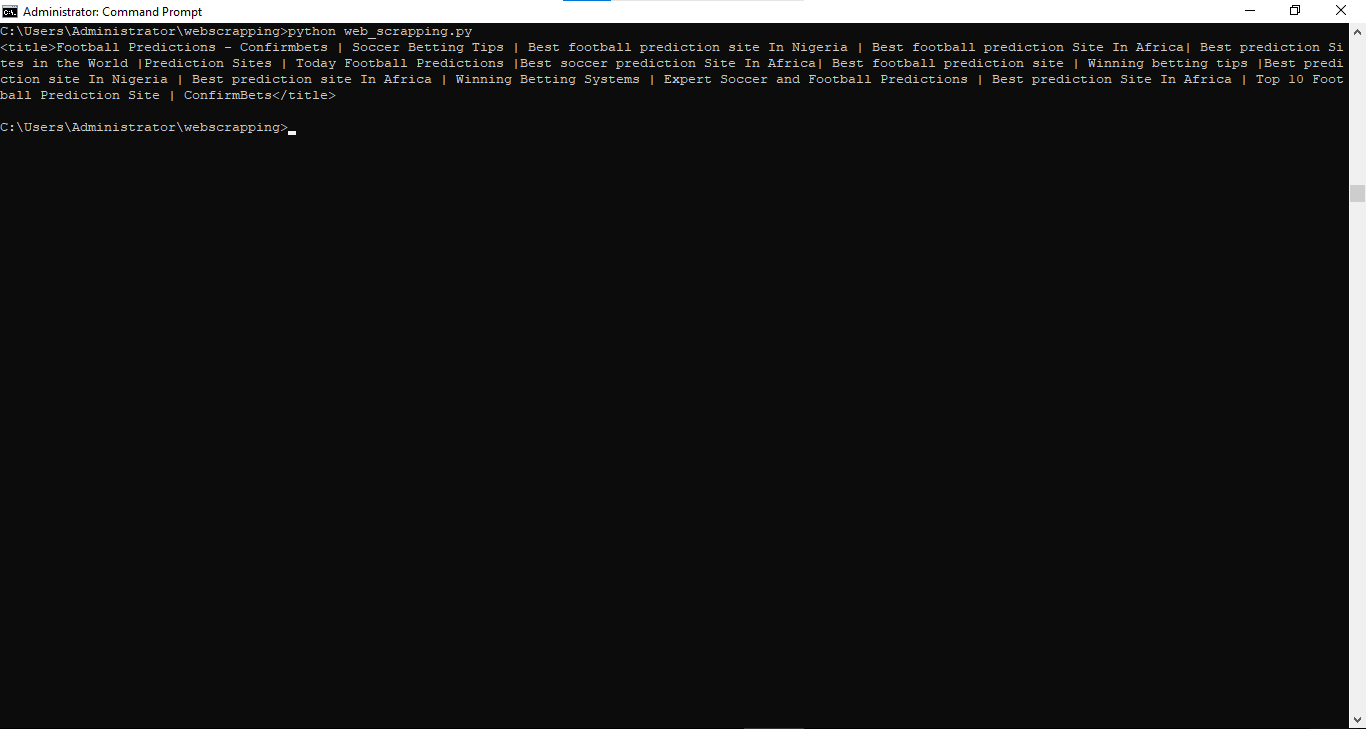
Find the First Element by Tag Name with BeautifulSoup find()
BeautifulSoup's
find() method returns the first
Tag matching the specified tag name. Access the element's text with
.string or
.get_text().
title_tag = soup.find("title")
print(title_tag)         # <title>Page Title</title>
print(title_tag.string)  # Page Title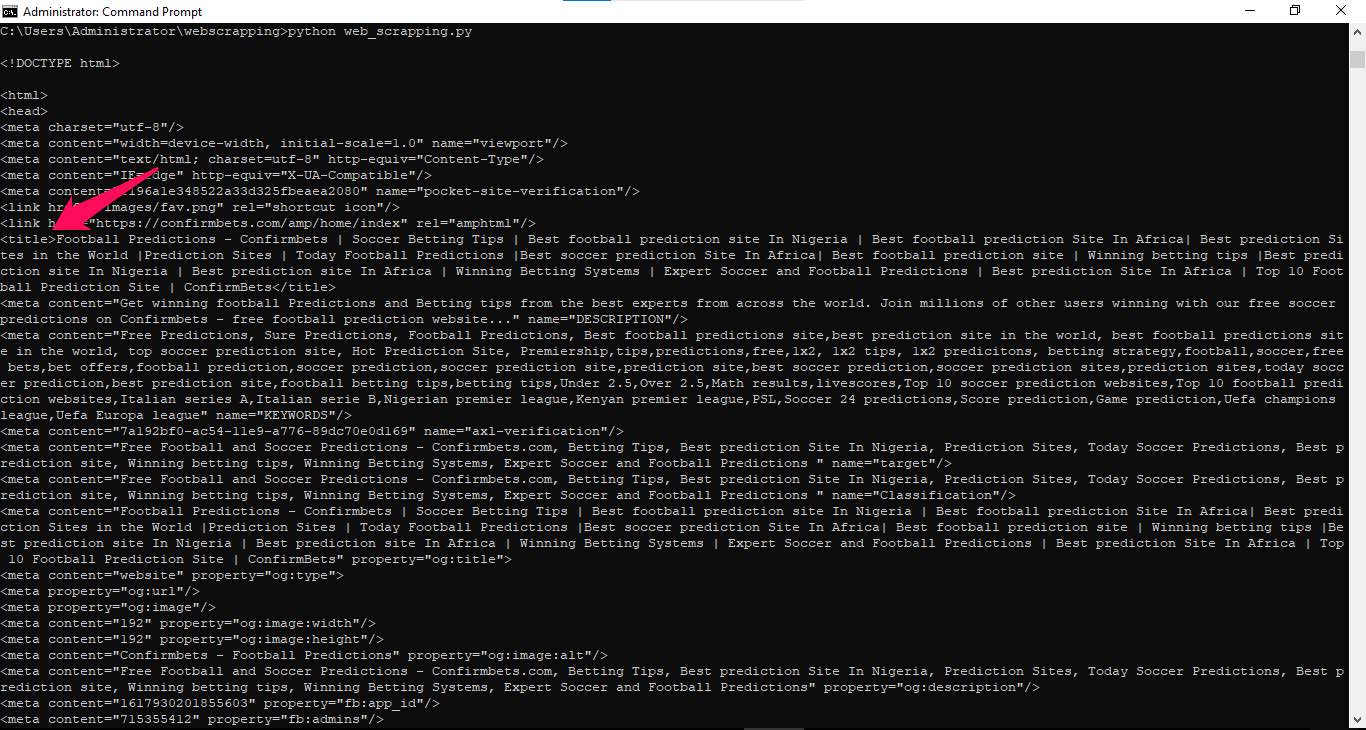
Find All Elements by Tag Name with BeautifulSoup find_all()
BeautifulSoup's
find_all() method returns a
ResultSet of every element matching the tag name. Iterate over the result to process each element.
all_paragraphs = soup.find_all("p")
print(f"Found {len(all_paragraphs)} paragraphs")

for p in all_paragraphs:
    print(p.text)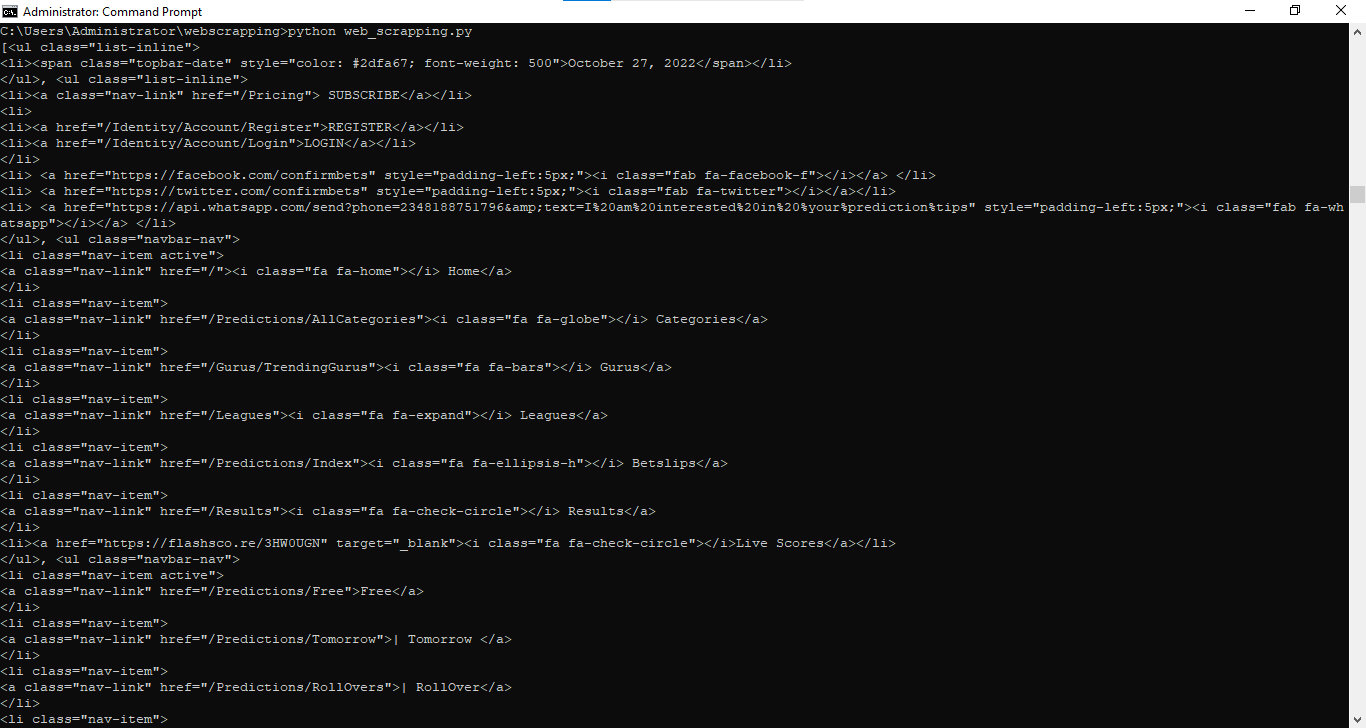
Limit the Number of Results from BeautifulSoup find_all()
BeautifulSoup's
find_all() method accepts a
limit parameter to stop searching after a set number of matches. This reduces processing time on large documents.
first_five = soup.find_all("div", limit=5)Find Elements by CSS Class with BeautifulSoup
BeautifulSoup uses the
class_ parameter (with an underscore) to filter elements by CSS class name. The underscore avoids conflict with Python's reserved
class keyword.
elements = soup.find_all(class_="product-info")
divs = soup.find_all("div", class_="container")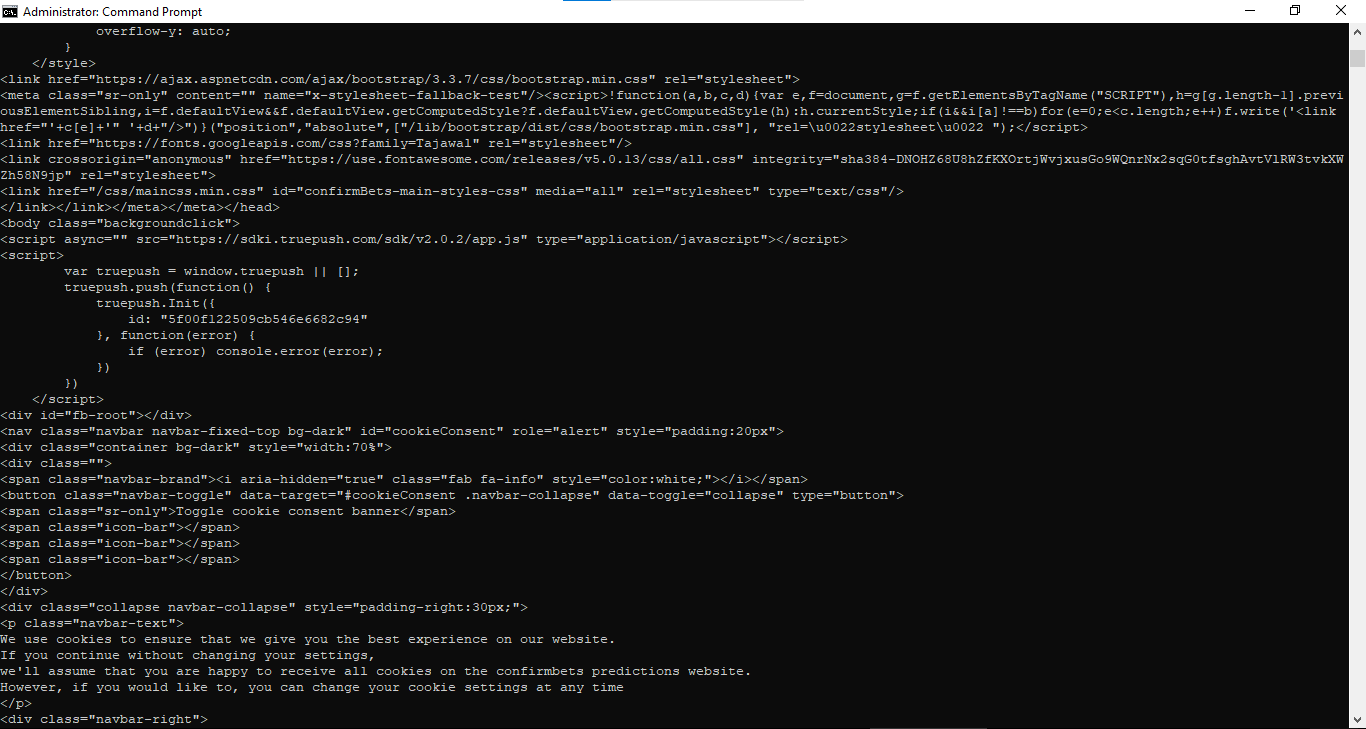
Find Elements with Multiple CSS Classes in BeautifulSoup
BeautifulSoup matches elements that contain all specified CSS classes when you pass a space-separated string to
class_.
elements = soup.find_all(class_="btn btn-primary")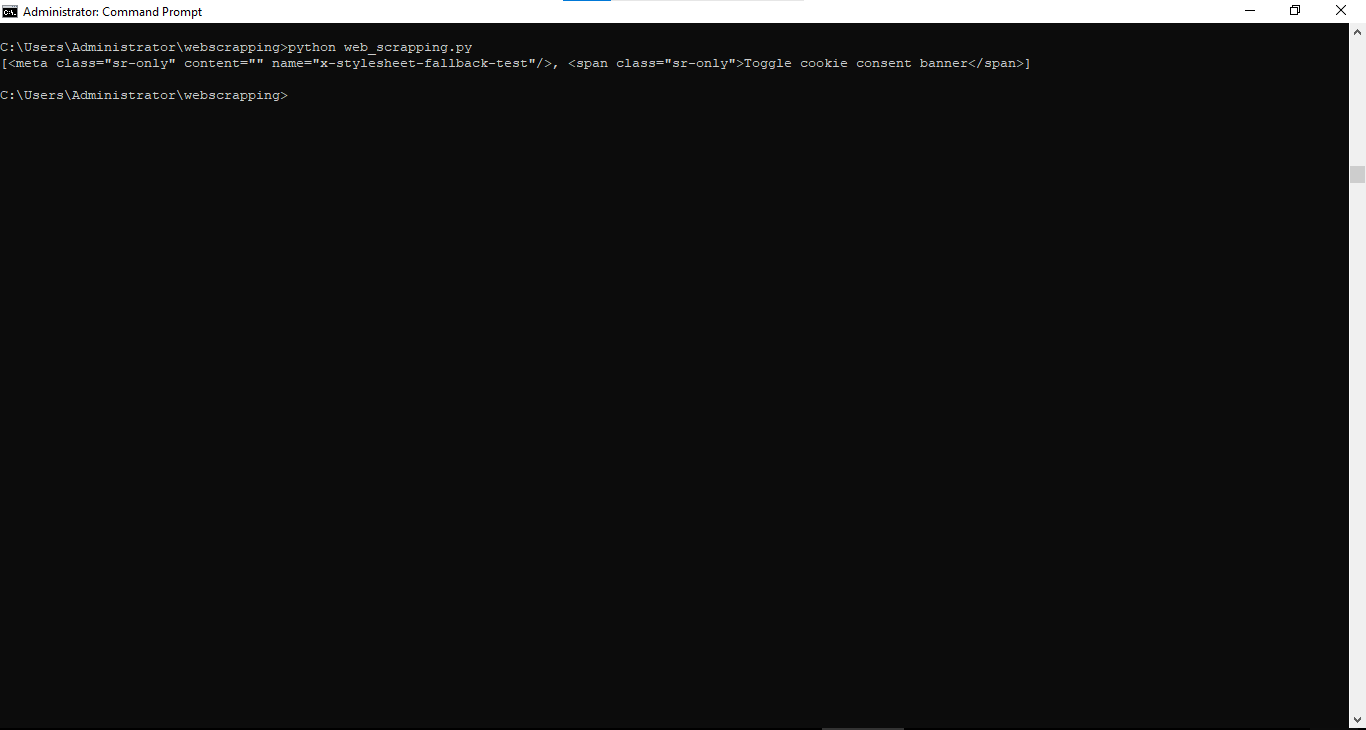
Find an Element by ID with BeautifulSoup
BeautifulSoup's
find() method accepts an
id parameter to locate a single element by its HTML
id attribute. The
select_one() method achieves the same result using CSS selector syntax.
element = soup.find(id="main-content")
element = soup.select_one("#main-content")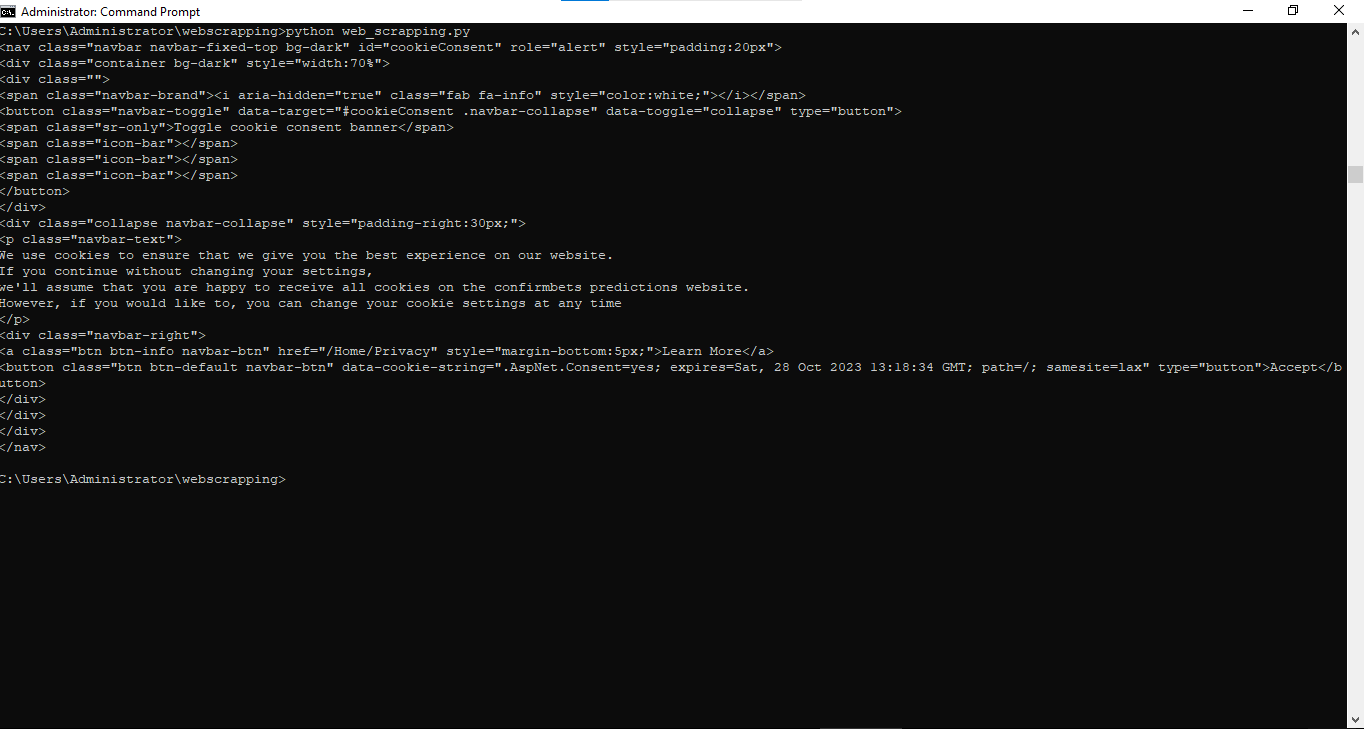
Find Elements by HTML Attributes with BeautifulSoup
BeautifulSoup's
attrs parameter accepts a dictionary of attribute-value pairs. Pass
True as the value to match any element that has the attribute, regardless of its value.
links = soup.find_all("a", attrs={"target": "_blank"})
images = soup.find_all("img", attrs={"alt": "Logo"})

# Find all elements that have a specific attribute (any value)
elements = soup.find_all(href=True)
images = soup.find_all("img", src=True)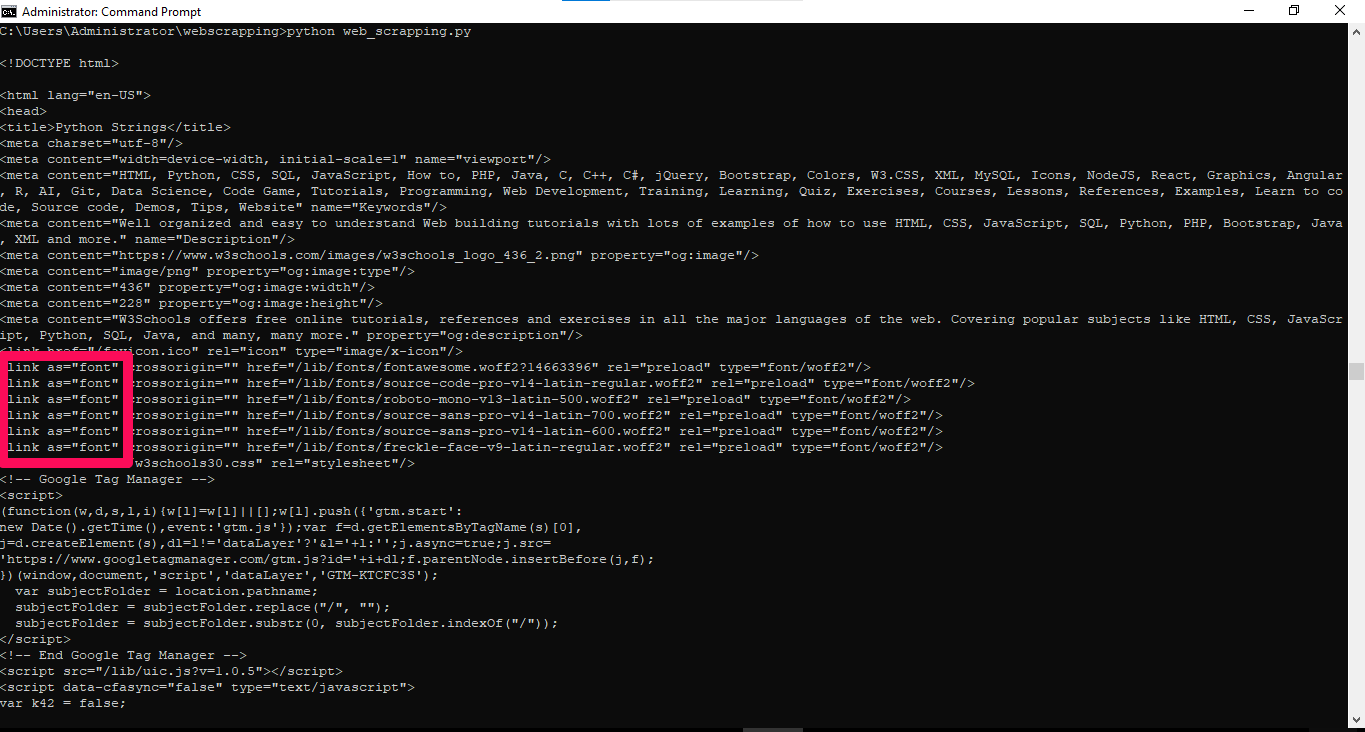
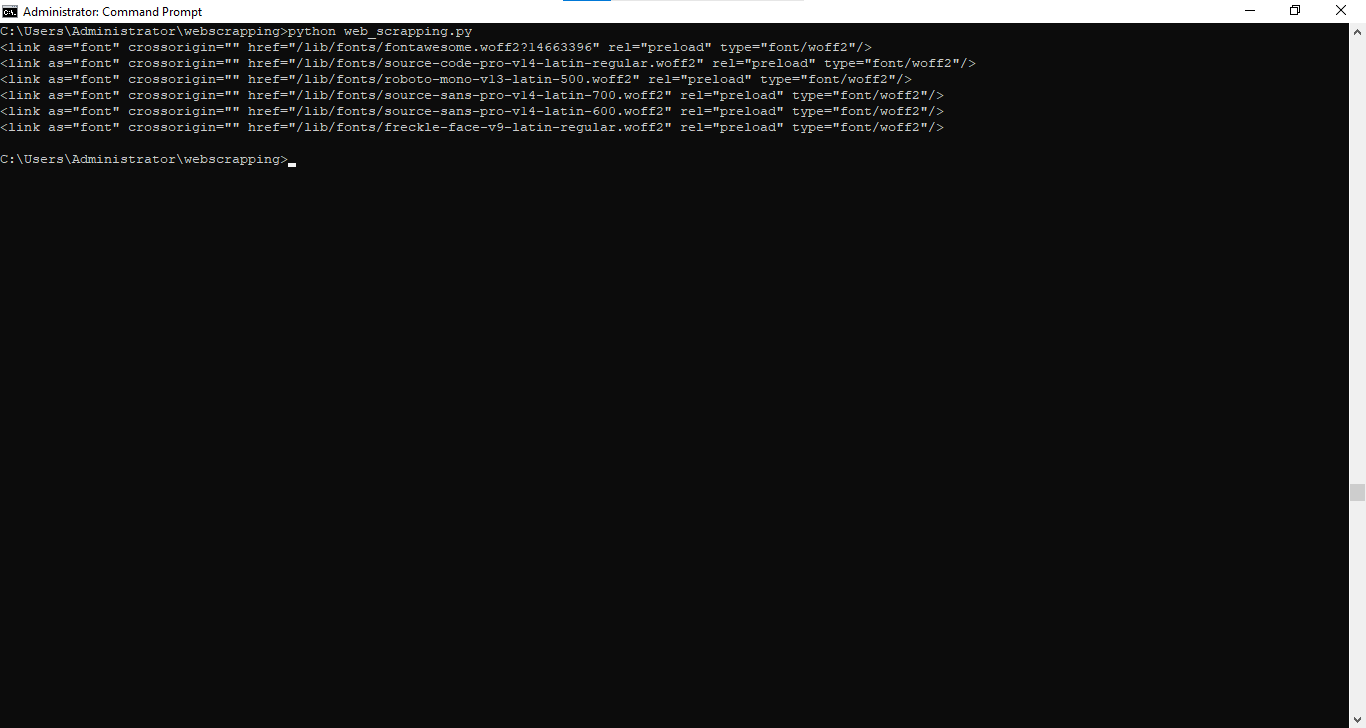
Find Multiple Tag Types at Once with BeautifulSoup
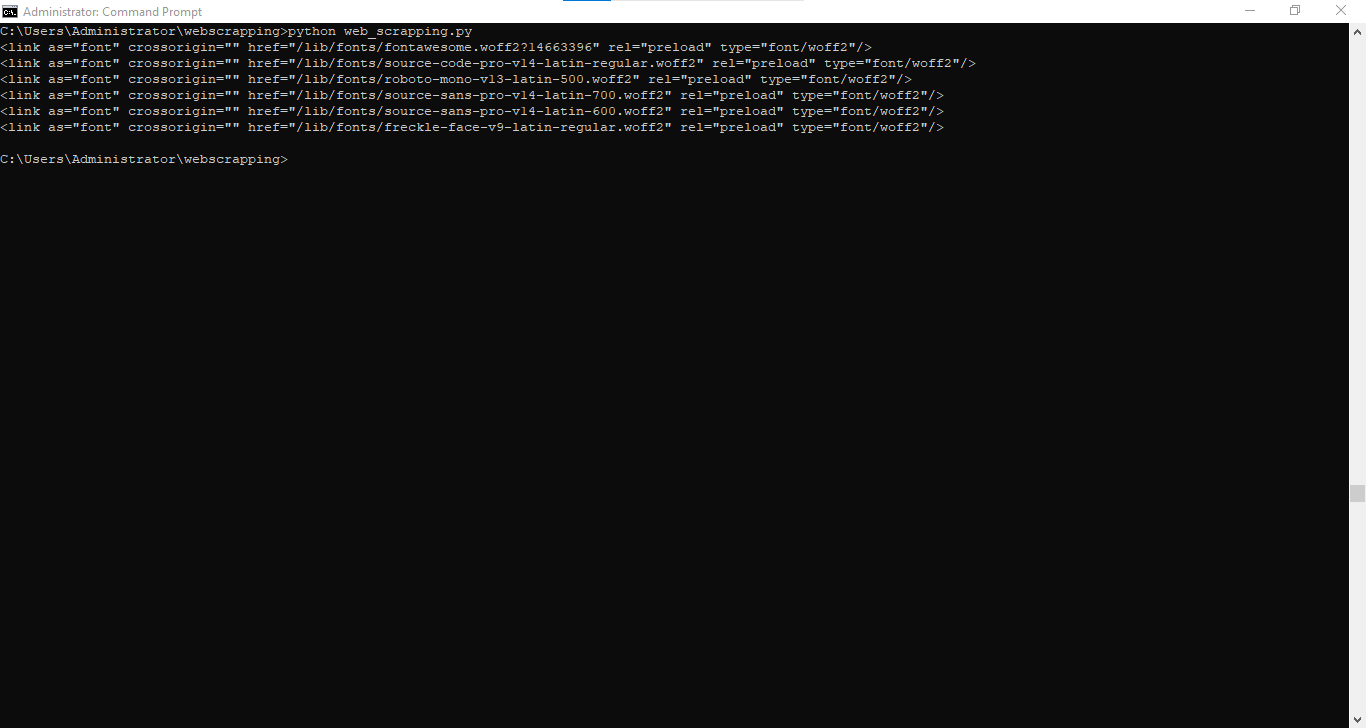
BeautifulSoup's
find_all() method accepts a list of tag names to match multiple element types in a single call.
headings = soup.find_all(["h1", "h2", "h3"])
divs = soup.find_all("div", class_=["container", "wrapper"])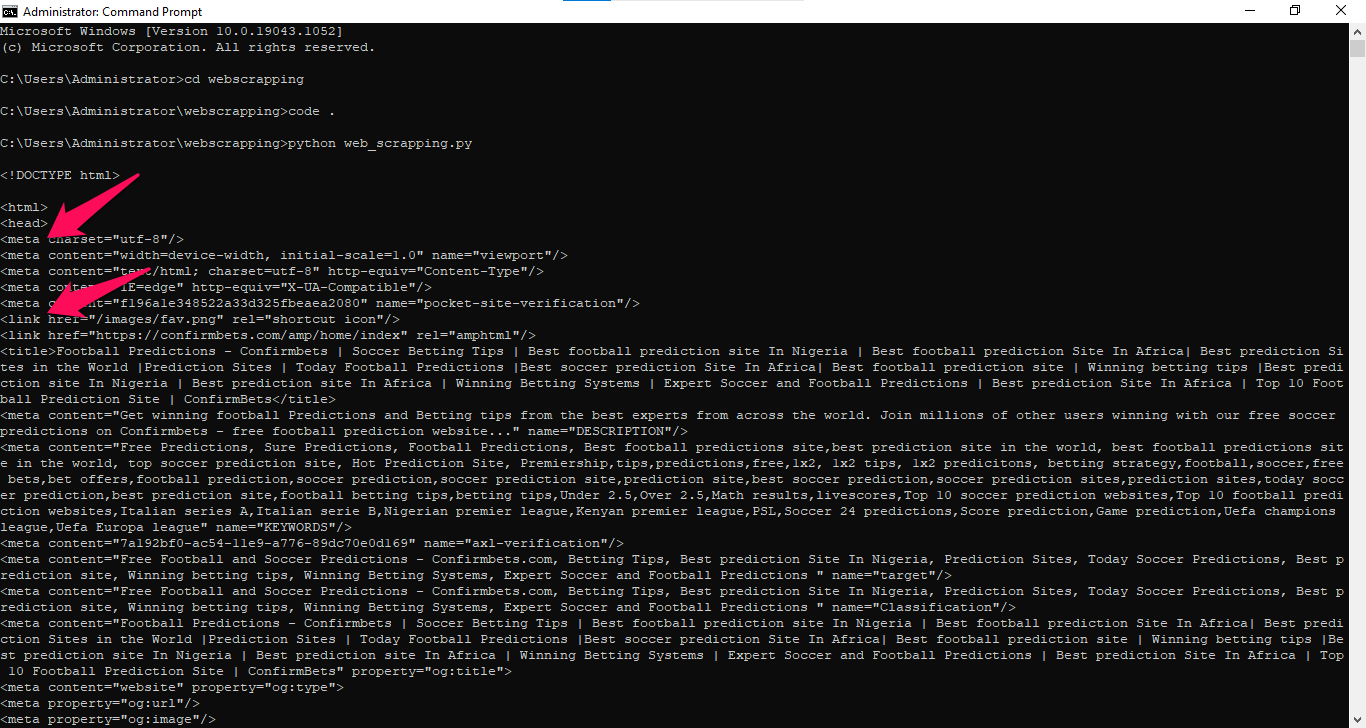
CSS Selectors in BeautifulSoup
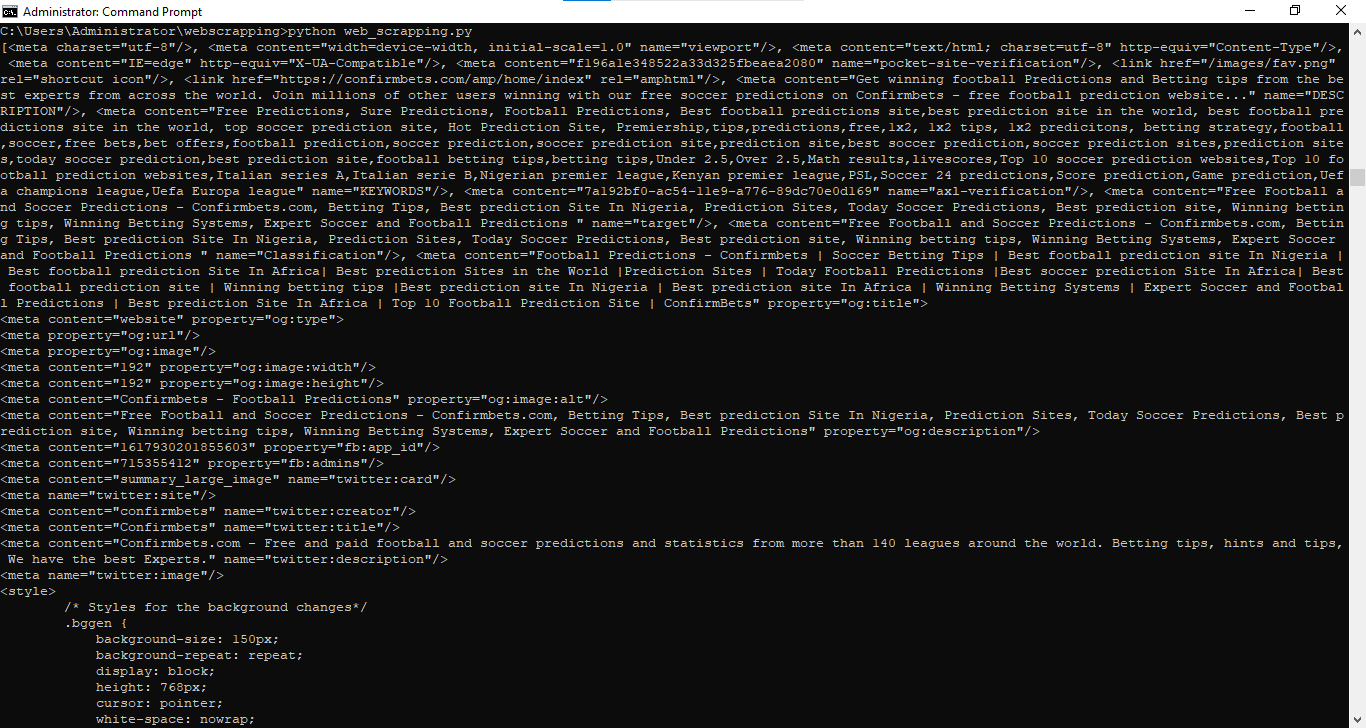
Use Basic CSS Selectors with BeautifulSoup select()
BeautifulSoup's
select() method accepts standard CSS selector strings. Use tag names, class selectors (
.), ID selectors (
#), and attribute selectors (
[attr]).
paragraphs = soup.select("p")
products = soup.select(".product")
header = soup.select("#header")
links = soup.select("a[href]")
external = soup.select('a[target="_blank"]')
Use Advanced CSS Selectors with BeautifulSoup select()
BeautifulSoup supports descendant selectors, child selectors (
>), multiple selectors (
,), and pseudo-classes through the SoupSieve library.
items = soup.select("div.container p")        # Descendant selector
children = soup.select("ul > li")             # Direct child selector
elements = soup.select("h1, h2, h3")          # Multiple selectors
first = soup.select("li:first-child")         # Pseudo-class
even_rows = soup.select("tr:nth-child(even)") # Nth-child pseudo-class
Combine CSS Selectors in BeautifulSoup for Precise Targeting
BeautifulSoup chains CSS selectors to narrow results. Combine class, attribute, and hierarchy selectors in a single query string.
products = soup.select(".product[data-id]")
buttons = soup.select(".btn.btn-primary")
titles = soup.select("div.content > article.post h2.title")
Using XPath with BeautifulSoup via lxml
Convert BeautifulSoup Output to lxml for XPath Queries
BeautifulSoup does not support XPath natively. Convert the parsed HTML to an lxml
etree object to run XPath expressions.
from bs4 import BeautifulSoup
from lxml import etree

soup = BeautifulSoup(html, "lxml")
dom = etree.HTML(str(soup))

titles = dom.xpath('//h1[@class="title"]/text()')
links = dom.xpath("//a/@href")
Common XPath Patterns for Use with BeautifulSoup and lxml
These XPath expressions work on the lxml
etree object created from BeautifulSoup output.
dom.xpath("/html/body/div/p")                     # Absolute path
dom.xpath('//div[@class="content"]//p')            # Relative path
dom.xpath('//a[@target="_blank"]')                 # By attribute
dom.xpath('//p[contains(text(), "keyword")]')      # By text content
dom.xpath("//img/@src")                            # Attribute values
Navigating the BeautifulSoup Parse Tree
Navigate Parent, Child, and Sibling Elements in BeautifulSoup
BeautifulSoup exposes tree navigation through
.parent,
.children,
.descendants,
.next_sibling, and
.previous_sibling attributes on every
Tag object.
element = soup.find("span", class_="price")

parent = element.parent
children = list(element.children)
descendants = list(element.descendants)
next_el = element.next_sibling
prev_el = element.previous_sibling
next_siblings = list(element.next_siblings)
Extracting Text and Attributes with BeautifulSoup
Extract Text Content from HTML with BeautifulSoup
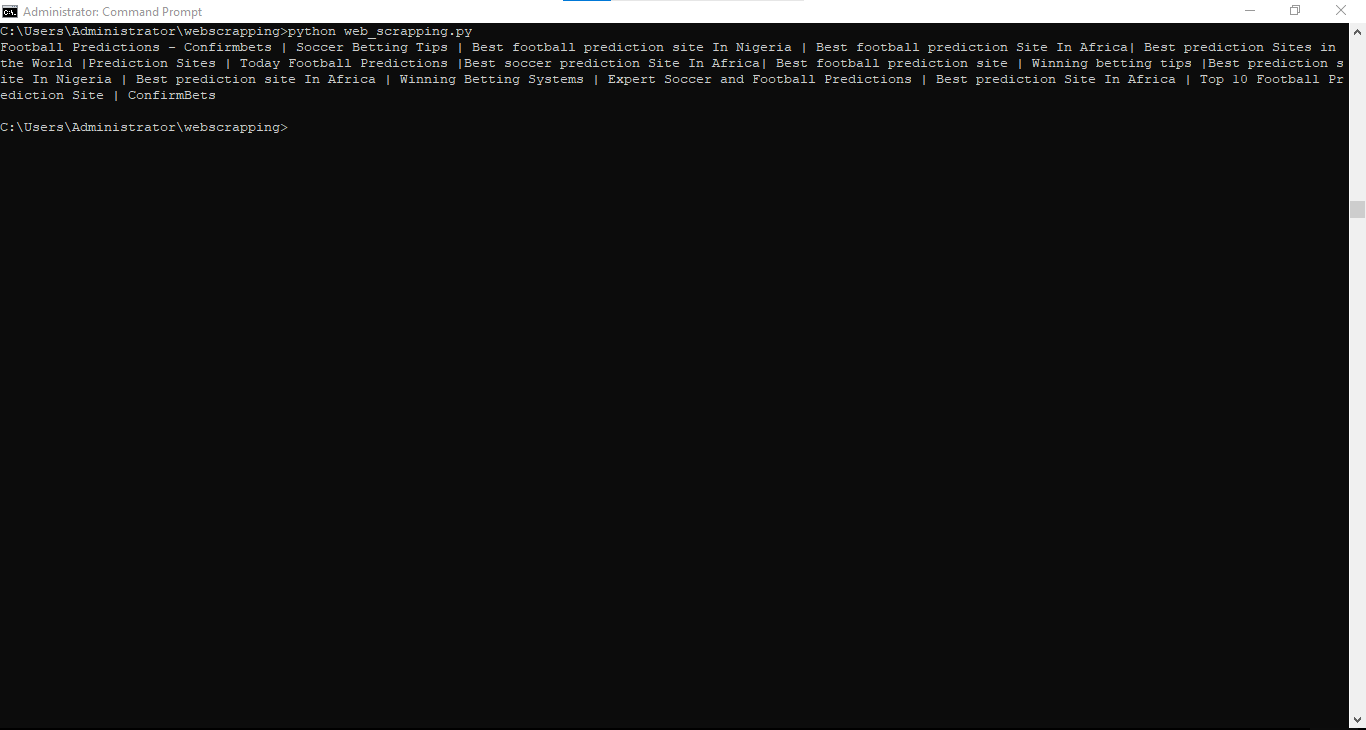
BeautifulSoup provides
.text,
.string, and
.get_text() for extracting text. The
.get_text() method offers
strip and
separator parameters for formatting control.
title = soup.find("h1").text
clean_text = soup.find("p").get_text(strip=True)
text = soup.get_text(separator=" | ")
title_string = soup.find("title").string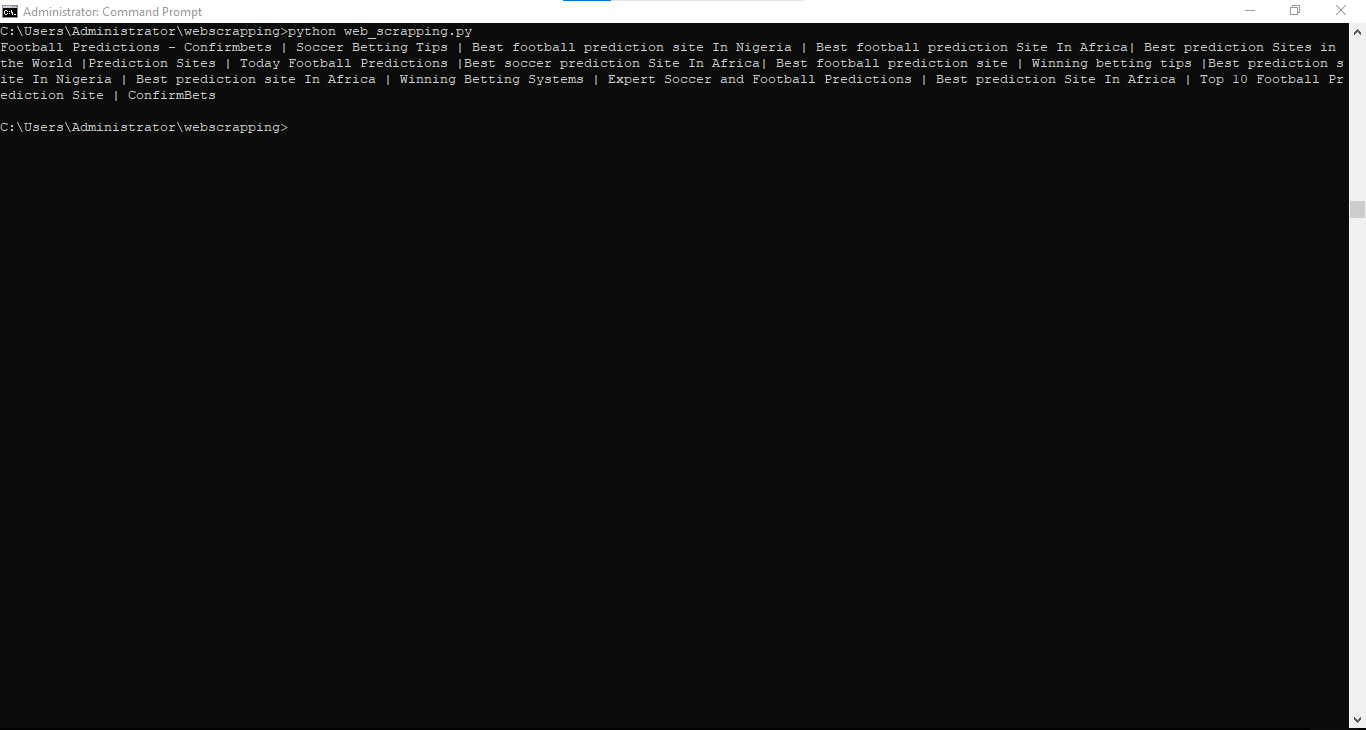
Extract HTML Attribute Values with BeautifulSoup
BeautifulSoup reads attributes with dictionary-style access or
.get(). The
.attrs property returns all attributes as a Python dictionary. The
.has_attr() method checks whether an attribute exists.
link = soup.find("a")
url = link.get("href")
url = link["href"]  # Raises KeyError if attribute missing

attrs = link.attrs
if link.has_attr("target"):
    print(link["target"])
Filtering Elements with Custom Functions in BeautifulSoup
Use a Custom Function to Filter BeautifulSoup Results
BeautifulSoup's
find_all() method accepts a function as its first argument. The function receives each
Tag and returns
True for elements that match.
def has_price_class(tag):
    return tag.has_attr("class") and "price" in tag["class"]

prices = soup.find_all(has_price_class)
Use a Lambda Function to Filter BeautifulSoup Results by Text
BeautifulSoup's
string parameter accepts a function to filter elements based on their text content.
python_jobs = soup.find_all(
    "h2",
    string=lambda text: "python" in text.lower() if text else False
)
Modifying the BeautifulSoup Parse Tree
Add New Elements to the BeautifulSoup Parse Tree
BeautifulSoup creates new
Tag objects with
soup.new_tag(). Append the new tag to a parent element with
.append().
new_tag = soup.new_tag("div", attrs={"class": "new-content"})
new_tag.string = "This is new content"
parent_div = soup.find("div", id="container")
parent_div.append(new_tag)
Remove Elements from the BeautifulSoup Parse Tree
BeautifulSoup's
.decompose() method removes an element and destroys it. The
.extract() method removes the element but returns it for further use.
unwanted = soup.find("div", class_="ad")
unwanted.decompose()

extracted = soup.find("span").extract()
Modify Text and Attributes in BeautifulSoup
BeautifulSoup allows direct assignment to
.string for text changes and dictionary-style assignment for attribute changes.
tag = soup.find("h1")
tag.string = "New Title"

link = soup.find("a")
link["href"] = "https://new-url.com"
tag["data-id"] = "123"
del tag["class"]
Formatting BeautifulSoup Output
Pretty-Print HTML with BeautifulSoup
BeautifulSoup's
.prettify() method returns the parsed HTML as a formatted string with indentation. Convert any element to an HTML string with
str().
print(soup.prettify())
html_string = str(soup)
div_html = str(soup.find("div", id="content"))